Drop a PDF here or click to upload
Convert a PDF to a web page (HTML and CSS)
Or drop files anywhere on this page. Files are processed in your browser and never uploaded.
Turn a PDF into a web page you can open in any browser or put on a website. Keep the exact look of every page, or get a clean, phone-friendly page with real headings, lists and tables. You get the HTML, a CSS file and the images.
Drag the PDF onto the page or click Upload PDF file. The arrow next to the button opens Google Drive. Password-protected PDFs ask for the password and are unlocked in your browser.
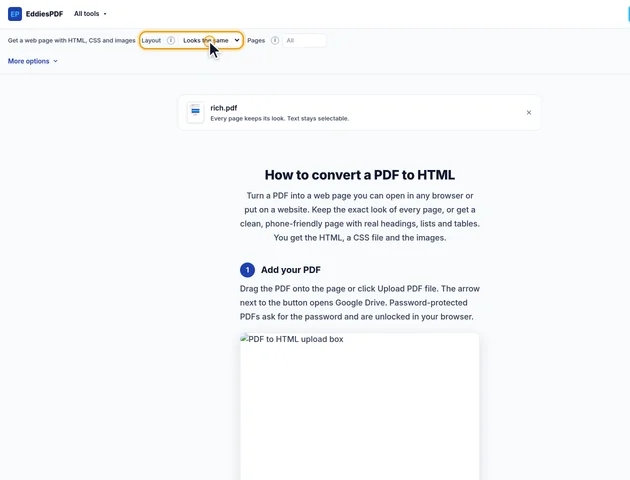
Looks the same keeps every page at its size, with the text placed where it was over a picture of the page's graphics. Clean web page rebuilds the content in reading order, with headings, paragraphs, lists, tables and pictures that fit any screen. Leave Pages empty for the whole file, or type a range such as 1-3.
Click Convert to HTML. A live preview of the web page appears, so you can scroll through it before you download.
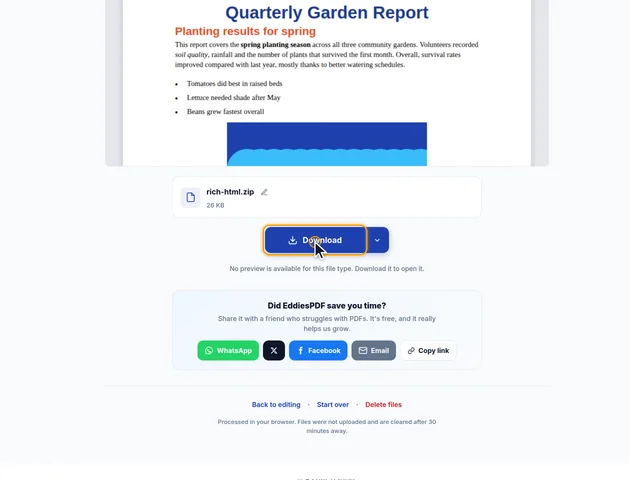
Click Continue to download. By default you get a ZIP with index.html, style.css and an images folder. Under More options, Download as can give you one .html file with everything inside instead.
Pick Looks the same for forms, brochures, flyers and anything where the design matters. Pick Clean web page when you want to edit the text, publish an article or make the content easy to read on phones.
Separate files (ZIP) is easiest to edit and upload to a website: the HTML, the CSS and each image are their own files. One .html file is easier to email or open on a phone, because the CSS and images are built into it.
A PDF and a web page work differently. A PDF fixes every letter at an exact spot on a page of a set size. A web page flows: text wraps to fit the window, and the same page has to work on a phone and on a wide monitor. That's why the converter offers two layouts instead of one compromise.
Each PDF page becomes a box with the same proportions as the page. The pictures, lines, shapes and background colors of the page are drawn into one image, with the text left out. The text is then placed on top as real HTML text, at the same position, size and color, so it can be selected, copied, searched and read by screen readers and search engines.
The sizes are set in container units, so a page shrinks to fit a phone screen and keeps its proportions without any JavaScript. The page uses the font names from the PDF with common fallbacks. If a font isn't installed on the computer showing the page, a similar one is used, and each piece of text is stretched or narrowed slightly so it still covers the same width as in the PDF.
Pages with nothing behind the text get no background image at all, which keeps the download small. Pages with photos get a JPG background, and pages with drawings or flat colors a PNG, because that keeps lines sharp.
This layout reads the page the way the PDF to Word converter does: it finds columns, puts them in reading order, joins lines into paragraphs and removes hyphenation at line ends. Large text becomes h1, h2 and h3 headings, bulleted and numbered items become lists, tables become HTML tables, and pictures are cut out and saved as JPG files.
The stylesheet uses the document's main font and body text size, with heading sizes taken from the headings it found. Text colors other than black are kept as classes. Everything else is plain, readable HTML that you can restyle.
Scanned PDFs have no text layer, only pictures of pages. With Looks the same you still get the pages as images. To get real text, run OCR PDF first. Form fields, links and comments aren't converted. Very complex layouts, such as magazine pages with text wrapped around pictures, can come out in an odd order in the clean layout, so Looks the same is the better choice for those.
The PDF is converted in your browser and isn't uploaded. Once the page has loaded, the tool also works without an internet connection.
With Looks the same, the pages keep their layout, pictures and colors and the text sits in the same place. Fonts that aren't installed on the viewer's device are replaced by similar ones and stretched to the same width, so the look stays very close.
No. The pages are plain HTML and CSS. In Looks the same, pages scale to fit phones and tablets using CSS alone.
Your file stays on your device. It is converted in the browser and never uploaded, so it isn't stored on a server.
A scan has no text, only pictures of pages. Looks the same still gives you the pages as images. To get real text, run OCR PDF first and convert the result.
