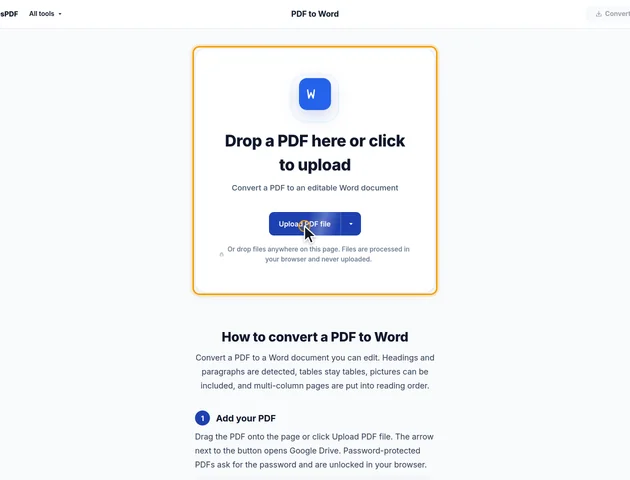
Drop a PDF here or click to upload
Convert a PDF to an editable Word document
Or drop files anywhere on this page. Files are processed in your browser and never uploaded.
Convert a PDF to a Word document you can edit. Headings and paragraphs are detected, tables stay tables, pictures can be included, and multi-column pages are put into reading order.
Drag the PDF onto the page or click Upload PDF file. The arrow next to the button opens Google Drive. Password-protected PDFs ask for the password and are unlocked in your browser.
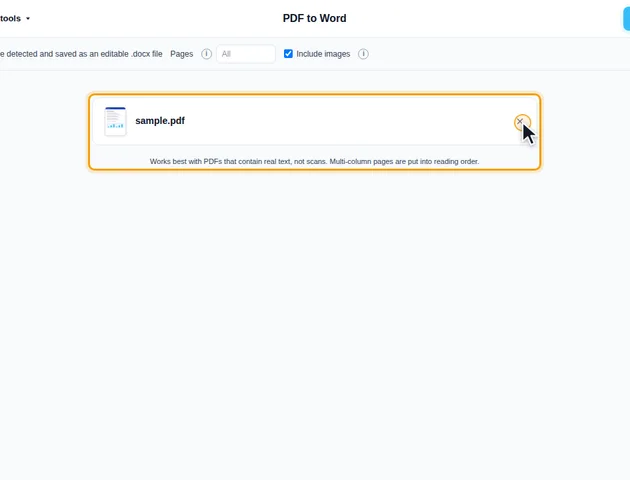
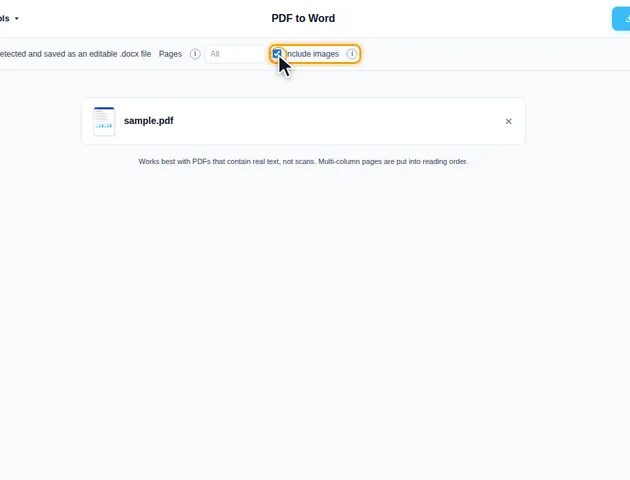
Leave Pages empty to convert the whole document, or type a range such as 1-3. Include images is ticked by default and places the PDF's pictures in the document. Untick it for text and tables only.
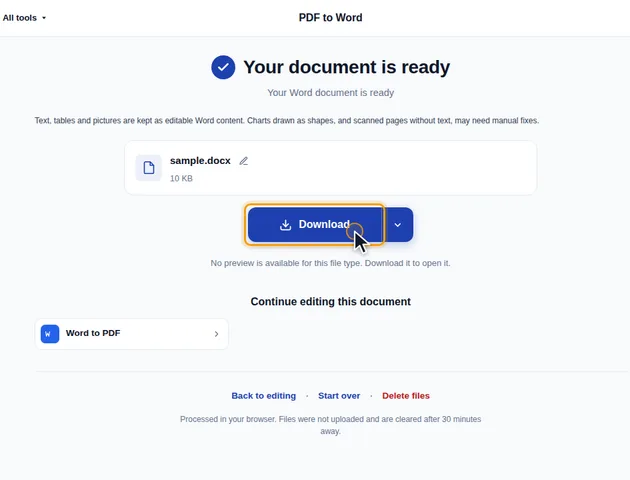
Click Convert to Word to create the .docx file. The results screen lets you download it, save it to Google Drive, open it in another tool, or delete the files.
Pictures from the PDF are placed in the Word file where they appear on the page. Untick Include images if you only need the text; the file will be smaller.
Each page of the PDF turns into a separate section in the Word file, with the same page size and orientation as the original. A landscape page in the middle of a portrait report stays landscape. The margins of each section are measured from where the content actually sits on that page, so a page with a wide layout gets narrow margins in Word.
This keeps the pages lined up with the PDF, but every section begins on a new page, so if you add a paragraph to page 3, the overflow lands on an extra page and page 4 still starts on the page after it. You end up with half-empty pages. When you've finished checking the conversion, remove the section breaks: in Word, open Replace, click More, then Special, choose Section Break, and replace with nothing.
Running headers, footers and page numbers from the PDF arrive as ordinary paragraphs at the top and bottom of each page. They aren't Word headers, so they won't update. Delete them and add Word's own page numbers if you need them.
The converter first finds the body text size, the size used by most characters in the pages you converted. Paragraphs are then compared with it. Text at least 1.6 times the body size becomes Heading 1, at least 1.3 times becomes Heading 2, and slightly larger text of up to three lines becomes Heading 3. With 11 pt body text, an 18 pt title is Heading 1, a 15 pt section title Heading 2 and a 13 pt subheading Heading 3, while a 12 pt line stays normal text. Because these are real Word heading styles, an automatic table of contents works straight away.
Font names are copied from the PDF, and the font used by most of the text becomes the document's default. If a font isn't installed on your computer, Word swaps in another one, and lines and pages break in different places. Install the font, or select everything and pick one you have.
Near-white text is changed to black so it doesn't disappear on a white page. The exception is text sitting on a coloured box, like a white heading on a blue banner. There the box becomes paragraph shading and the text keeps its colour.
Pictures aren't copied out of the PDF as they're stored. The page is drawn at up to twice its normal size, and each picture area is cut out and saved as a JPEG at 90% quality. Anything drawn on top of a photo, such as arrows or labels, comes along as part of it. A logo with a transparent background gets a white one.
A few pictures are left out on purpose. Very small ones are skipped, and so is a large background image with a lot of text printed over it, so that the text stays editable instead of being frozen into a picture. Pictures inside a table are dropped too.
Tables drawn with lines get thin grey borders in Word. Tables laid out with spacing alone stay borderless. Merged cells are kept as merged cells, and cells containing numbers are right-aligned.
There is no fixed limit. Conversion runs on your device, so very large files depend on the memory available to your browser.
Yes. Checking the converted document is easier on a larger screen, though.
Your file stays on your device. It is converted in the browser and never uploaded, so it isn't stored on a server.
