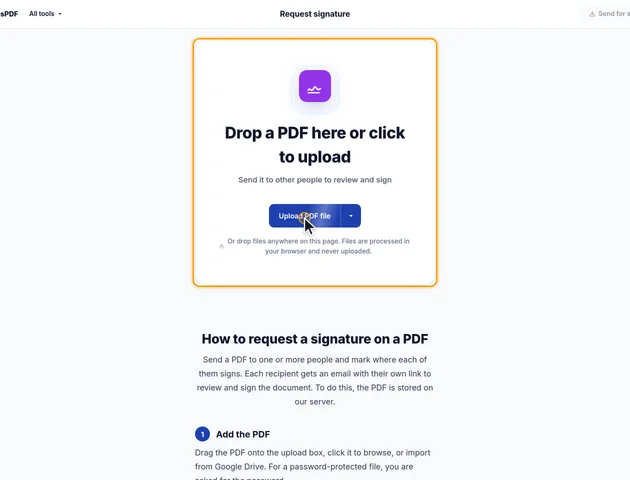
Drop a PDF here or click to upload
Send it to other people to review and sign
Needs internet. When you send the request, your PDF is uploaded and stored privately so the people you choose can open and sign it.
Send a PDF to one or more people and mark where each of them signs. Each recipient gets an email with their own link to review and sign the document. To do this, the PDF is stored on our server.
Drag the PDF onto the upload box, click it to browse, or import from Google Drive. For a password-protected file, you are asked for the password.
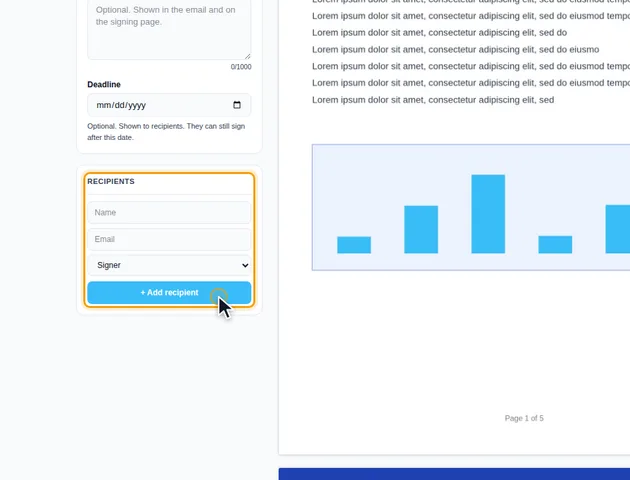
Fill in Your name and Your email. Recipients see your name, and you are emailed as people sign. Under Recipients, enter each person's name and email, choose Signer, Validator or Witness, and click + Add recipient for the next person.
Select a recipient, choose Signature, Initials, Text or Date, and click the document where that field goes. Fields take the recipient's color. Drag a field to move it and drag its corner to resize it. Every recipient needs at least one field.
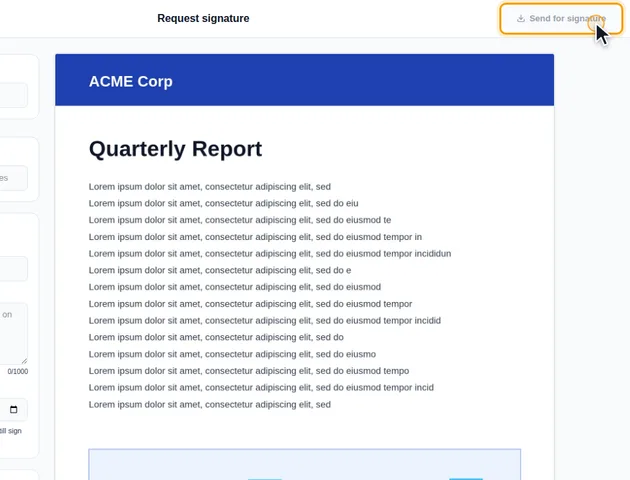
Click Send for signature. Each recipient is emailed a link to review and sign. Track signatures, or your dashboard, shows the status of the request.
The PDF is stored on our server as one file, exactly as it was when you sent it. If it had an open password, that password was removed in your browser before the upload, so the stored copy and every signing link open without it. If the finished document needs a password again, add one afterwards with Protect PDF.
What people sign isn't written into that file straight away. Each recipient's entries are saved with the request as separate values: a signature becomes a PNG or JPEG image of up to 500 KB, and a text field holds up to 500 characters. While signing, a recipient sees the original pages with only their own fields on top. They can see the other recipients' names, roles and whether they've signed, but not what anyone else entered.
"Generate Signed PDF" downloads the stored original and draws every value onto the pages in your browser. Field positions were saved as percentages of the page width and height, so a signature lands in the same spot whatever screen it was placed on. Signatures and initials go in as images, typed entries as real text, and ticked checkboxes as a drawn check mark. The download is named signed- followed by the original file name.
That makes it a signed copy in the everyday sense. It is not a certificate-based digital signature: there's no cryptographic seal, the signature panel in Adobe Acrobat Reader shows nothing, and the file can be edited later like any other PDF. There's no audit-trail certificate either. When the last person signs, everyone on the request gets an email with the status page link, so each of them can build their own copy of the finished document.
A signing link works for whoever holds it. There's no login or one-time code, so a forwarded invitation lets the new reader open the document and sign as that recipient. The status page link works the same way, and it shows each person's entries and lets the holder build the signed PDF. Share both only with the people involved.
Yes, 4 MB per PDF. The file is uploaded when you send the request, so compress a bigger file first.
Yes. Recipients can review and sign on a phone or tablet, and requests can be sent from any current browser.
Unlike most EddiesPDF tools, this one stores the PDF on our server so recipients can open it. It is shared only with the recipients you add, through their own signing link.
