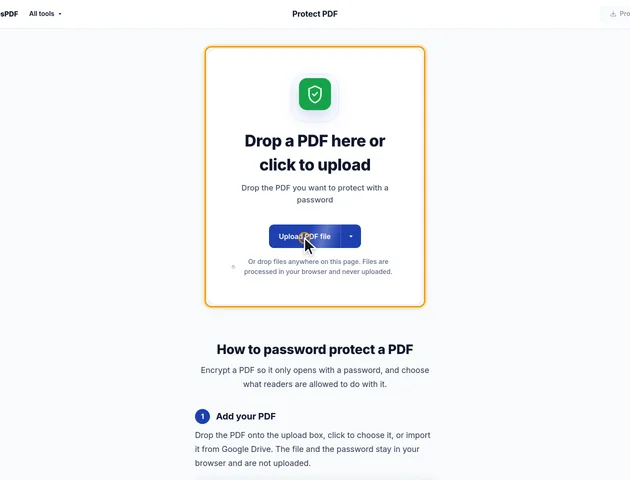
Drop a PDF here or click to upload
Drop the PDF you want to protect with a password
Or drop files anywhere on this page. Files are processed in your browser and never uploaded.
Encrypt a PDF so it only opens with a password, and choose what readers are allowed to do with it.
Drop the PDF onto the upload box, click to choose it, or import it from Google Drive. The file and the password stay in your browser and are not uploaded.
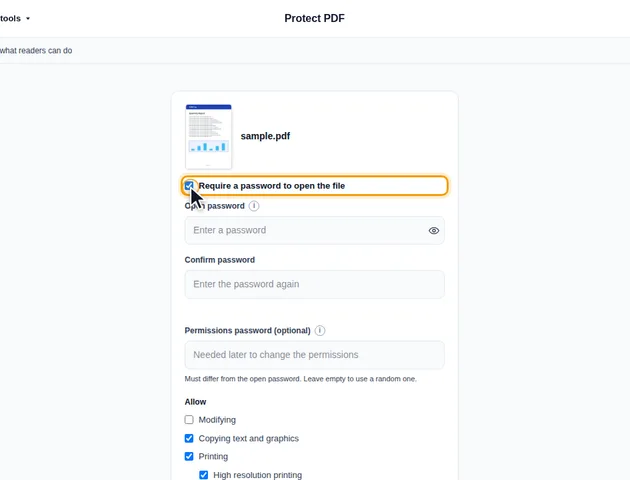
Leave "Require a password to open the file" ticked. Type the Open password, then enter it again under Confirm password. The eye button shows what you typed. Passwords of 16 or more characters are much harder to guess.
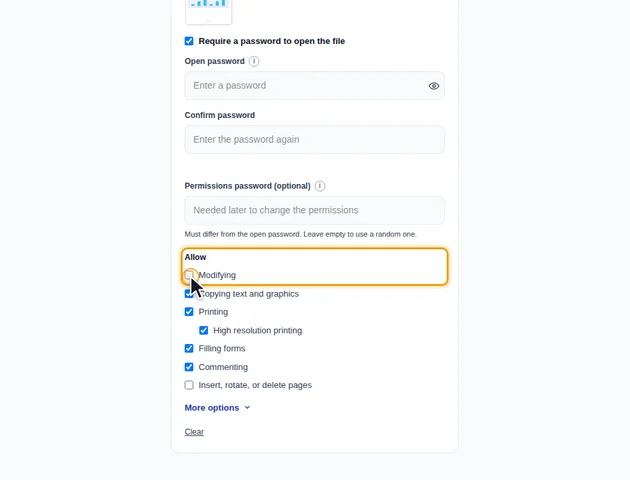
Under Allow, untick anything readers shouldn't do: modifying, copying text and graphics, printing, high resolution printing, filling forms, commenting, or inserting, rotating and deleting pages. Enter a Permissions password if you want to lift these restrictions later. If you leave it empty, a random one is used and the restrictions can't be changed.
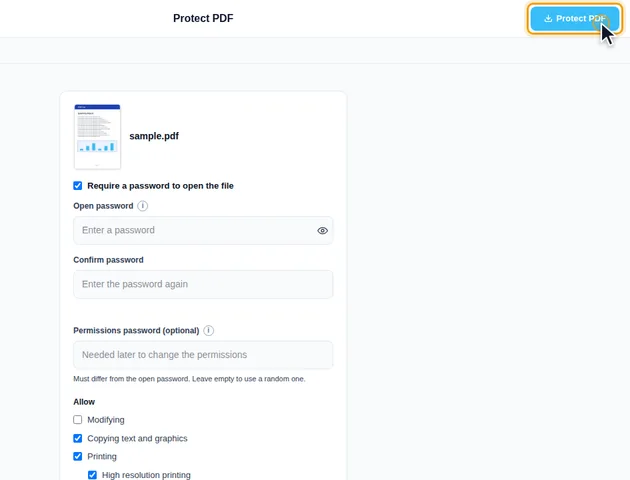
Click Protect PDF. On the results screen you can preview the protected file, download it, save it to Google Drive, continue with another tool, or delete the files.
Untick "Require a password to open the file" to let anyone open the PDF while the permissions still apply. Some PDF readers ignore permission settings.
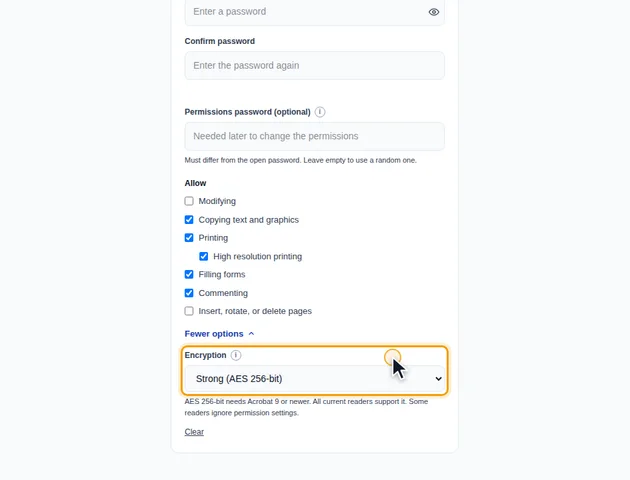
Under More options, Encryption is set to Strong (AES 256-bit), which every current reader supports. Choose Medium (AES 128-bit) or Medium (RC4 128-bit) only if the file has to open in very old software.
Encryption covers every stream and text string in the file: the drawing instructions for each page, images, embedded fonts, form field values, bookmarks and the document properties. That last part catches people out in a good way. Without the open password, someone can't even see the title or author of the document, only that it's an encrypted PDF.
The whole file is written out again during encryption. Two side effects follow from that. The protected copy can come out somewhat larger than the original, because each encrypted piece gets its own random starting block and padding. And if the PDF already carries a certificate-based digital signature, that signature will normally show as invalid afterwards, since the bytes it covered have changed. A signed contract is best sent as it is.
With the settings as they are when you open the tool, two boxes under "Allow" are unticked: "Modifying" and "Insert, rotate, or delete pages". Printing, copying, filling forms and commenting are allowed. So even if you only set an open password, readers that respect permissions won't let the recipient edit the pages or rearrange them.
If you leave "Permissions password (optional)" empty, a random 48-character one is generated and thrown away. Those two restrictions then stay for good. If the person you're sending to needs to edit the file in Acrobat, tick both boxes before you click Protect PDF.
Two smaller rules apply whatever you choose. "High resolution printing" only takes effect when "Printing" is allowed. And unticking "Copying text and graphics" doesn't block screen readers: the permission that lets accessibility software read the text is always left on, so a protected file stays usable for blind and partially sighted readers.
"Strong (AES 256-bit)" stores the password as Unicode. You can use accented letters, Cyrillic, Chinese or emoji, and passphrases up to around 127 bytes long all count.
Both Medium options use the older password scheme from earlier versions of the PDF format. It only handles basic Latin characters, so the tool refuses a password with emoji or non-Latin letters and tells you to switch to AES 256-bit. It also reads only the first 32 characters. A 40-character passphrase works, but the last 8 characters add nothing, and anyone who knows the first 32 can open the file. If you have to pick a Medium option for old software, make sure the strong part of the password sits at the start.
You don't need to remove the old password before setting a new one. Add a protected PDF here and you're asked for its current password. It's opened in your browser, and you can set a new open password, new permissions or a different encryption type. A file that only has restrictions, with no open password, opens without asking. Files secured with certificates rather than passwords can't be opened here at all.
To remove protection completely, use Unlock PDF. And if you're going to compress, watermark or rotate the file as well, do those first: once a file is encrypted, every other tool has to decrypt it again. Workflows can run those steps in one go and always puts the password step last.
There is no fixed limit. The file is processed in your browser, so the practical limit is your device's memory.
Yes. It works in any modern browser, including on phones and tablets.
AES 256-bit is used by default. AES 128-bit and RC4 128-bit are available for files that must open in older software. AES 256-bit needs Acrobat 9 or newer, and all current readers support it.
The file and the password never leave your device. Encryption happens in your browser and nothing is uploaded to a server.
