Drop a PDF here or click to upload
Change the title, author and keywords stored in a PDF
Or drop files anywhere on this page. Files are processed in your browser and never uploaded.
Change the document properties stored in a PDF, such as its title and author, or remove them all before you share the file.
Drag a PDF onto the upload box, click to browse, or import it from Google Drive. Password-protected files are supported. The current properties are read from the file and shown as a list of fields.
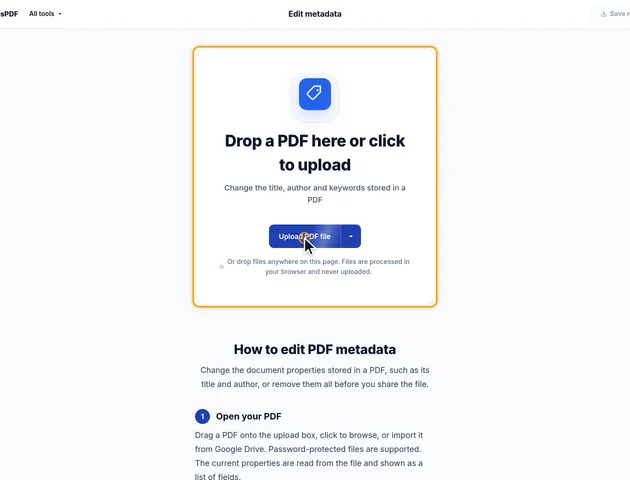
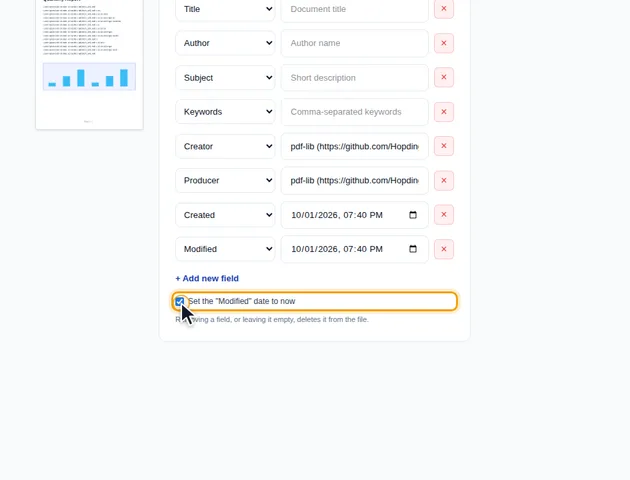
With Change metadata selected, edit Title, Author, Subject, Keywords, Creator and Producer, plus any dates or custom fields the file already has. Leave a field empty, or click its x button, to remove it. Add new field adds a row; pick its type from the list on the left of the row, or choose Custom field and enter a field name and value.
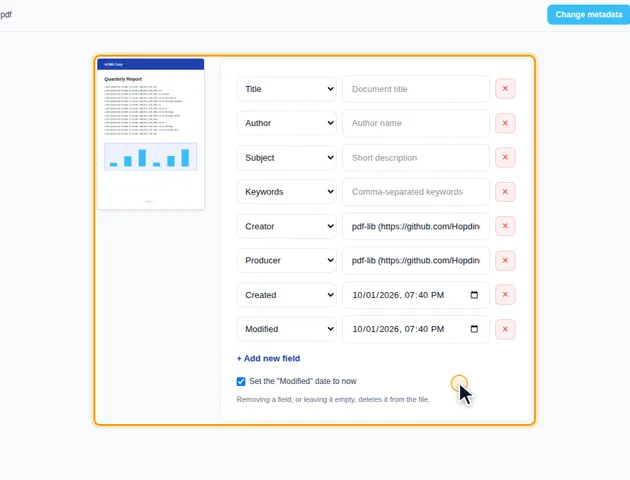
Choose Remove all metadata to delete every document property, the dates, custom fields and the XMP metadata in one step. The pages are not changed.
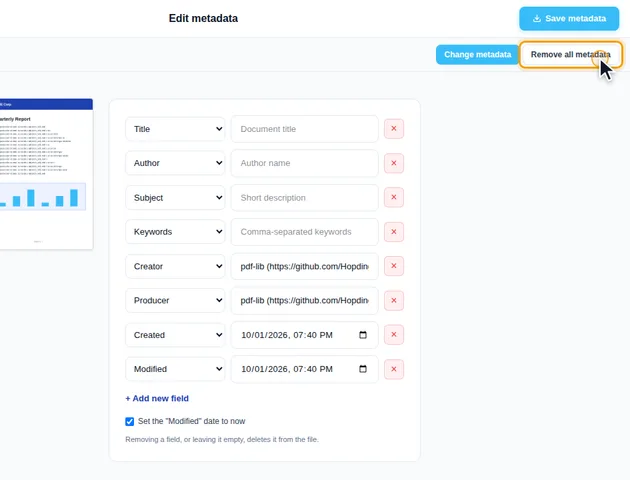
Click Save metadata. On the results screen you can preview the PDF, download it, save it to Google Drive, open it in another tool, or delete the files.
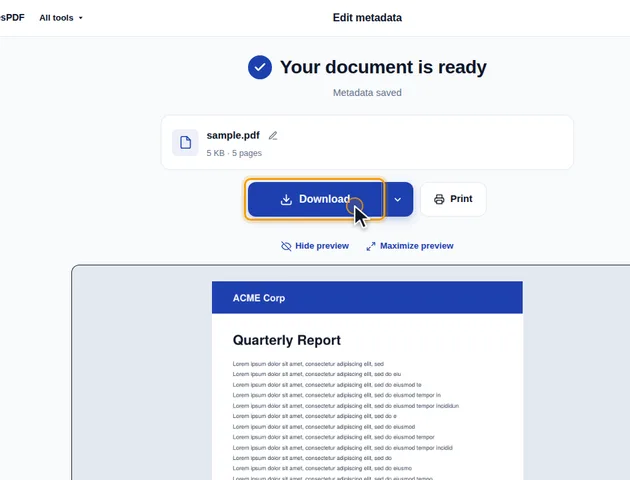
When the file has a Modified date, Set the "Modified" date to now is ticked by default. Untick it to keep the original date. If the file also has XMP metadata, which some viewers show first, it is updated to match your changes.
When a file has XMP metadata, Change metadata doesn't edit the old block line by line. It writes a fresh one from the fields you saved, and carries over only four things from the original: the PDF/A part and conformance level, the PDF/UA identifier, and the document ID.
Anything else stored in the old XMP is dropped. In practice that means:
For most office files the old XMP held nothing but copies of the title and author, so nothing is lost. If the file came from a publisher, an agency or a document system and its copyright line matters, put it in a field the tool keeps, such as Subject or a custom field named Copyright, before you share the result.
Archival PDF/A files must carry XMP, and the information in it has to agree with the document properties. Change metadata keeps the PDF/A identification and writes both copies to match. Remove all metadata deletes the XMP completely, including that identification. The result no longer declares itself PDF/A, and an archive or court filing system that validates PDF/A will reject it.
Accessible PDF/UA files are required to have a title. Edit the Title on those files, but don't clear it, and don't use Remove all metadata.
Remove all metadata clears the document properties, the XMP block, per-page XMP and the private data some design apps attach to pages. Several other places in a PDF can still identify a person or an organisation:
There is no fixed limit. The file is processed in your browser, so the practical limit is your device's memory.
Yes. It works in any modern browser, including on phones and tablets.
Yes. The PDF is processed in your browser and is not uploaded to a server.
