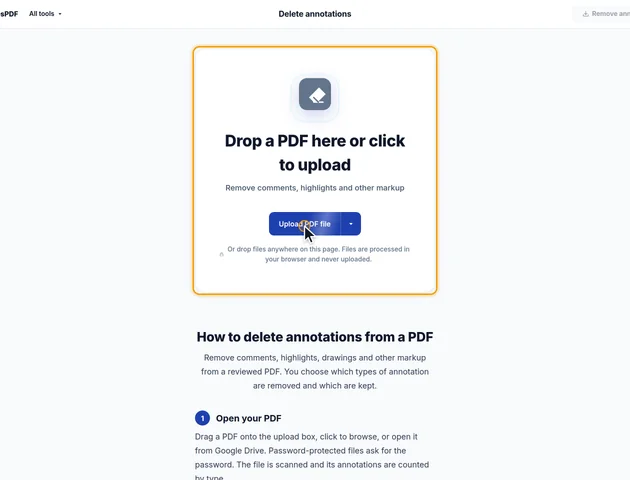
Drop a PDF here or click to upload
Remove comments, highlights and other markup
Or drop files anywhere on this page. Files are processed in your browser and never uploaded.
Remove comments, highlights, drawings and other markup from a reviewed PDF. You choose which types of annotation are removed and which are kept.
Drag a PDF onto the upload box, click to browse, or open it from Google Drive. Password-protected files ask for the password. The file is scanned and its annotations are counted by type.
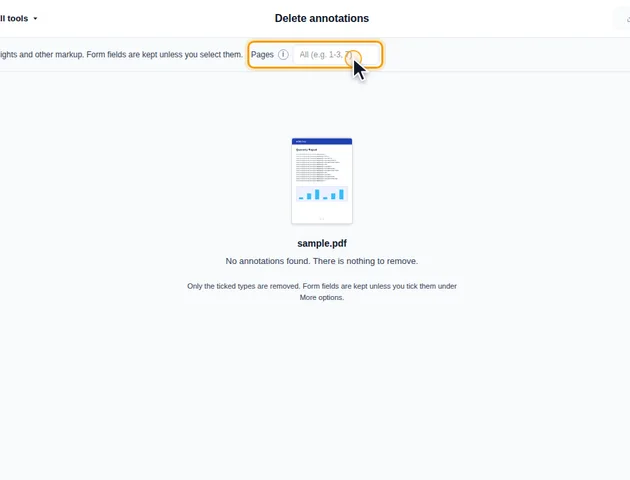
Every annotation type is listed with the number found, such as Highlight, Strikeout, Ink / Draw, Link, Popup / Comment, Stamp and File attachment. All types are ticked by default; untick the ones to keep, or use All to tick or untick everything. Form fields are under More options and are not removed unless you tick them.
Leave Pages empty to clean the whole document, or type a selection such as 1-3, 7 to remove annotations from those pages only.
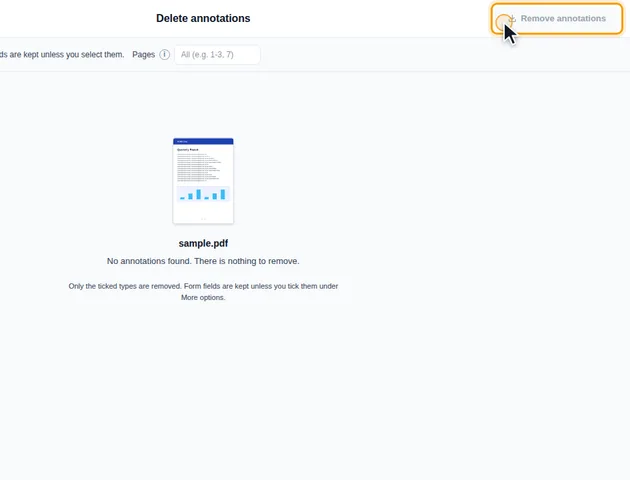
Click Remove annotations. The results screen lets you preview the cleaned PDF, download it, save it to Google Drive, open it in another tool, or delete the files.
When an annotation is removed, its pop-up note is removed with it, so no orphaned pop-ups are left. Removed form fields are taken out of the form together with their values.
What looks like a single comment in a PDF viewer is often a few annotations working together. A highlight with a note on it is a Highlight annotation that holds the comment text, plus a Popup annotation, which is only the small window that displays that text. When people reply to each other in Adobe Acrobat or a similar app, each reply is normally stored as its own sticky-note annotation (listed here as "Text") that points back to the one it answers.
Removal works by type, so this structure has two practical effects:
The numbers next to each type are counts for the whole document. If you then type a page range, fewer annotations may be removed than the list suggests, and the results screen tells you how many actually went.
Form fields need more thought. A field is drawn on the page by one or more widgets, and a field that appears on several pages (a client name repeated in every header, say) has one widget per page. With a page range, only the widgets on those pages are removed. The field itself, and its value, stays in the form until its last widget is gone. If every field is removed, the form is taken out of the file entirely.
The cleaned PDF is written out as a new file. If the original carries a certificate-based digital signature (the kind a viewer checks and reports in a signature panel, not a picture of a handwritten name), any change after signing makes that signature show the document as modified or invalid. Remove annotations before the file is signed, and keep the signed original as the record. Signature fields also count as form fields, so ticking "Form fields" on a signed document removes the signature field as well.
Some things that look like markup are part of the page itself, and this tool can't see them. When you save a file from Edit PDF, its stamps, shapes, freehand drawings, images and signatures are drawn straight into the page content. Only its highlights, underlines, strike-outs, links and sticky-note comments are saved as annotations.
A sticky note from the editor is saved both ways: a yellow box with the text drawn on the page, so it prints as you saw it, and a comment icon in the corner. Removing "Text" takes away the icon and its comment, but the yellow box stays.
For anything drawn into the page, the clean fix is the version of the file from before it was added. Covering it with a white box in Redact PDF also works, at the cost of turning that page into an image.
There is no fixed limit. The cleanup runs on your device, so very large files depend on the memory available to your browser.
Yes. It runs in any modern browser, including on phones and tablets.
Your file stays on your device. It is cleaned in the browser and never uploaded.
