Drop an HTML file here or click to upload
Self-contained HTML files work best
Or drop files anywhere on this page. Files are processed in your browser and never uploaded.
Turn an HTML file, a piece of HTML code or a web page into a PDF. The page is laid out the way a browser shows it, and text in the PDF stays selectable and searchable.
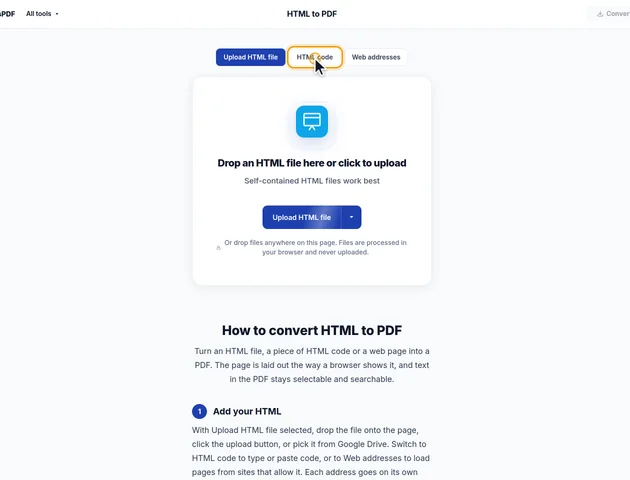
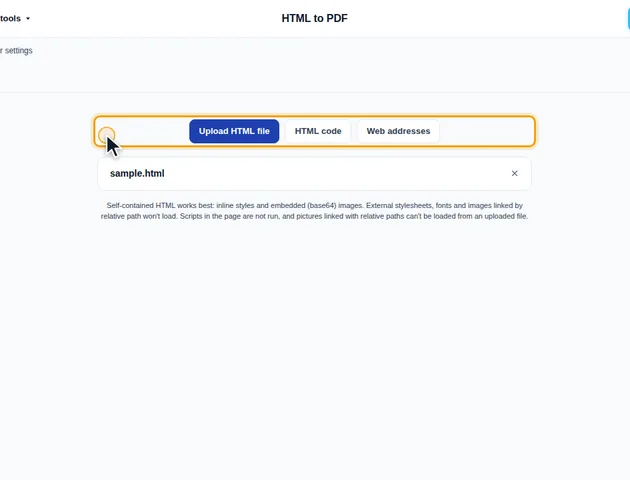
With Upload HTML file selected, drop the file onto the page, click the upload button, or pick it from Google Drive. Switch to HTML code to type or paste code, or to Web addresses to load pages from sites that allow it. Each address goes on its own line and becomes its own PDF.
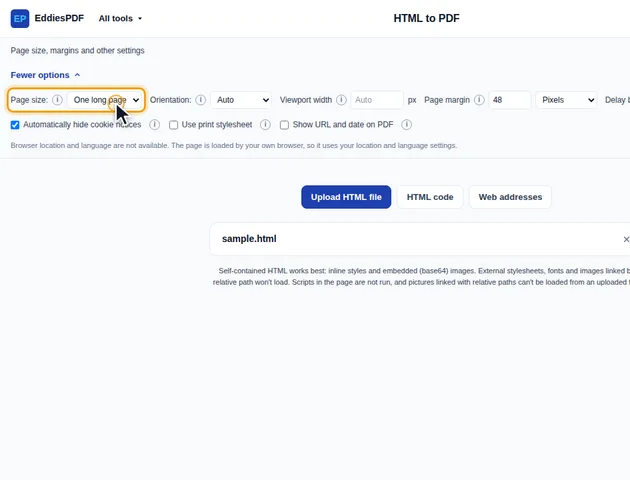
Open More options in the options bar. Choose a Page size (One long page, A4, A3, A2, Letter or Legal), an Orientation (Auto, Portrait or Landscape) and a Page margin in pixels, inches, centimeters or millimeters.
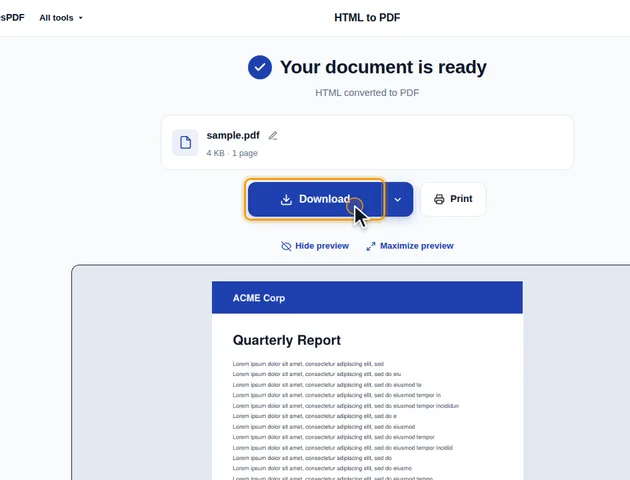
Click Convert to PDF. The results screen shows a preview of the PDF. You can download it, save it to Google Drive, continue with another tool, or delete the files. Several web addresses are downloaded as a ZIP.
One long page is the default page size. It keeps the whole document on a single tall page with no page breaks, which suits receipts, long articles and web page snapshots. A paper size splits the content into pages.
Viewport width sets the browser width used to lay out the page; use 1280 or more for desktop layouts. You can also add a delay of up to 5 seconds before capture, hide cookie notices (on by default), use the print stylesheet, or show the URL and date at the top of each page.
Self-contained HTML works best, with styles and images embedded in the file. Scripts are not run, and images or stylesheets linked by relative path can't be loaded from an uploaded file.
HTML has no fixed width. It reflows to fit whatever window it's shown in, so the tool has to pick a window size. With "Viewport width" left on Auto, it uses the printable width of the PDF page: the paper width minus both margins, at 96 CSS pixels per inch. On A4 portrait with the default 48 pixel margin, that's about 698 pixels. On Letter it's 720.
That's narrower than a desktop browser, so a responsive page shows its tablet or phone layout. For dashboards and admin screens, set the width to 1280 or more.
When the content is wider than that window anyway (a fixed-width email template or a wide table), nothing is cut off. With Orientation on Auto, the page switches to landscape first, which gives about 1,026 pixels on A4. Anything wider still is laid out at its own width, up to 2,400 pixels, and scaled down to fit. A 1,400 pixel table on A4 comes out at roughly 73% of its size.
Each page is captured as a picture, then an invisible text layer is laid over it. The picture is taken at 1.5 times normal resolution on a standard monitor and 2 times on a high-density screen, which includes most phones and many laptops. So the same HTML converted on a phone gives a sharper and somewhat larger PDF than on an older desktop monitor.
Each slice is saved as PNG, which keeps text edges clean and white paper pure white. A slice that's mostly photos switches to JPEG at 92% quality when that's less than half the size of the PNG. If the PDF is too big for where it's going, Compress PDF re-encodes those images.
"One long page" has a ceiling. The PDF format allows a page side of at most 14,400 points, which is 200 inches. Content taller than that continues on a second page, cut at a spot where no line of text, image or table row is split. At the default width and margin, that limit is around 19,000 CSS pixels of content. A long chat export or a forum thread with hundreds of replies can reach it.
The page size and margins always come from the tool's settings, so CSS @page rules in your stylesheet have no effect.
There is no fixed limit. The file is processed in your browser, so the practical limit is your device's memory.
Yes. It works in any modern browser, including on phones and tablets.
The file never leaves your device. It is converted in your browser and nothing is uploaded to a server.
