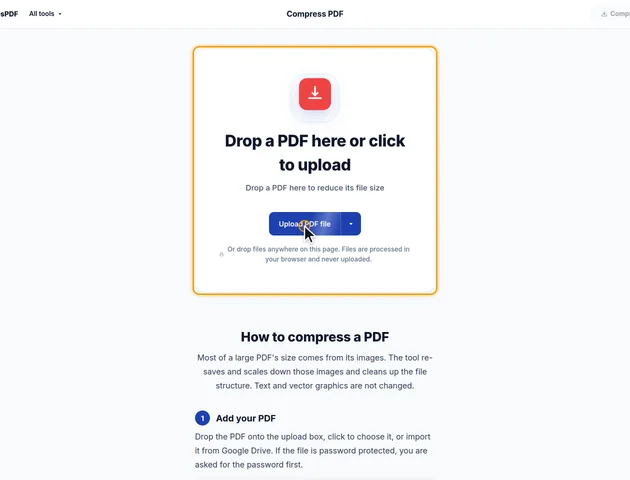
Drop a PDF here or click to upload
Drop a PDF here to reduce its file size
Or drop files anywhere on this page. Files are processed in your browser and never uploaded.
Most of a large PDF's size comes from its images. The tool re-saves and scales down those images and cleans up the file structure. Text and vector graphics are not changed.
Drop the PDF onto the upload box, click to choose it, or import it from Google Drive. If the file is password protected, you are asked for the password first.
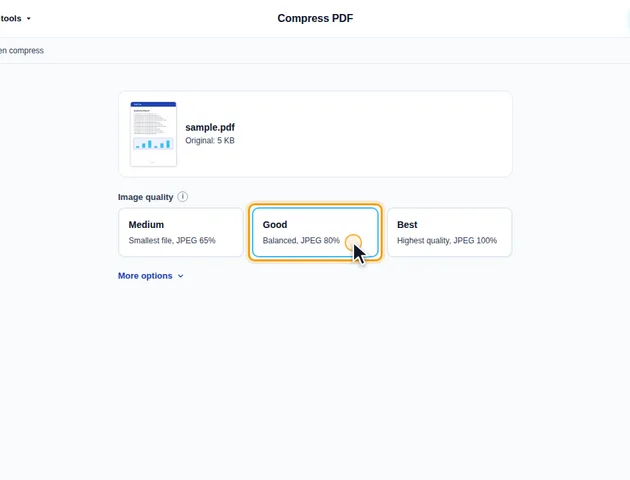
Pick Medium for the smallest file (JPEG 65%), Good for a balance of size and quality (JPEG 80%), or Best for the highest quality (JPEG 100%). Good is selected by default.
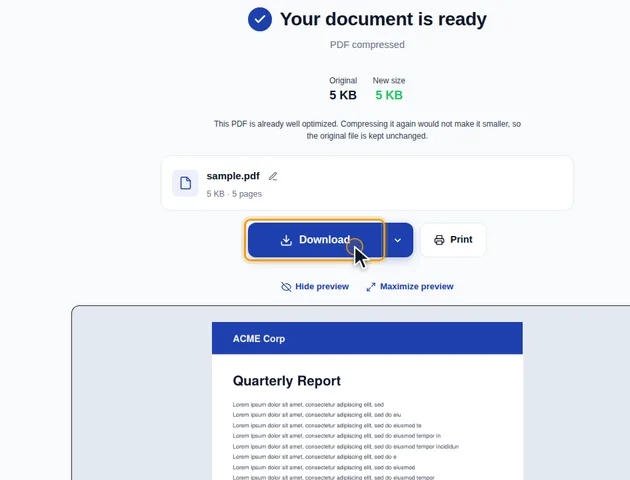
Click Compress PDF. The results screen shows the original and new size. From there you can preview the file, download it, save it to Google Drive, continue with another tool, or delete the files. If the PDF can't be made smaller, the original is kept unchanged.
Under More options, Image resolution ranges from 72 to 720 ppi, or Keep original. The default is 144 ppi, which suits screens; use 300 ppi for print. An image is only scaled down when it is sharper than this at the size it appears on the page.
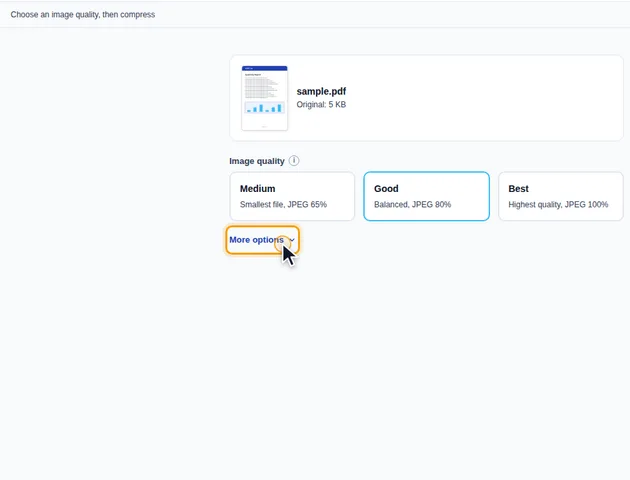
More options also has Grayscale under Image conversion, Discard under Multimedia files to remove embedded audio, video and 3D content, Optimize under Fonts (experimental) to drop unused characters from embedded fonts, and Remove document metadata. Unused objects and page thumbnails are always removed.
An image in a PDF is stored once and can be drawn in several places. A company logo in the header of a 40-page report is often one image drawn 40 times. The tool measures every place an image is drawn and works from the largest one, so the logo is sized for its biggest appearance, not its smallest.
From that size it works out the image's current resolution and compares it with your setting. An image is only scaled down when it's more than 15% sharper than the target. At the default 144 ppi, that means anything up to about 165 ppi keeps its pixel size and is just re-saved at the chosen quality.
Two more rules apply:
"Grayscale" under Image conversion works on the images the tool re-saves. Coloured text, coloured table borders and vector charts stay in colour. So do the images it skips for the reasons above, and image types it never touches, such as CMYK photos from print-ready files.
If you need the whole document in shades of grey, for a print shop or a submission rule, use the Grayscale tool instead, then compress the result.
These parts are always removed, whatever settings you choose:
Data stored without any compression is packed, where that helps, with the standard lossless method used inside PDFs, and the internal structure is saved in a more compact form. None of this changes how a page looks.
"Remove document metadata" deletes both places where a PDF keeps its properties: the basic information list (title, author, creating program) and the XML metadata block that newer software reads.
"Optimize" only touches one kind of font: fully embedded TrueType fonts of the type office suites usually write. It removes the shapes of characters the document never uses and stores identical font files once. Fonts used by fillable form fields are left alone, and the text on the page stays exactly as it was.
The catch is editing later. If someone opens the compressed file in an editor and types new words in that same font, characters that were removed can come out blank or in a fallback font. If it's a draft that will be edited again, leave Fonts on "Leave unchanged".
To compress the same way every time, for example grayscale then compress, set it up once in Workflows.
There is no fixed limit. The file is processed in your browser, so the practical limit is your device's memory.
Yes. It works in any modern browser, including on phones and tablets.
Only images can lose quality. Text and vector graphics are never changed. Good is the default and keeps images at JPEG 80%, which suits most documents.
The file never leaves your device. It is compressed in your browser and is not uploaded to a server.
