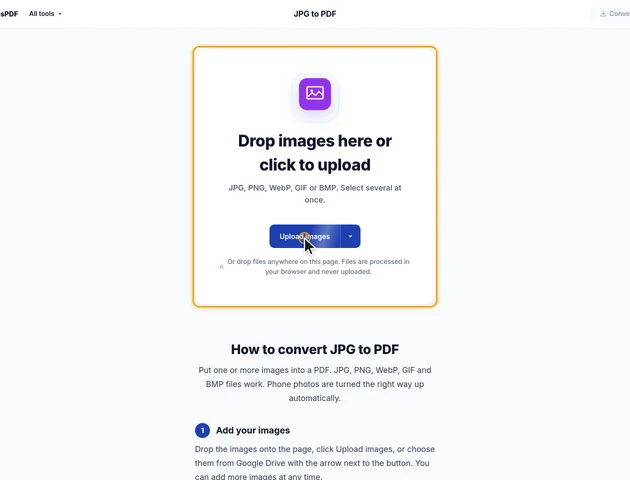
Drop images here or click to upload
JPG, PNG, WebP, GIF or BMP. Select several at once.
Or drop files anywhere on this page. Files are processed in your browser and never uploaded.
Put one or more images into a PDF. JPG, PNG, WebP, GIF and BMP files work. Phone photos are turned the right way up automatically.
Drop the images onto the page, click Upload images, or choose them from Google Drive with the arrow next to the button. You can add more images at any time.
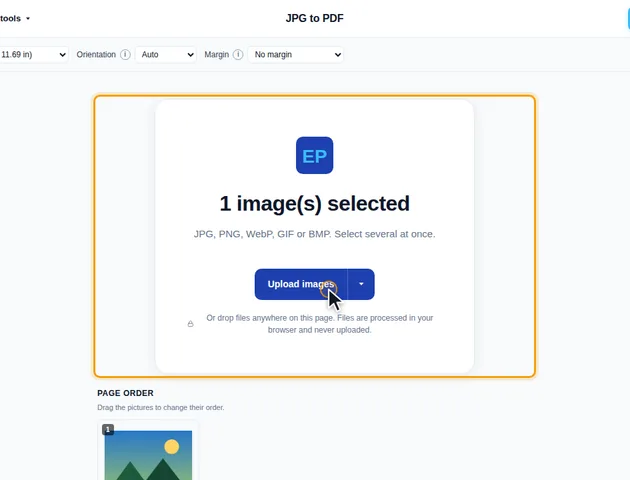
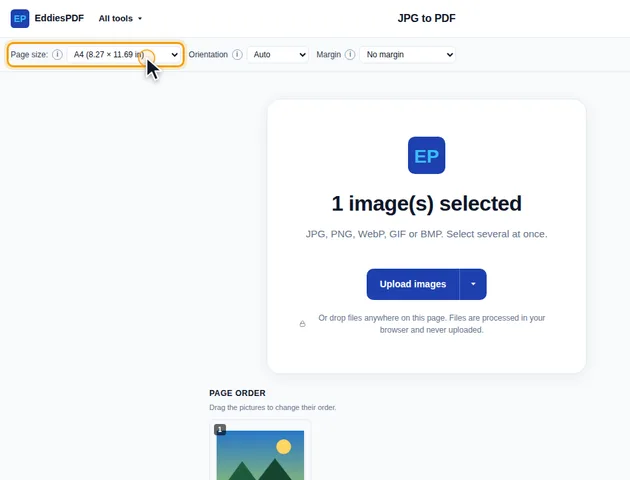
Choose a Page size: Fit to image, Custom size in inches or millimeters, or a paper size such as A4 (the default), Letter or Legal. Set Orientation to Auto, Portrait or Landscape and choose a Margin. To change the order, drag the images under Page order or use the arrows.
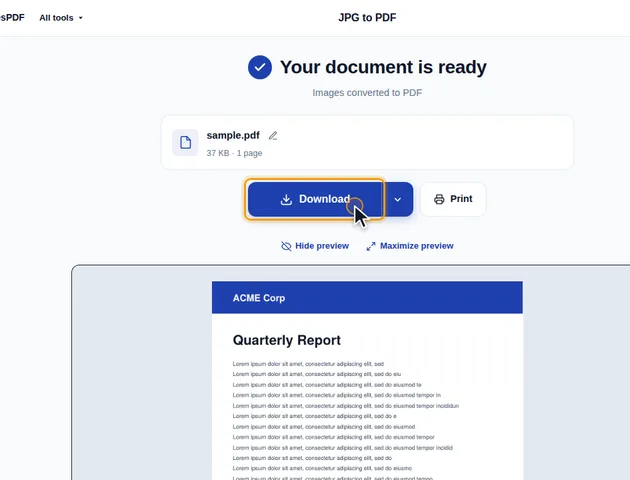
Click Convert to PDF. On the results screen you can preview the PDF, download it, save it to Google Drive, continue with another tool, or delete the files.
Fit to image makes each page exactly the size of its image. With a paper size, each image is centered on the page, and Auto orientation gives wide photos landscape pages and tall ones portrait pages.
With two or more images, the Merge all images into one PDF box appears. Untick it to get a separate PDF for each image, downloaded together as a ZIP.
A JPG is placed in the PDF byte for byte. It isn't decoded and saved again, so there's no second round of compression and no loss of quality. PNG files keep their lossless pixels, transparency included; transparent areas show the white of the page.
GIF, WebP and BMP can't be stored in a PDF as they are. Your browser opens them and they're re-saved first: as JPEG at 92% quality when the picture is fully opaque, or as PNG when it has transparent areas. At 92% you won't see a difference on screen. An animated GIF contributes only its first frame.
Turning phone photos upright works the same careful way. The photo isn't redrawn. The PDF places it with a rotation, so straightening it costs nothing in quality or file size.
The tool also checks what each file really is from its first few bytes, not from its name. A PNG that was saved with a .jpg ending is still handled as a PNG.
A PDF measures pages in points, 72 to the inch. Images are measured in pixels, so something has to decide how many pixels make an inch.
"Fit to image" uses 96 pixels per inch, the usual screen convention. That suits screenshots: a 1920 x 1080 screenshot becomes a page 20 inches wide and 11.25 tall. A 12-megapixel phone photo, 4032 pixels across, becomes a page 42 inches wide. Viewers zoom to fit, so it looks normal on screen, but a printer has to shrink it, and an upload form that checks page size may refuse it.
With a paper size, each image is scaled to fill the space inside the margins with its proportions kept, so nothing is ever cropped. "Custom size" has one quirk worth knowing: with Orientation on Auto, a custom size keeps the width and height exactly as you typed them, rather than turning the page for each image the way the standard paper sizes do.
Scaling works in both directions. A small image on a paper size is enlarged until it touches the margins. A 600 x 400 pixel image on an A4 page with no margin is spread across 11.7 inches, which is only about 50 pixels per inch. Print usually needs 150 to 300 for sharp results, so that page will look soft on paper.
For small images there are two better options. Use "Fit to image" so they keep their natural size, or pick a large margin so they're enlarged less. Neither adds detail that the image doesn't have.
The merged PDF is named after the first image in the list. With "Merge all images into one PDF" unticked, each PDF takes its image's name, and duplicates get -2, -3 and so on. Rename the photos before adding them if the names will matter to whoever receives the files.
If you need the images inside an existing PDF, Merge PDF accepts them too, but it sizes them its own way, with no paper size or margin settings. Build the image pages here first, then merge the result with the other files.
There is no fixed limit. The images are processed in your browser, so the practical limit is your device's memory.
Yes. It works in any modern browser, including on phones and tablets.
The images never leave your device. They are converted in your browser and nothing is uploaded to a server.
