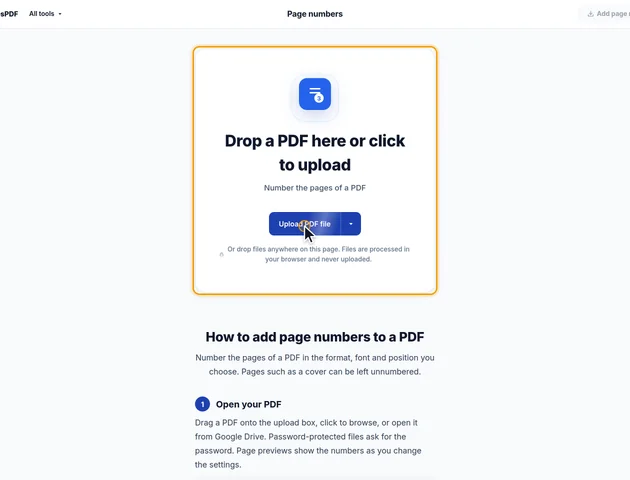
Drop a PDF here or click to upload
Number the pages of a PDF
Or drop files anywhere on this page. Files are processed in your browser and never uploaded.
Number the pages of a PDF in the format, font and position you choose. Pages such as a cover can be left unnumbered.
Drag a PDF onto the upload box, click to browse, or open it from Google Drive. Password-protected files ask for the password. Page previews show the numbers as you change the settings.
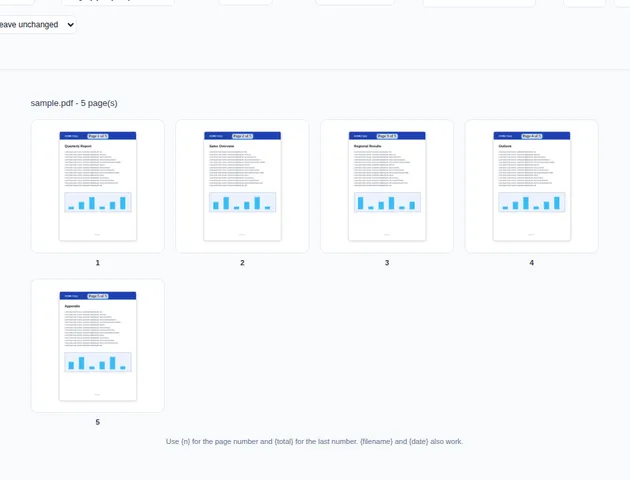
Pick a format from Style, such as 1, 2, 3, I, II, III, 2 / 45 or Page 2 of 45, or edit the Text box directly. In the text, {n} is the page number and {total} the number the last page of the document gets; {filename} and {date} also work. Numbers switches between 1, 2, 3, i, ii, iii, I, II, III and A, B, C.
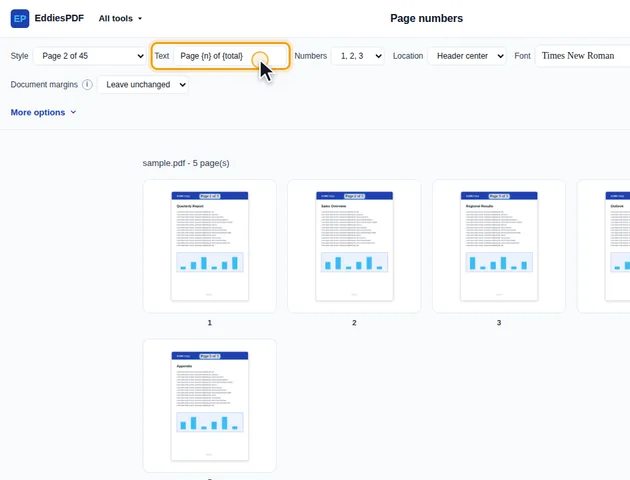
Location places the number in the header, the middle or the footer of the page, on the left, center or right; Header center is the default. Font, Size, Bold and Color set the look. Set Document margins to Increase margins to shrink the page content slightly so the number doesn't overlap existing text.
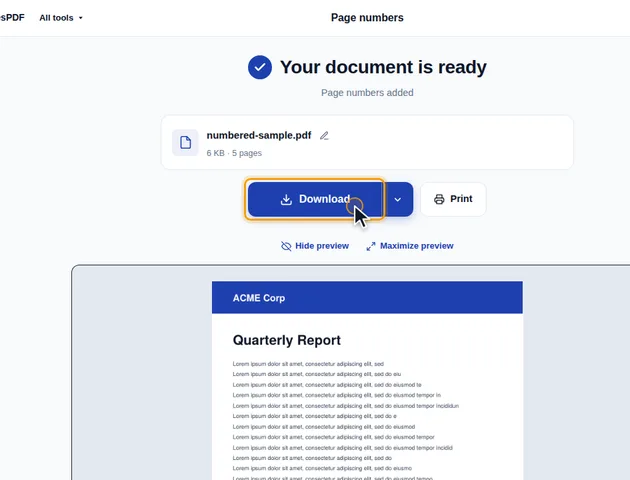
Click Add page numbers. The results screen lets you preview the numbered pages, download the PDF, save it to Google Drive, open it in another tool, or delete the files.
Under More options, type a range such as 3-last in Apply only to pages to leave the first two pages unnumbered. Start numbering from sets the number on the first numbered page, and Distance from edge (pt) moves the number closer to or further from the page edge.
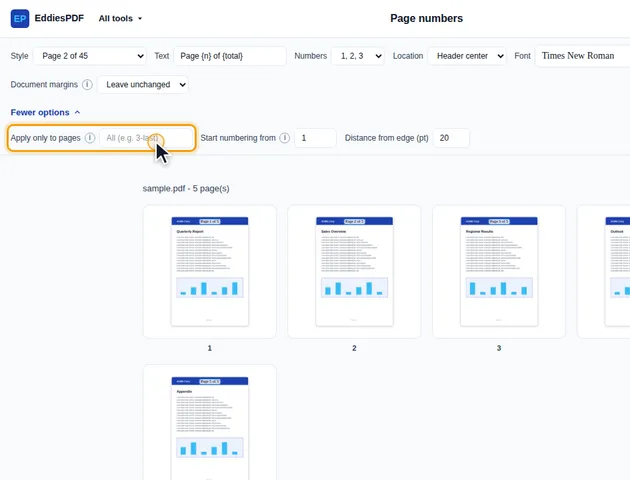
Page numbers follows each page's position in the file. The first page you number shows the Start numbering from value, and every page after it is counted from there, whether it gets a number or not. That explains most of the results people don't expect.
Say a 30-page report has a fold-out map on pages 6 and 7 that shouldn't carry a number. If you type 1-5, 8-last in Apply only to pages, page 8 of the file still gets the number 8, so the printed numbers match the page numbers your PDF reader shows. The same goes for odd on its own: pages 1, 3 and 5 of the file are numbered 1, 3 and 5, and the even pages stay blank.
The count starts at the first page you number, not at page 1 of the file. With 3-last and Start numbering from left at 1, page 3 of the file is numbered 1 and page 4 is numbered 2, which is how you leave a cover and a contents page out of the numbering.
{total} is the number the last page of the file would get under the same count, whether that page is numbered or not. With 3-last on a 30-page file that's 28, so the last page reads "Page 28 of 28". With odd on a 30-page file it's 30, so page 29 reads "Page 29 of 30", and with 1-5, 8-last the skipped fold-out pages still count, so every number reads "of 30".
Books and theses often number the preface in lowercase Roman numerals and restart at 1 for chapter one. Two passes handle that. Number the front pages (say 2-6) with Numbers set to i, ii, iii, then run the result again on 7-last with digits, starting from 1. In that second pass, Page {n} of {total} gives "Page 1 of 94" on the first chapter page, which is what readers expect.
{total} follows the same Numbers setting as {n}, so on a 12-page file numbered in Roman numerals, page 4 prints "Page iv of xii". Keep in mind that {total} counts to the last page of the whole document, so for front matter only, plain "{n}" usually reads better than "Page {n} of {total}". Roman numerals stop at 3999; above that the number is written in digits. Letters run from A to Z and then continue AA, AB, the way spreadsheet columns do.
Setting Document margins to Increase margins doesn't add paper. It shrinks everything on the page by the same factor and centers it, which leaves a clear band at the top or bottom. The band is the Distance from edge plus 1.4 times the font size. With the defaults (20 pt and 10 pt) that's 34 pt, so on a Letter page the content ends up at about 96% of its original size, and the side margins grow slightly too. Links, comments and form fields are moved with the content so they still line up.
It only touches pages that get a number. Leave the cover out and it stays full size while page 2 onwards is a little smaller, which you may notice in a printed booklet. If a page would have to shrink below 30% of its height, which only happens with a huge font or distance, it's left alone.
The tool opens your PDF, adds one line of text to each chosen page and saves it. Bookmarks, links, form fields and the document's title and author are kept. The exception is a password: a protected file is unlocked when you open it and saved without one, so finish with Protect PDF if it needs protecting again.
If your text contains characters the chosen font doesn't have, such as a Greek file name with a font that only covers Latin letters, the tool switches to a fallback font that covers more of them instead of quietly dropping letters.
There is no fixed limit. Numbering runs on your device, so very large files depend on the memory available to your browser.
Yes. It runs in any modern browser, including on phones and tablets.
Your file stays on your device. The numbers are added in the browser and the PDF is never uploaded.
