Drop a PDF here or click to upload
Convert a PDF to a Markdown (.md) file
Or drop files anywhere on this page. Files are processed in your browser and never uploaded.
Convert a PDF to a Markdown file for notes apps, wikis, documentation sites or AI tools. Headings, bulleted and numbered lists, bold and italic text and simple tables are detected.
Drag the PDF onto the page or click Upload PDF file. The arrow next to the button opens Google Drive. Password-protected PDFs ask for the password and are unlocked in your browser.
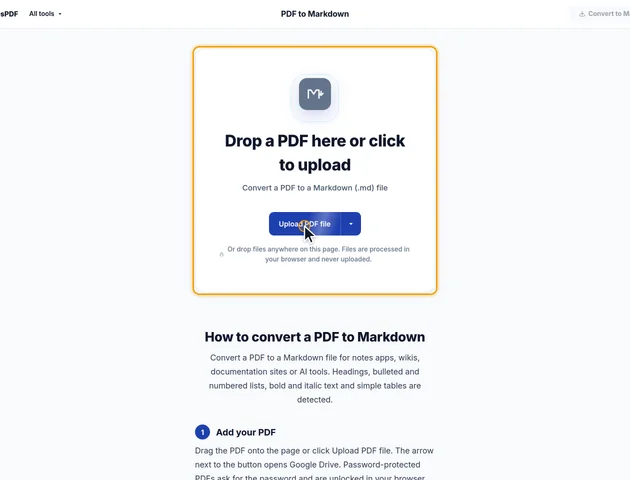
Leave Pages empty to convert the whole document, or type a range such as 2-5. Under More options, Detect headings (on by default) turns large text into # headings, and Separate pages with --- adds a horizontal rule where each page starts.
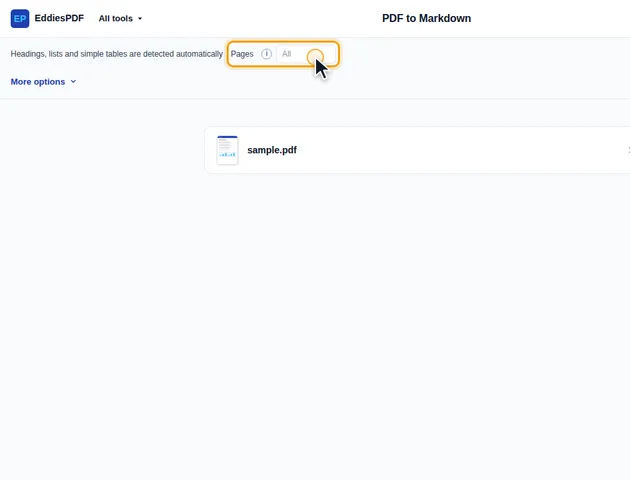
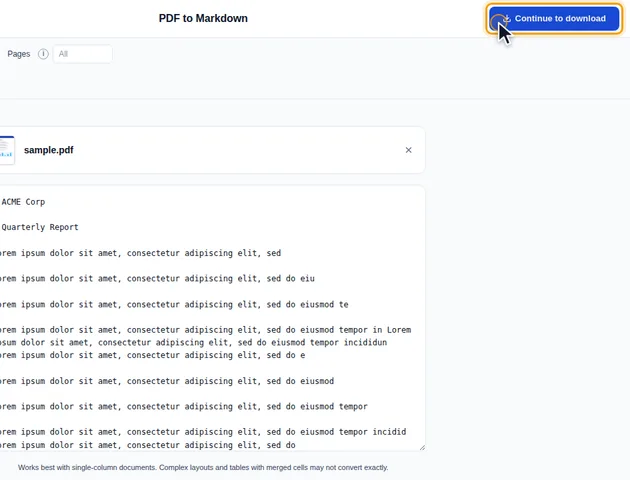
Click Convert to Markdown. The result appears in a text box, so you can check the headings, lists and tables before you save it.
Click Continue to download. The results screen shows a preview and lets you download the file, save it to Google Drive, open another tool, or delete the files.
The converter reads the position, size and font of every piece of text, then decides what each block is. Most of the time the result needs only light editing. The cases below are where it needs more, and why.
Headings are found by comparing text size with the body text size, and that body size is worked out from the pages you convert, not from the whole document. Usually it makes no difference. It can if you convert a single page that's mostly large type, such as a chapter opener with a big title and a short pull quote. The large size then counts as normal text, and headings on that page can come out as plain paragraphs.
The fix is to include some ordinary pages in the range. If you only need one short section, convert a few pages around it and delete the extra in your editor.
Heading text is written plain. Bold or italic words inside a heading don't get extra asterisks, which suits most Markdown style guides anyway.
Numbered items keep the number they had in the PDF, with brackets dropped, so (2) and 2) both become 2. A list that picks up at 4 after a page break is written as 4, 5, 6, and Markdown renderers start the list at 4 too, so the numbering stays right.
Lettered and Roman items are the weak spot. An item marked a), (b) or iv. is written as a., b. or iv., which isn't list syntax in standard Markdown. The items sit on separate lines in the file, but most renderers join consecutive lines into one paragraph, so a lettered list can show up as a single run-on block. A find-and-replace in your editor, turning those markers into hyphens or numbers, sorts it out.
A Markdown table needs the same number of cells in every row, so short rows are padded with empty cells to match the widest one. The first row always becomes the header. If the PDF table opens with a title stretched across all the columns, that title becomes the header row with empty cells beside it. Move it above the table as a normal line and let the real column names take its place.
A vertical bar inside a cell is escaped so it doesn't split the cell, and line breaks inside a cell become spaces, because each table row has to sit on one line. Long cells therefore make wide rows in the raw file. They still render as normal table cells.
The result box is read-only. It's there so you can spot problems before you save. Make your changes in the downloaded file, in any text editor or in the app you're moving the content into. The file is plain UTF-8 text with one blank line between blocks, so it pastes cleanly into Obsidian, a GitHub issue or a wiki page.
If you want an editable document with fonts and layout rather than plain text, PDF to Word is the better route.
There is no fixed limit. Conversion runs on your device, so very large files depend on the memory available to your browser.
Yes. It runs in any modern browser, including on phones and tablets.
Your file stays on your device. It is converted in the browser and never uploaded, so it isn't stored on a server.
