Drop a PDF here or click to upload
Each page becomes a PowerPoint slide
Or drop files anywhere on this page. Files are processed in your browser and never uploaded.
Turn each page of a PDF into a PowerPoint slide. Keep the text editable on top of the page design, or make slides that are exact pictures of the pages.
Drag the PDF onto the page or click Upload PDF file. The arrow next to the button opens Google Drive. Password-protected PDFs ask for the password and are unlocked in your browser.
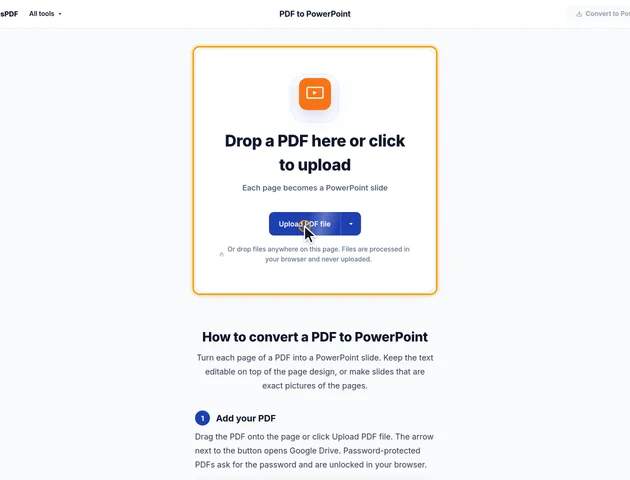
Under Slides, pick Editable text to change the wording in PowerPoint, or Exact look (pictures) for slides that match the PDF exactly. Type a range in Pages to convert only some pages. Image quality, under More options, sets the resolution of the page pictures: Standard (2000 px) or High (3200 px).
Click Convert to PowerPoint to create the .pptx file. The results screen lets you download it, save it to Google Drive, open it in another tool, or delete the files.
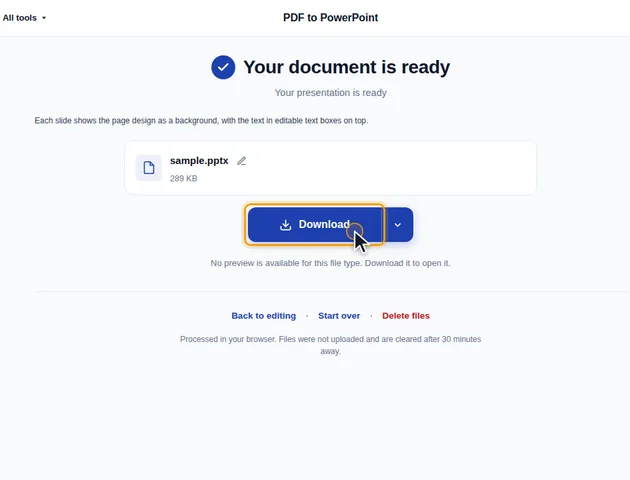
With Editable text, the page's pictures and shapes become the slide background and the text sits in separate text boxes at its original position. With Exact look, each slide is a picture of the page. It matches the PDF, but the text can't be edited.
Open a converted slide in PowerPoint and click around, and you'll find just two kinds of object: one picture of the page, and plain text boxes. How those are set up explains most of what happens when you start editing.
In Editable text mode, the page design isn't set as the slide background. It's an ordinary picture placed on the slide, with the text boxes on top. Click an empty-looking spot and you select that picture, so a careless drag can move the whole design out from under the text. The Selection Pane (Home, Arrange, Selection Pane) lets you pick or hide objects without that risk, and recent versions of PowerPoint can lock the picture from its right-click menu.
Being a normal picture has an upside. If you've changed the page design elsewhere, right-click it and choose Change Picture, and the new image takes the same size and position.
The picture is saved as a JPEG at 85% quality on Standard and 92% on High. Small pages don't always reach the full pixel count, because enlargement stops at 3 times the page size on Standard and 4 times on High. A 6 by 4 inch page on Standard comes out about 1300 pixels wide, not 2000.
Every text box has its inner margins set to zero and PowerPoint's autofit turned off. That keeps each line exactly where it sat on the page, but it also means text you add runs past the bottom of the box instead of growing it. If you're rewriting a paragraph, open Format Shape, go to Text Options and pick Shrink text on overflow or Resize shape to fit text for that box.
Text printed at an angle, such as a sideways axis label, gets its own text box turned to the same angle, so it lands back where it was. Clickable links in the PDF arrive as plain text; add them again with Insert, Link.
The text sits in ordinary text boxes, not in PowerPoint's title placeholders. So the Outline view is empty, and the Accessibility checker reports every slide as missing a title. If the deck is going out widely, add titles, and use the checker's list to find each slide that still needs one.
Exact look (pictures) goes further: the slides contain no text at all. Find won't locate a word and screen readers have nothing to read, so add alt text to each picture if people will rely on one.
A little preparation in the PDF often saves more time than fixing slides afterwards:
There is no fixed limit. Conversion runs on your device, so very large files depend on the memory available to your browser.
Yes. Checking the slide layout is easier on a larger screen, though.
Your file stays on your device. It is converted in the browser and never uploaded, so it isn't stored on a server.
