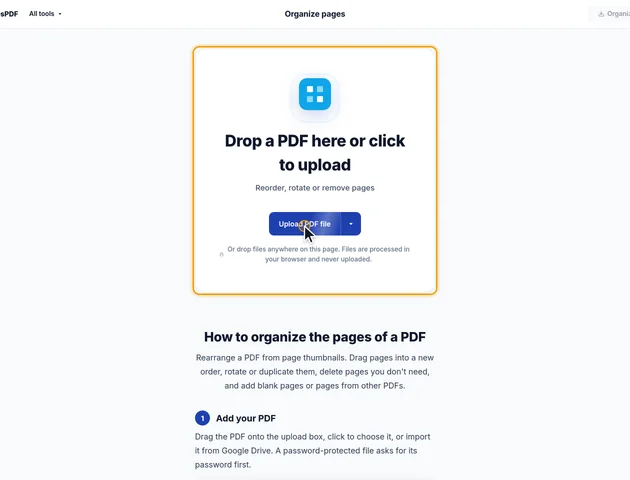
Drop a PDF here or click to upload
Reorder, rotate or remove pages
Or drop files anywhere on this page. Files are processed in your browser and never uploaded.
Rearrange a PDF from page thumbnails. Drag pages into a new order, rotate or duplicate them, delete pages you don't need, and add blank pages or pages from other PDFs.
Drag the PDF onto the upload box, click to choose it, or import it from Google Drive. A password-protected file asks for its password first.
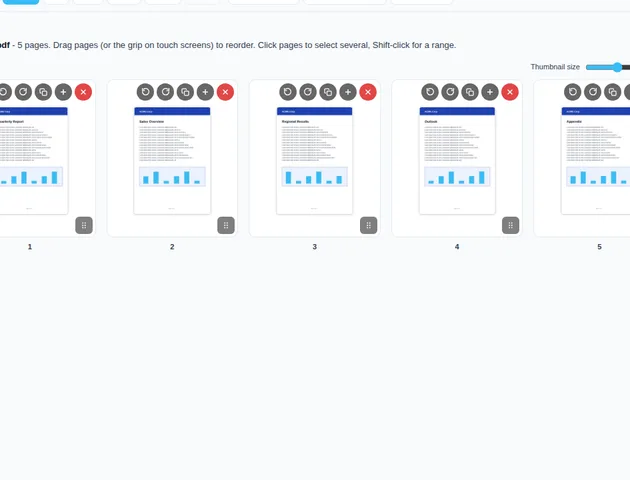
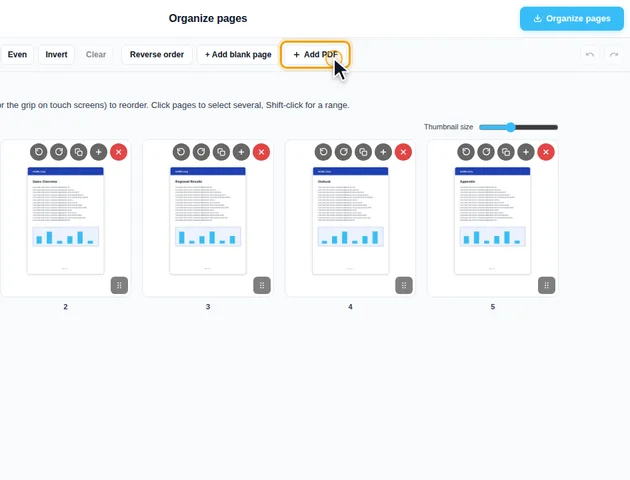
Drag a page thumbnail to its new position. On touch screens, drag by the grip in its corner. Each thumbnail also has buttons to rotate, duplicate, insert a blank page after it, or delete it.
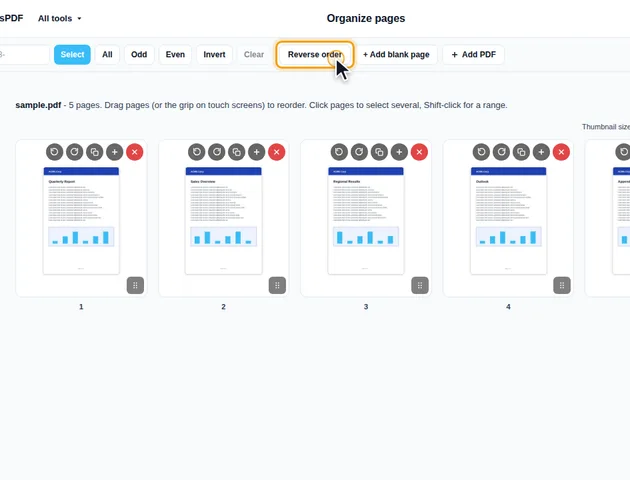
Click pages to select them, or Shift-click for a range. You can also type ranges and click Select. A bar then appears with Left, Right, Duplicate, Delete, Move to position and Clear selection. Reverse order reverses the whole document.
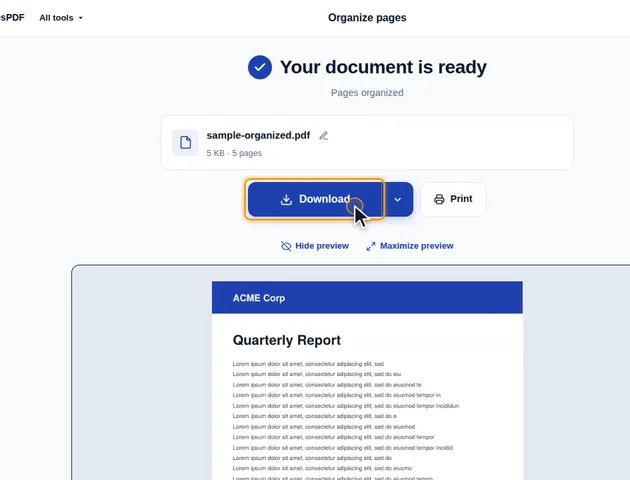
Click Organize pages in the header. The results screen lets you preview and download the new PDF, save it to Google Drive, open it in another tool, or delete the files.
+ Add blank page adds an empty page at the end. Add PDF brings in the pages of more files; each file's pages get a letter badge to tell them apart. Undo and redo work for every change.
Organize pages doesn't edit your PDF in place. When you save, it starts an empty PDF and copies the pages you kept into it, in the order shown on screen. That one fact explains most of what you'll notice about the result.
Every PDF page carries a rotation value that tells the viewer how to turn it for display. The Left and Right buttons change that value by 90 degrees, on top of whatever rotation the page already had. The text, images and drawings on the page aren't touched, so nothing gets blurrier and text stays selectable and searchable. Turn a page four times and you're back to exactly the original.
If the only problem is a few sideways pages, Rotate PDF does the same thing with fewer steps. Organize pages makes more sense when rotation is one fix among several.
A blank page takes the size of the nearest real page, measured the way it's displayed. The tool looks backwards first, so a blank inserted after a landscape page comes out landscape even if the page after it is portrait. It only uses the following page when there's no earlier one.
Duplicating a page doesn't double the fonts and images it uses. Pages from the same source file are copied in one pass, so anything they share is stored once in the new file. A repeated divider page or a second copy of a chart adds very little to the file size.
Pages you bring in with Add PDF keep their own sizes. Mix a Letter document with an A4 one and you get a file with both, which looks fine on screen but can catch out a printer that's set to scale to fit. Resize PDF can put every page on one paper size afterwards.
Bookmarks from every file you added are kept, grouped by file: all of the first PDF's bookmarks, then all of the next one's. They aren't re-sorted into the new page order, so after heavy mixing the bookmark panel can jump back and forth through the document. If that bothers you, rebuild them with Create bookmarks.
When a bookmark points at a page you deleted, that bookmark goes, but any bookmarks nested under it move up a level instead of disappearing with it. A bookmark for a page you duplicated points at the first copy.
Because the result is a new file, the original's document properties (title, author, subject and keywords) aren't copied over. Some PDF viewers show the title in the window bar instead of the file name, so set it again with Edit metadata if the file is going to other people.
Password protection doesn't carry over either. A protected file is unlocked in your browser when you open it, and the reorganized copy is saved without a password. If the original had one for a reason, add it back with Protect PDF once the page order is final.
There is no fixed limit, because the file is processed in your browser rather than on a server.
Yes. Dragging many pages is easier on a larger screen.
No. The pages are rearranged on your device, in the browser, and the file is never sent to a server.
