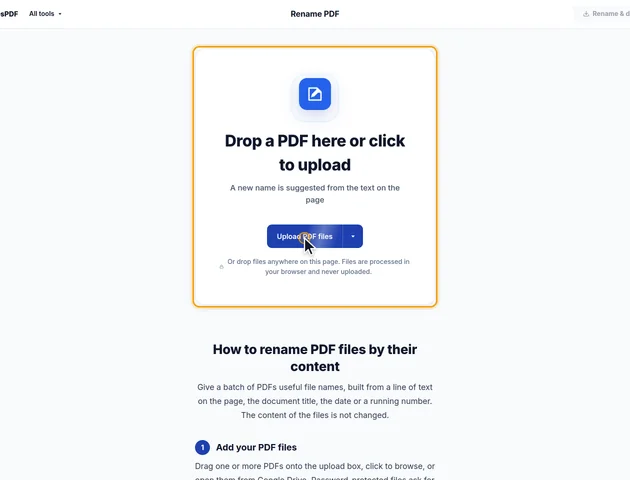
Drop a PDF here or click to upload
A new name is suggested from the text on the page
Or drop files anywhere on this page. Files are processed in your browser and never uploaded.
Give a batch of PDFs useful file names, built from a line of text on the page, the document title, the date or a running number. The content of the files is not changed.
Drag one or more PDFs onto the upload box, click to browse, or open them from Google Drive. Password-protected files ask for the password. You can keep adding files to the same batch.
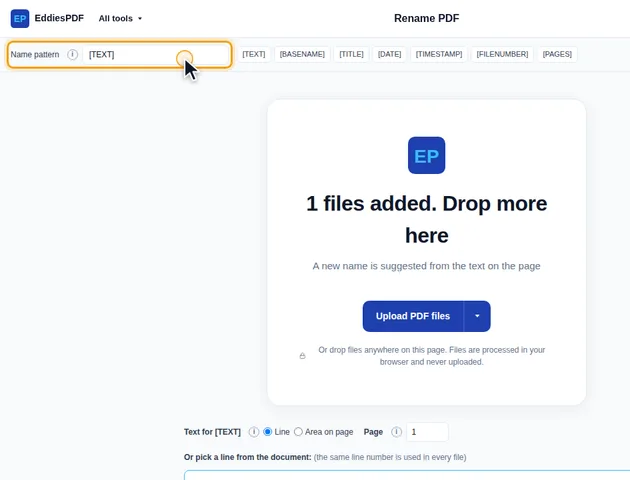
Name pattern starts as [TEXT]. Click a tag to add [BASENAME], [TITLE], [DATE], [TIMESTAMP], [FILENUMBER] or [PAGES], and type fixed text around them, for example Invoice [FILENUMBER] [DATE].
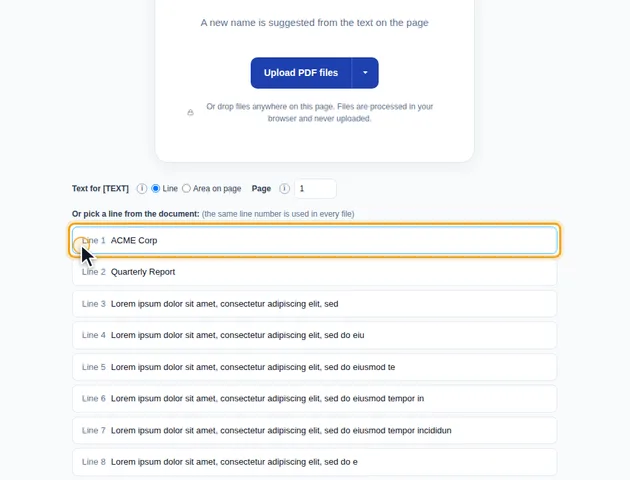
Under Text for [TEXT], choose Line to pick one of the first lines on the page, or Area on page to draw a box around the text to use. Page sets which page is read. The same line number, or the same area, is used for every file.
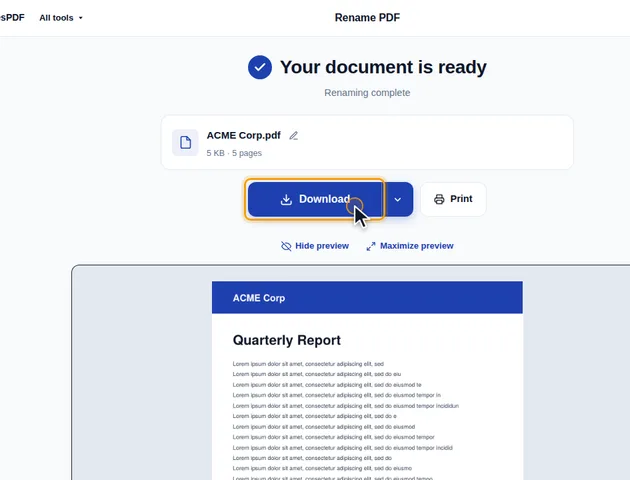
Each file's new name appears under New file name, where you can also type a name by hand. Letter case and Spaces are under More options. Click Rename & download: one file downloads as a PDF, several as a ZIP.
Characters that aren't allowed in file names are removed and long names are shortened. If two files would get the same name, a number is added so neither is overwritten.
Your settings apply to every file in the batch, and files that don't match the layout you set them up on behave in different ways. Only some of them show a warning.
That first case is the one to look for when you check the list of new names. It usually hits a page with very little text on it, such as a short cover note or a blank-looking separator sheet.
[FILENUMBER] follows the order you added the files, starting at 1. The numbers have no leading zeros. In a batch of more than nine files, any program that sorts names alphabetically puts "Scan 10" before "Scan 2". Windows Explorer and the Mac Finder sort numbers sensibly, but plenty of upload portals don't. If order matters, a number read from the page with [TEXT] is usually the better choice.
[DATE] and [TIMESTAMP] come from your device's clock when the names are built, and every file in the batch gets the same value. A timestamp looks like 2026-10-04_153012, and since it's identical across the batch, it won't tell the files apart.
"Letter case" changes only the text that [TEXT] picks from the page. Your fixed text and the other tags keep the capitals you typed. "Spaces" works on the whole name, so the pattern "Invoice [FILENUMBER] [DATE]" with underscores becomes Invoice_7_2026-10-04. Neither setting touches a name you've typed by hand in a file's box.
When the tool checks for duplicate names, it ignores letter case. Windows and macOS treat Invoice.pdf and INVOICE.pdf as the same file, so a ZIP containing both would overwrite one when you extract it. Here the second simply gets -2.
Names are kept under 150 bytes. In English that's about 150 characters, but accented letters take two bytes each and Chinese or Japanese characters take three, so a name in those scripts is cut shorter. A name that would be one of the words Windows reserves for devices, such as CON, PRN or NUL, gets an underscore in front.
A password-protected PDF is opened with its password when you add it, in your browser. The renamed copy is saved from that opened version, so it comes out without the password and without any printing or copying restrictions. If the files need to stay protected, run the renamed copies through Protect PDF before you send them anywhere.
A web page or error message saved with a .pdf name is turned away rather than renamed.
There is no fixed limit. The files are read on your device, so very large files depend on the memory available to your browser.
Yes. It runs in any modern browser, including on phones and tablets.
Your files stay on your device. They are read in the browser and never uploaded.
