PDF Editor
Add text, highlight, draw, sign, stamp and annotate any PDF
How to edit a PDF
The editor works directly on the page. Add new text or change the existing words, sign, highlight, draw, add images and form fields, then save the result as a new PDF.
Open the PDF
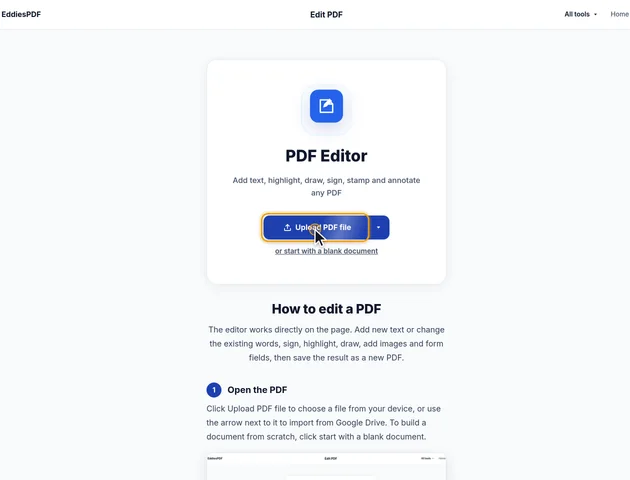
Click Upload PDF file to choose a file from your device, or use the arrow next to it to import from Google Drive. To build a document from scratch, click start with a blank document.
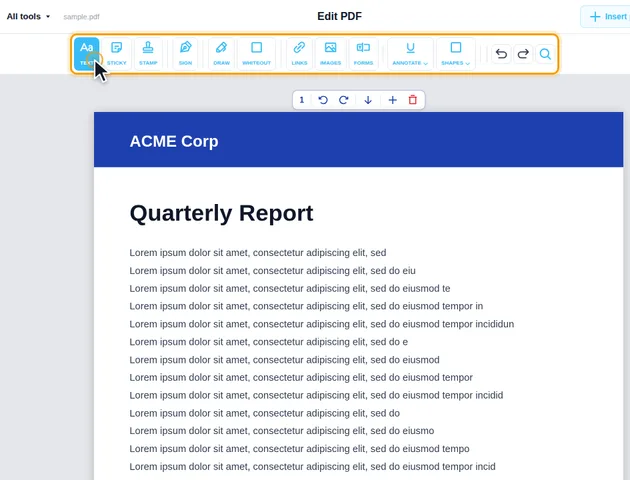
Pick a tool from the toolbar
The toolbar has Text, Sticky, Stamp, Sign, Draw, Whiteout, Links, Images, Forms, Annotate and Shapes. Choose one and click the page where the item should go. With Text selected, clicking existing text lets you change it. The Find and replace button changes a word everywhere in the document.
Arrange the pages
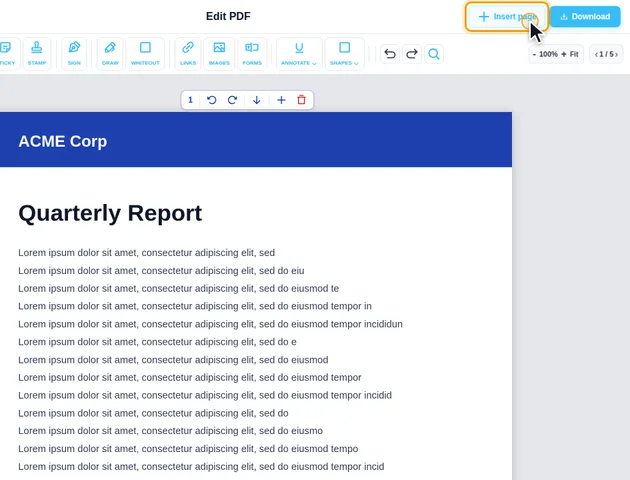
In the page list, each page can be rotated, moved up or down, or deleted. Insert Page adds a blank page. Undo (Ctrl+Z) and Redo (Ctrl+Y) step through every change, and the zoom buttons help with detailed work.
Download the edited PDF
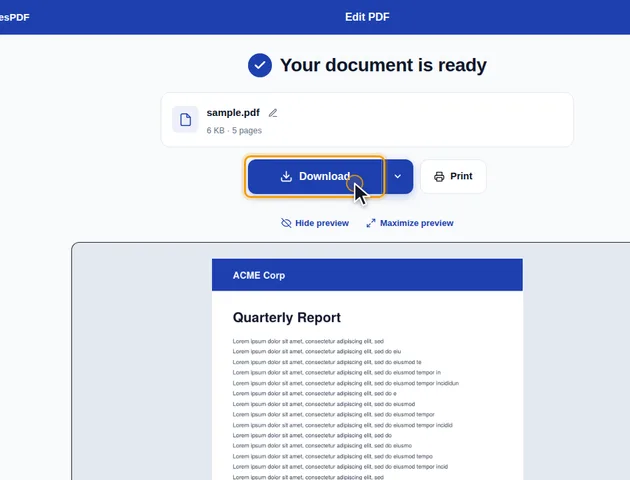
Click Download. The results screen has a preview of the file and buttons to download, share or print it, go back to editing, open it in another tool or delete the files.
Format text
While a text box is active, the text bar sets the font, size, bold, italic, underline, color and alignment, and can duplicate the box. Click a finished text box to change it again.
Sign and stamp
Sign lists your saved signatures and has Create New Signature, where you can draw, type or upload one. Saved signatures stay on this device. Stamp adds labels such as APPROVED, DRAFT, PAID or CONFIDENTIAL.
Work with form fields
The Forms menu adds fillable fields such as text boxes, checkboxes and drop-down lists. Detect fields turns blank lines and empty boxes into fields, Form Edit mode lets you move, rename or delete the fields already in the PDF, and Change tab order sets the order the Tab key follows.
What your edits become when you save
Drawn into the page, or placed on top
When you click Download, every item you added is written into the PDF in one of two ways.
These are drawn into the page content, the same layer as the original text and pictures:
- text boxes, and the new wording from Edit text and Find and replace
- Whiteout boxes
- shapes, arrows and freehand drawings
- images and signatures
- stamps
These are saved as annotations, separate objects that sit on top of the page:
- highlights, underlines and strike-outs from Annotate
- links
- form fields
- the comment behind each sticky note
The original pages are reused as they are, never turned into images, so their text stays selectable and their existing links and form fields come through.
Why the difference matters later
Drawn content behaves like printed ink. Other PDF apps can't select a stamp or a shape as an object and delete it, and Delete annotations won't find it either, not even under "Stamp", because it isn't an annotation. If you might need to take something off later, keep a copy from before you added it.
Annotations stay editable. Anyone opening the file in Adobe Acrobat Reader can move or delete your highlights. A sticky note is saved twice: a yellow box with its text drawn on the page, so it prints as you saw it, plus a comment icon in its corner that holds the full text. Comment panels list that comment with EddiesPDF as the author. To fix highlights and comments in place so nobody can remove them, run the result through Flatten PDF.
A signature added with Sign is a picture of your signature. It isn't a certificate-based digital signature and doesn't lock the document against changes. A "Signature box" from the Forms menu is different: it's a real signature field, so apps such as Acrobat offer to sign there.
Matching fonts, and characters that don't survive
Text you add is saved with its font embedded, trimmed to the characters you actually used, so it looks the same on any device. Several fonts in the list are free lookalikes built with the same character widths as common office fonts:
- Carlito for Calibri
- Caladea for Cambria
- Liberation Sans for Arial
- Liberation Serif for Times New Roman
- Gelasio for Georgia
If the document was written in Calibri, pick Carlito and an added line will take up the same width the original font would.
The bundled fonts cover Latin, Greek and Cyrillic scripts, plus Arabic through Amiri and Scheherazade New. They don't include Chinese, Japanese, Korean, Hindi or Thai. Characters that no available font can draw are saved as question marks, so check the downloaded file if you typed in one of those scripts.
Form fields are the exception to the trimming. Their font is embedded in full, because whoever fills in the form later may type characters you never used.
Features
- Add text, highlights, drawings, signatures, stamps, images and shapes, and change the text already on the page.
- The PDF is edited in your browser. It is not uploaded to a server.
- Set the font, size, color and alignment of any text you add.
- Draw, type or upload a signature and place it anywhere on the page. Saved signatures stay on this device.
- Free to use in the browser. No software to install.
Frequently asked questions
Is there a file size limit?
No fixed limit is set. The file is processed in your browser, so very large files depend on your device's memory.
Does this tool work on mobile devices?
Yes, in any current mobile browser. Precise edits are easier on a larger screen.
Is it safe to use with confidential documents?
The file is edited on your device and is not uploaded. It stays in your browser until you download it.
