Drop a PDF here or click to upload
Drop a PDF with form fields or annotations to make them permanent
Or drop files anywhere on this page. Files are processed in your browser and never uploaded.
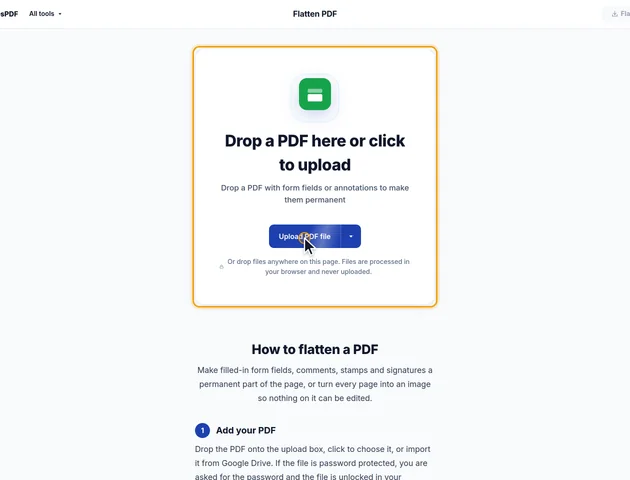
Make filled-in form fields, comments, stamps and signatures a permanent part of the page, or turn every page into an image so nothing on it can be edited.
Drop the PDF onto the upload box, click to choose it, or import it from Google Drive. If the file is password protected, you are asked for the password and the file is unlocked in your browser. The tool then shows how many form fields and annotations it found.
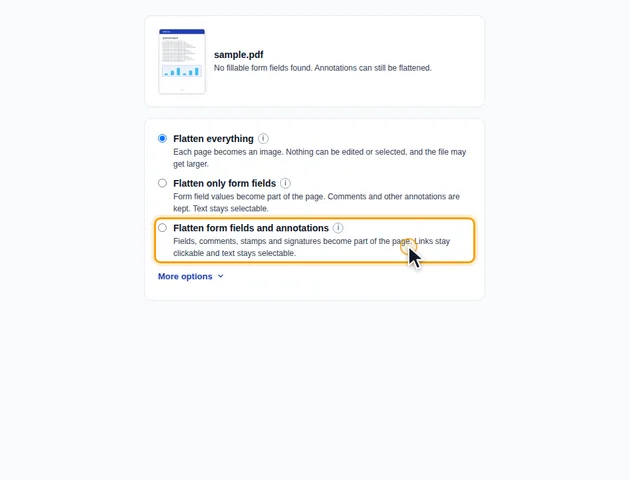
Flatten everything (the default) turns each page into an image. Flatten only form fields draws field values into the page and leaves comments as they are. Flatten form fields and annotations also draws in comments, stamps and signatures. With the last two, text stays selectable.
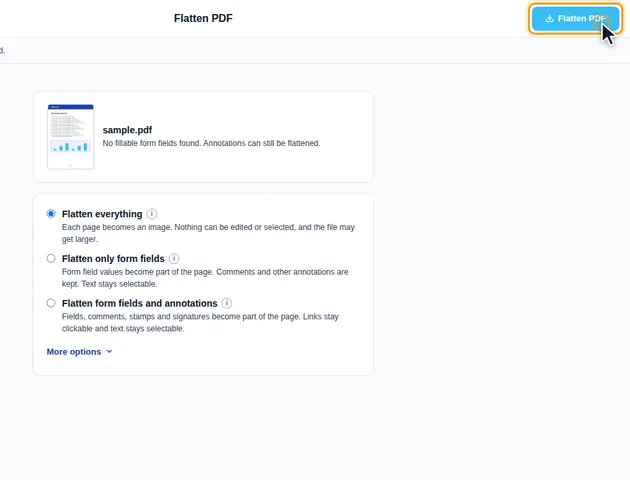
Click Flatten PDF. The results screen says what was flattened. You can preview the file, download it, save it to Google Drive, continue with another tool, or delete the files.
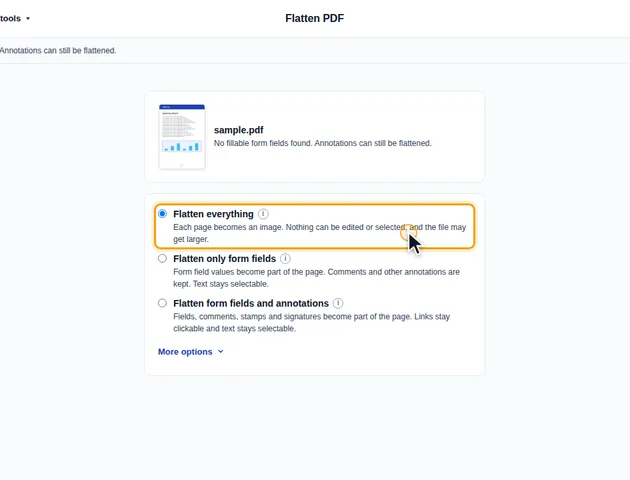
With Flatten everything, each page becomes an image, so text can no longer be selected, copied or edited, and the file may get larger. Under More options, choose 75 dpi for the smallest file, 100 dpi for on-screen reading, 150 dpi (the default) for a balance of size and quality, or 220 dpi for print.
With Flatten form fields and annotations, web links in the document stay clickable. A field that can't be drawn is left editable and listed on the results screen.
This mode doesn't edit your PDF. It first draws the fields and comments into the pages, then renders every page and saves it as a JPEG at 85% quality on a white background, and puts those pictures into a brand new PDF. Each page keeps the size and orientation you saw on screen. A page that was displayed sideways through a rotation setting becomes a landscape page with no rotation.
The resolution decides how many pixels each page gets. For a US Letter page:
Because the file is new, anything that belonged to the old document is left behind: the title and author, attached files, accessibility tags and any opening settings. If you need the text searchable again afterwards, run the result through OCR PDF. It adds an invisible text layer without changing the page images.
Every field and comment stores a small drawing of how it should look. Flattening places that drawing on the page, scaled to fit the exact rectangle the field or comment occupied. A semi-transparent highlight keeps its transparency.
Two cases get a fresh drawing instead. If a field has no stored look, or the form asks readers to redraw all fields when they open it (some apps save forms this way), the tool draws the values itself. It uses Helvetica, or a bundled DejaVu Sans font when the text has characters Helvetica can't show, such as Cyrillic or Greek. So a form that displayed answers in a custom font in one app may come out in a plain sans-serif. Check a couple of fields before you send it.
A certificate-based digital signature, the kind Acrobat shows in its signature panel, lives in a signature field. The two lighter modes remove the whole form once its fields are drawn, signature field included, and "Flatten everything" rebuilds the file from pictures. Either way the visible signature mark can stay on the page, but readers will no longer report the document as signed. Rewriting the whole file, as this tool does, breaks that check anyway.
If a document needs both, flatten the form first and have it digitally signed afterwards.
Some tools only work on what's in the page content, so comments and fields get missed until they're flattened.
There is no fixed limit. The file is processed in your browser, so the practical limit is your device's memory.
Yes. It works in any modern browser, including on phones and tablets.
No. Flattening merges fields and annotations into the page content. Keep a copy of the original if you may need the editable version.
The file never leaves your device. It is flattened in your browser and nothing is uploaded to a server.
