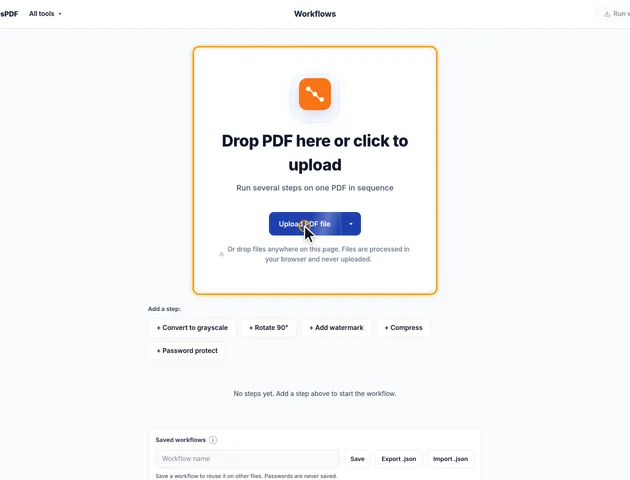
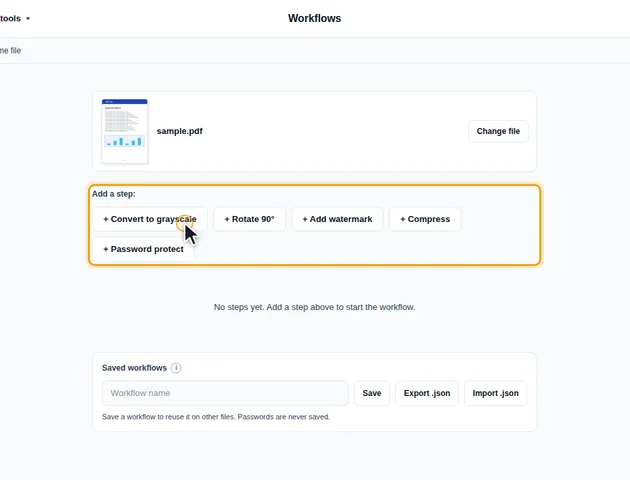
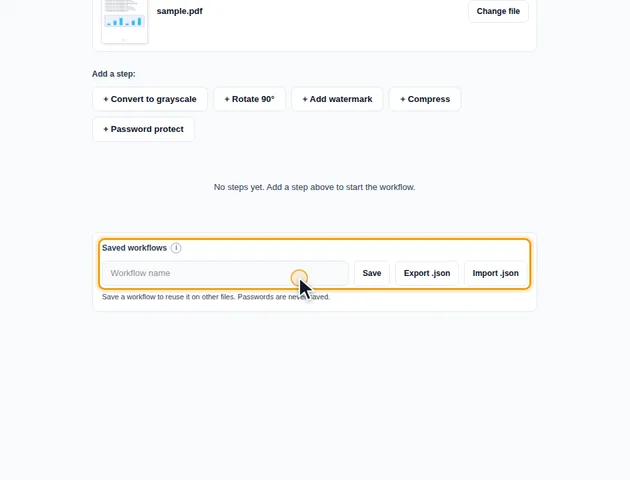
A workflow runs several PDF actions on one file, one after another. Save it to run again on other files, or export it as a file to share.
What happens to your file during a workflow run
Each step writes a complete new PDF
A run isn't one combined operation. The first step reads your file and saves a full PDF, the second step reads that PDF and saves another, and so on. Nothing is kept from a run that stops partway: if step 3 fails, you don't get the output of steps 1 and 2 either. Before any step starts, the tool checks that it can read the file at all, so a damaged PDF fails straight away rather than halfway through. If that happens, try Repair PDF first.
Because each step holds its own copy in memory, a long workflow on a large file needs more memory than a single tool would. Very large files are more likely to fail on a phone than on a laptop.
What survives each step
Rotate, Add watermark and Compress on "Lossless only" open the existing document and save it again. Bookmarks, links, form fields, comments and document properties all stay where they were.
Convert to grayscale, and Compress on "Automatic" when it decides to redraw the pages, build a brand new PDF from page pictures. Everything that isn't drawn on the page is left behind: the bookmark panel, the title and author in the document properties, attachments, and any links. If you need bookmarks in the result, add them after the run with Create bookmarks, and set the title again with Edit metadata.
How the watermark step sizes itself
There's no font size setting. The text is bold, gray, at 25% opacity, turned 45 degrees as the page is displayed, and its size is a tenth of the page's shorter side. On A4 that's about 60 points, on Letter about 61. Long text is shrunk so it fits within 80% of the page's diagonal, so a full company name comes out smaller than a single word.
Because the size is worked out per page, a document that mixes A4 and A3 pages gets a proportionally larger mark on the A3 pages. If you clear the text box completely, the step stamps the word WATERMARK.
What's inside an exported .json file
It's plain text that any text editor can open. It holds a tag saying it's an EddiesPDF workflow, a version number, the workflow name and the list of steps. Each step has a kind (grayscale, rotate, watermark, compress or protect) plus its setting: the angle as 90, 180 or 270, the watermark text, or the compression mode as auto or lossless.
That makes variants easy: copy the file, change the watermark text to another client's name, and import the copy. On import the tool checks everything:
- Files over 200 KB, or without the EddiesPDF tag, are refused.
- An unknown step type stops the import with a message naming it.
- An angle other than 180 or 270 becomes 90, and watermark text is cut to 200 characters.
- A protect step is moved to the end, and no password is ever read from the file.
The password step itself uses AES 256-bit encryption with an open password only. Every permission is allowed, and the owner password is a random one nobody knows. If you need printing or copying restrictions, leave the step out and use Protect PDF on the result.