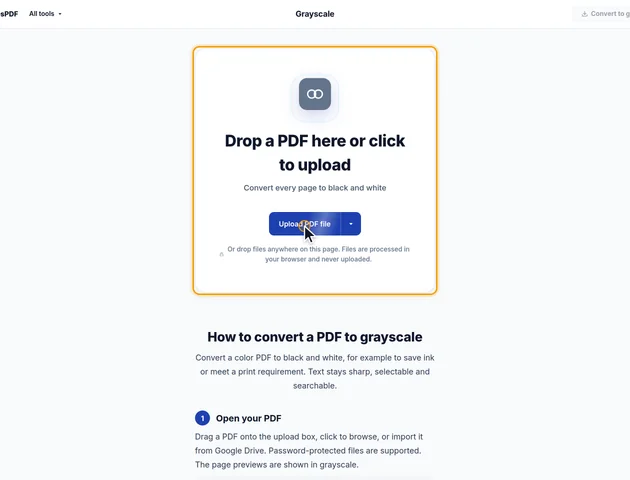
Drop a PDF here or click to upload
Convert every page to black and white
Or drop files anywhere on this page. Files are processed in your browser and never uploaded.
Convert a color PDF to black and white, for example to save ink or meet a print requirement. Text stays sharp, selectable and searchable.
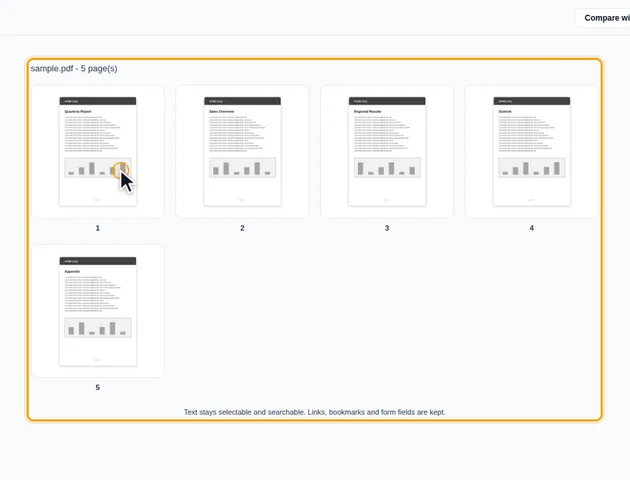
Drag a PDF onto the upload box, click to browse, or import it from Google Drive. Password-protected files are supported. The page previews are shown in grayscale.
The defaults convert everything to gray. Under More options, set Text conversion to Black to make all text solid black, or Image conversion to None to keep photos in color. Compress images re-encodes photos as JPEG to make the file smaller.
Click Compare with original to show the pages in color again, then Show grayscale to switch back. Undo and redo step through these view changes.
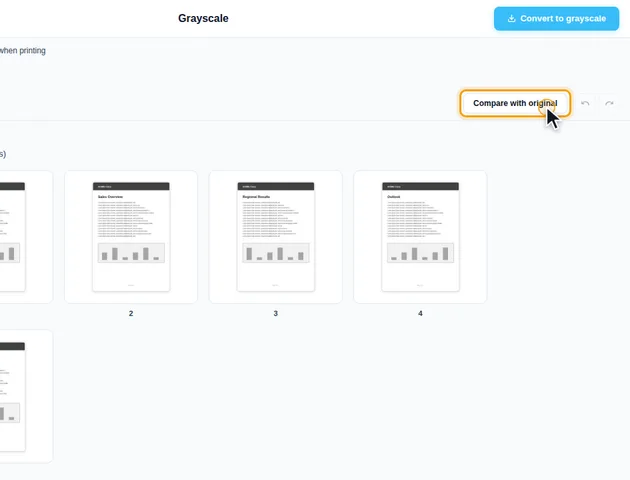
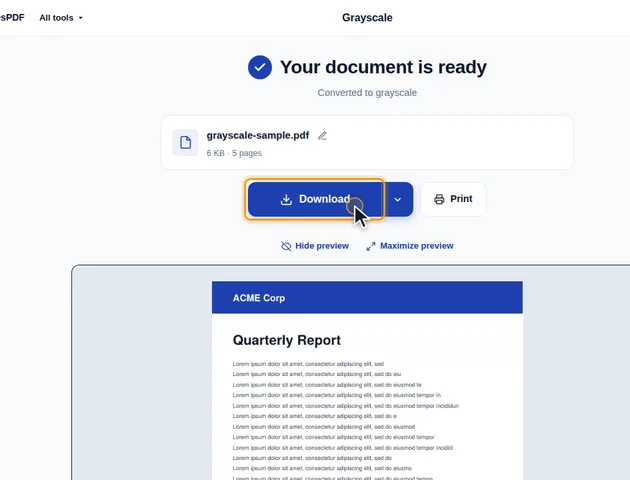
Click Convert to grayscale. On the results screen you can preview the converted pages, download the PDF, save it to Google Drive, open it in another tool, or delete the files.
Only the colors change. Text stays selectable and searchable, and links, bookmarks and form fields are kept.
Every color in a PDF is set in a particular color space. The tool rewrites a color to a single gray value when it can read its space: plain RGB, CMYK and gray, their calibrated versions, and ICC-profile colors with 1, 3 or 4 channels. Office documents, web pages saved as PDF and most design exports use these, so for them the gray is stored in the file itself.
Some color spaces are left as they are:
These only look gray because of a white overlay laid on top of each page in the Saturation blend mode. The overlay is added when "Image conversion" is set to "Grayscale", which is the default.
Two things follow. With "Image conversion" set to "None" there's no overlay, so spot-colored text and logos stay in color even though the rest of the page turns gray. And with the default setting, a print shop's preflight check can still find the spot color in the file, because the ink is still named there. If the shop wants a file with no spot colors at all, ask them to convert it in their own software.
The overlay is a white rectangle covering the whole page. A reader or printer that understands PDF blend modes mixes it with the page and you see gray. One that ignores blend modes paints it as an ordinary white box, and the page looks empty.
Modern readers handle this fine. If an older office printer, a basic e-reader or an upload system shows blank pages, convert again with "Image conversion" set to "None", so no overlay is added. Then, if the photos need to be gray too, run the file through Compress PDF with "Image conversion" set to "Grayscale" under "More options". That changes the stored pixels instead. Gradients and spot colors will keep their color in this route.
Comments and fields sit on top of the page, above the overlay, so they're handled separately. The tool rewrites the colors in their stored drawings, including the versions some readers show when you point at or click a field. Highlights, stamps and filled-in fields turn gray in the saved file.
Three gaps remain:
There is no fixed limit. The file is processed in your browser, so the practical limit is your device's memory.
Yes. It works in any modern browser, including on phones and tablets.
Yes. The PDF is processed in your browser and is not uploaded to a server.
