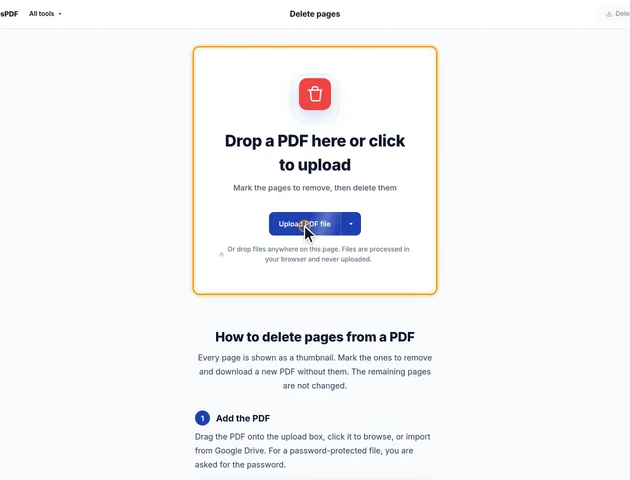
Drop a PDF here or click to upload
Mark the pages to remove, then delete them
Or drop files anywhere on this page. Files are processed in your browser and never uploaded.
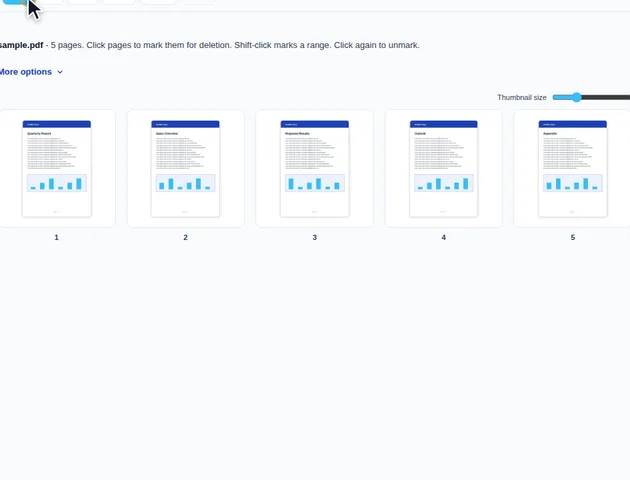
Every page is shown as a thumbnail. Mark the ones to remove and download a new PDF without them. The remaining pages are not changed.
Drag the PDF onto the upload box, click it to browse, or import from Google Drive. For a password-protected file, you are asked for the password.
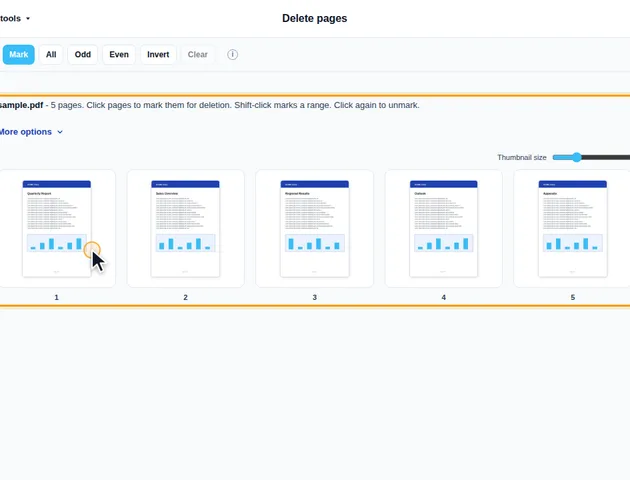
Click a page thumbnail to mark it for deletion, and click it again to unmark it. Shift-click marks a range. The line above the pages shows how many will be deleted and how many kept.
Click the Delete button in the header, which shows how many pages will be removed. The results screen has a preview of the new PDF and buttons to download it, save it to Google Drive, open it in another tool or delete the files.
Type page numbers or ranges such as 1-3, 5, 8- into the box above the pages and click Mark. All, Odd, Even, Invert and Clear change the selection in one step, and the undo and redo buttons reverse selection changes.
Bookmarks that point to a deleted page are removed and the others are kept. To remove all bookmarks, tick Discard bookmarks under More options.
The Thumbnail size slider above the grid enlarges pages so you can read them, or shrinks them to show more of a long document. At least one page must remain in the file.
When a bookmark points at a page you delete, that bookmark is removed, but the bookmarks nested under it aren't. They move up one level and take its place. So if "Chapter 3" pointed at a title page you deleted, its section bookmarks now sit at the top level between Chapter 2 and Chapter 4. Every surviving section is still reachable, but the outline is flatter than it was. If the hierarchy matters, rebuild it with Create bookmarks.
Some PDFs are also set to open at a particular page rather than the first. If you delete that page, the setting is dropped and the file opens at page 1.
In some PDFs the number in the viewer's page box isn't the page's position. Front matter shows as i, ii, iii and the first chapter starts again at 1. These are page labels, stored as rules such as "roman numerals from the first page, plain numbers from the fifth".
Delete pages doesn't rewrite those rules. Remove two pages of front matter and the rule still switches to plain numbers at the fifth position, which is now two pages into Chapter 1. Nothing on the pages themselves changes, but the viewer's page box and "go to page" will be off. After deleting from a book-style PDF, check that the label on the first chapter page still reads 1.
Cutting half the pages rarely halves the file. Fonts are stored once and shared by every page that uses them, and a logo or letterhead repeated on every page is usually stored once too. Those shared parts stay as long as one remaining page needs them, and the text itself takes very little space. A 2 MB report that's mostly embedded fonts may only lose a fraction of that when you cut it from 40 pages to 20.
Scans behave differently. Every scanned page is its own image, so deleting 10 pages from a 50-page scan removes roughly a fifth of the size. The result is saved with compressed object streams, which can shave off a little more. If it's still too big, the images are the problem, and Compress PDF is the tool for that.
The saved file records the edit in its document properties. The Producer field is replaced with the name of the PDF library the tool uses, and the modified date is set to the time you deleted the pages. Title, author and keywords are left as they were. If the Producer field matters to you, set it afterwards in Edit metadata.
Tagged PDFs, the kind built for screen readers, keep their tag structure. Tags that belonged to deleted pages are left pointing at nothing. Most readers skip them, but a strict accessibility checker may flag them, so recheck the file if it has to pass one.
If the original was signed with a certificate-based digital signature, deleting any page invalidates that signature. Delete pages before signing, never after.
No fixed limit is set. The file is processed in your browser, so very large files depend on your device's memory.
Yes, in any current mobile browser.
The file is processed on your device and is not uploaded. The pages are removed in your browser.
