Create Fillable PDF Online
Free PDF forms creator. Make existing PDF documents fillable
How to create a fillable PDF form
Add fields to an ordinary PDF so people can fill it in on screen. The fields are standard PDF form fields, which Adobe Acrobat, browsers and other PDF readers can fill in.
Open the PDF
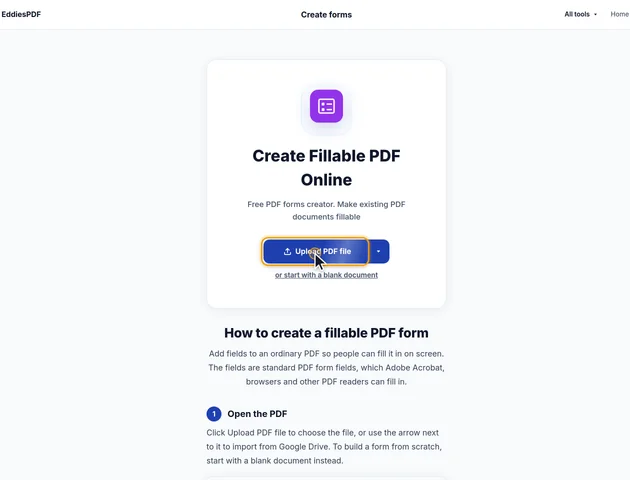
Click Upload PDF file to choose the file, or use the arrow next to it to import from Google Drive. To build a form from scratch, start with a blank document instead.
Place the form fields
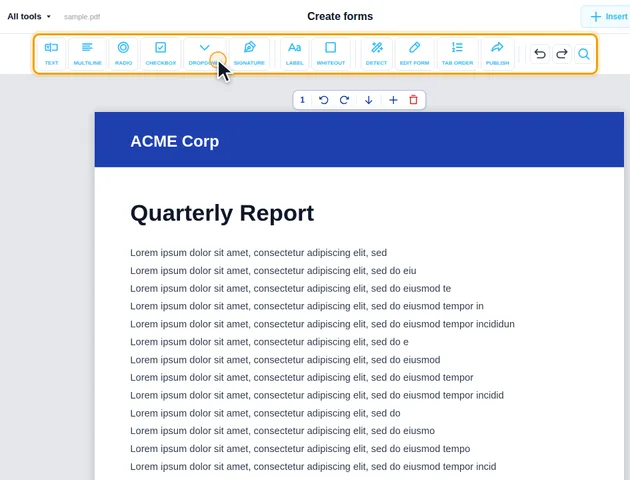
Pick Text, Multiline, Radio, Checkbox, Dropdown or Signature in the toolbar and click the page where the field goes. Drag a field to move it and drag its corners to resize it. Label adds plain text, such as a question, and Whiteout covers existing content such as printed lines.
Set up each field
Click a field to show its toolbar, which sets the font, font size, bold, italic and the text, background and border colors. The gear button opens Field properties: the field name, default value, drop-down options, and switches such as Field is mandatory, Read-only and Repeat on all pages.
Download the form
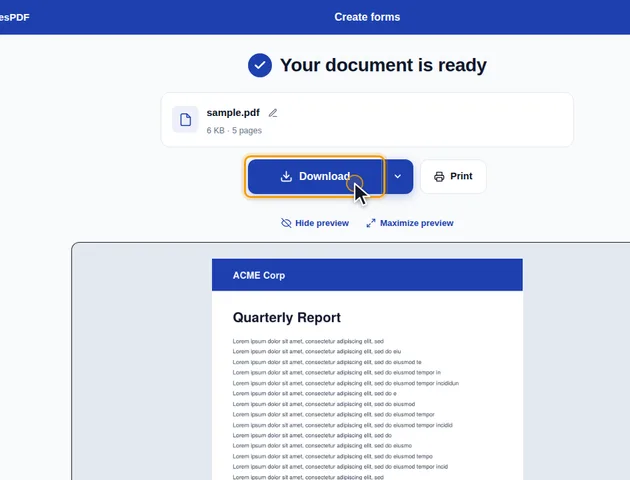
Click Download. The results screen has a preview of the fillable PDF and buttons to download, share or print it, go back to editing, open it in another tool or delete the files.
Detect fields and edit existing ones
Detect turns blank lines (____), box characters and empty boxes into fields; check the result and delete any you don't need. Edit form switches on Form Edit mode, where the fields already in the PDF can be moved, resized, renamed or deleted.
Tab order
Tab order sets the order the Tab key moves through the fields. Click the fields in the order you want, then click Done. Start over clears the sequence and Cancel keeps the previous order.
Radio groups and character limits
Radio buttons with the same Radio group name form one question, so only one can be selected. For text fields, Max length limits how many characters can be typed, and Divide into boxes puts one character in each box, which suits codes and dates.
Add more pages
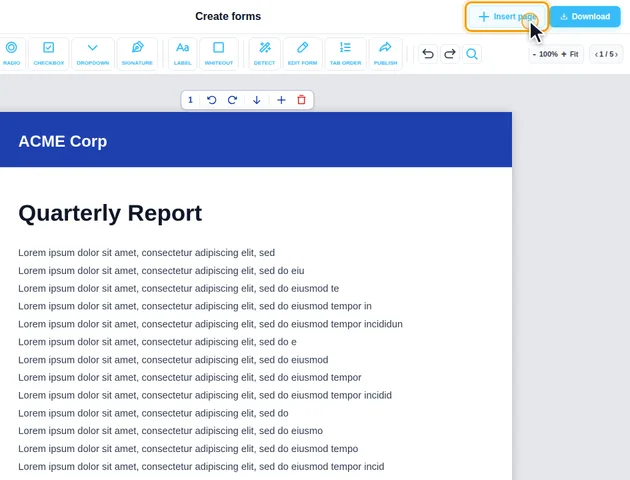
Insert Page adds a blank page, and the page list rotates, reorders or deletes pages. Undo and redo cover every change.
What ends up inside the fillable PDF
How field names are settled
Each answer is stored under its field's name, and the editor applies a few rules when writing names:
- Names are compared without regard to case, so "Email" and "email" count as the same field.
- A dot is replaced with an underscore. In the PDF format a dot means "a field inside another field".
- Two fields of the same type with the same name become one field shown in two places, sharing one value. A clash between different types, such as a text field and a checkbox both called "Agree", is resolved by renaming the second one to Agree_2. So is a second signature box with the same name.
- If you're adding to a PDF that already has fields, a new field whose name is taken is renamed in the same way rather than being merged into the old one.
Fields you never name are saved as Text1, Checkbox1, Group1, Dropdown1 and so on. Those names become column headings when answers are exported to a spreadsheet.
What a ticked box stores
A checkbox stores Yes when ticked, unless you type something else in "Field value". Radio buttons store Option1, Option2 and onwards. Changing these to real words, like Monthly and Yearly, makes collected answers readable. If two buttons in one group end up with the same value, the second is saved with _2 added.
Fonts and text that doesn't fit
Leave a field's font size empty and it's saved as "Auto". The PDF app filling the form then shrinks the text to fit the box. A fixed size stays fixed, and in most apps extra text in a one-line field scrolls out of view or is cut off when printed.
Helvetica, Times New Roman and Courier are the standard PDF fonts and aren't stored in the file. Any other font you pick is embedded whole, which makes the file bigger, though each font style is stored once however many fields use it. Pick one font for all fields if size matters. If a default value contains characters your chosen font can't show, a similar embedded font that has them is used for that field instead.
What's a field and what's printed on the page
A signature box is two things. One is a real, empty signature field that apps such as Acrobat offer to sign. The other is a dashed grey outline with the words "Sign here", drawn onto the page itself. The drawing stays on printouts and after signing, and deleting the field later won't remove it.
Labels are ordinary text on the page, not fields. Whiteout is a white box drawn over the page. The text or line underneath is hidden but still in the file, so don't use it to remove anything confidential. Redact PDF does that properly.
New fields have a light lavender fill and a thin purple border so people can find them. If they clash with your design, change the background and border colours, or set the border width to 0.
Features
- Adds fillable text fields, checkboxes, radio buttons, drop-down lists and signature boxes to any PDF.
- The PDF is processed in your browser. It is not uploaded to a server.
- Fields are saved as standard PDF form fields, so they can be filled in Adobe Acrobat and other PDF readers.
- Detect fields turns blank lines and empty boxes into fields, and Form Edit mode changes the fields a PDF already has.
- Free to use in the browser. No software to install and no account needed.
Frequently asked questions
Is there a file size limit?
No fixed limit is set. The file is processed in your browser, so very large files depend on your device's memory.
Does this tool work on mobile devices?
Yes. Placing many fields precisely is easier with a mouse on a desktop.
Is it safe to use with confidential documents?
The file is processed on your device and is not uploaded. The form is built in your browser.
