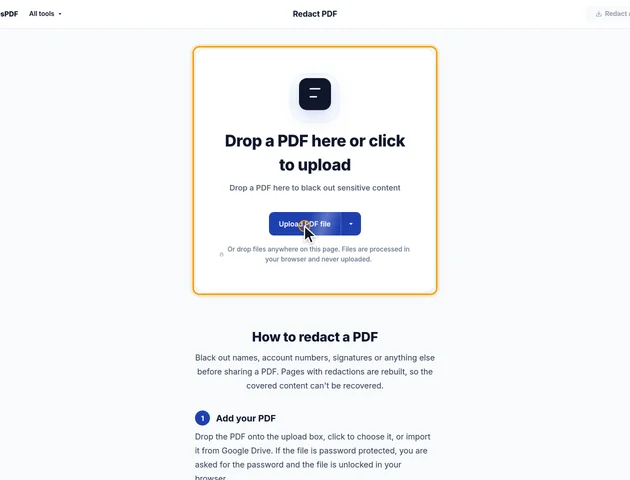
Drop a PDF here or click to upload
Drop a PDF here to black out sensitive content
Or drop files anywhere on this page. Files are processed in your browser and never uploaded.
Black out names, account numbers, signatures or anything else before sharing a PDF. Pages with redactions are rebuilt, so the covered content can't be recovered.
Drop the PDF onto the upload box, click to choose it, or import it from Google Drive. If the file is password protected, you are asked for the password and the file is unlocked in your browser.
Drag on the page to mark an area. Use the arrows below the page to move between pages and the red x on a box to remove it. Undo reverses the last change, and Clear removes every box on all pages. The options bar shows how many areas are marked.
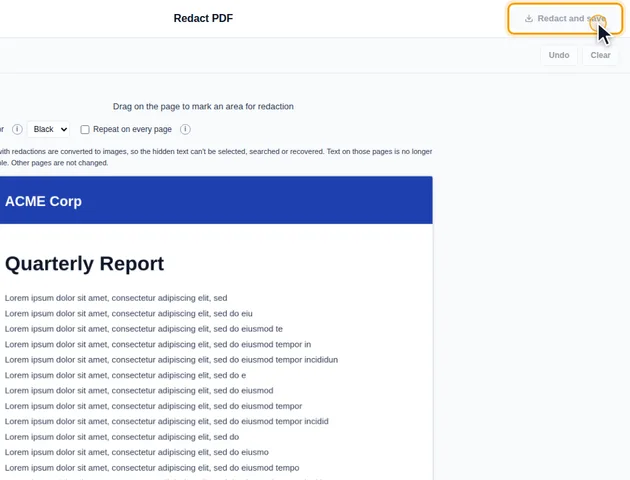
Click Redact and save. On the results screen you can preview the redacted PDF, download it, save it to Google Drive, continue with another tool, or delete the files.
Each page with a marked area is converted to an image with the boxes burned in, so the hidden text can't be selected, copied or searched. Other pages are not changed. Keep the original if you may need the hidden content later.
Fill color sets the boxes to Black, the usual choice for legal documents, or White, which hides the area without a visible box. Tick Repeat on every page to apply the marked areas to all pages at the same position, which suits headers, footers and account numbers.
Areas can be drawn on the first 30 pages. To redact something after page 30 that sits in the same place on each page, mark it on an earlier page and turn on Repeat on every page.
Redact PDF doesn't edit your file in place. It creates a new, empty PDF and fills it one page at a time. A page with no boxes is copied across as it is, with its text, links and comments. A page with boxes is replaced by a single picture of that page, the same size as the original.
Things that belong to the whole document, not to a page, aren't copied:
For a redaction that's usually a bonus, since a bookmark or title can repeat the very name you were hiding.
When "Repeat on every page" is ticked, the tool doesn't just repeat the boxes from the page you're looking at. It collects every box you've drawn, on every page, and applies all of them to every page. Draw one box on page 2 and a different one on page 7, tick the option, and both appear on all pages. The page view shows the boxes from other pages faintly so you can spot this before you save.
It also turns every page into a picture, so nothing is searchable afterwards and the file grows a lot. Use the option for something that really does sit on every page, like an account number in the footer, and draw boxes page by page for everything else.
Boxes are stored as a position relative to the page, not in inches. In a document that mixes page sizes, such as A4 pages with a landscape insert, a repeated box lands at the same proportional spot on each page, which may not be over the same text. Check those pages.
On a redacted page, everything you can see is flattened into the picture, and nothing behind it survives. That affects what you should do before and after.
The picture of each redacted page is made at about 180 dpi, which is sharp enough that anything left outside a box is still perfectly readable. A box that covers the middle of a line but misses the tops of tall letters, or the tails of letters like g and y, can leave enough to guess a short name or number. Draw each box over the full height of the line with a little room on every side.
A "White" fill leaves no visible mark. For anything legal or official, a black box is better, because it tells the reader something was removed on purpose.
There is no fixed limit. The file is processed in your browser, so the practical limit is your device's memory.
Yes, though drawing precise boxes is easier with a mouse.
Yes. Each page with a redaction is rebuilt as an image, so the covered text and images are gone and can't be selected, copied or searched. Pages without redactions are not changed.
The file never leaves your device. It is redacted in your browser and nothing is uploaded to a server.
