Drop a PDF here or click to upload
Mirror pages horizontally or vertically
Or drop files anywhere on this page. Files are processed in your browser and never uploaded.
Mirror the pages of a PDF left to right or top to bottom. This is useful for iron-on transfers, jobs printed from the back, or scans that came out reversed.
Drag a PDF onto the upload box, click to browse, or import it from Google Drive. Password-protected files are supported. A preview of the first page appears.
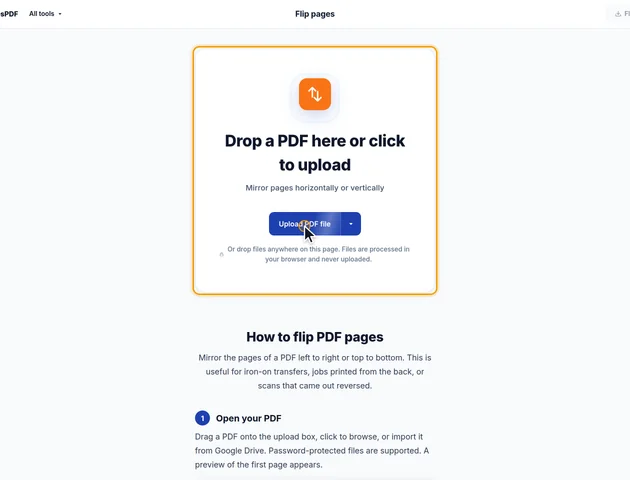
Next to Flip, choose Horizontal to mirror left to right or Vertical to mirror top to bottom. The preview updates right away.
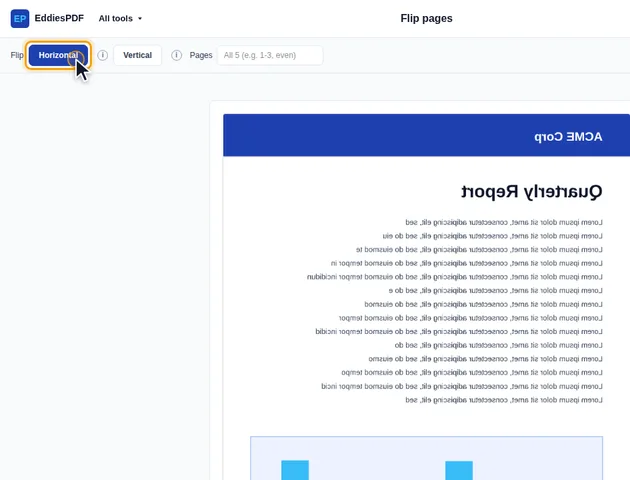
Leave Pages empty to flip every page, or type a selection such as 1-3 or even.
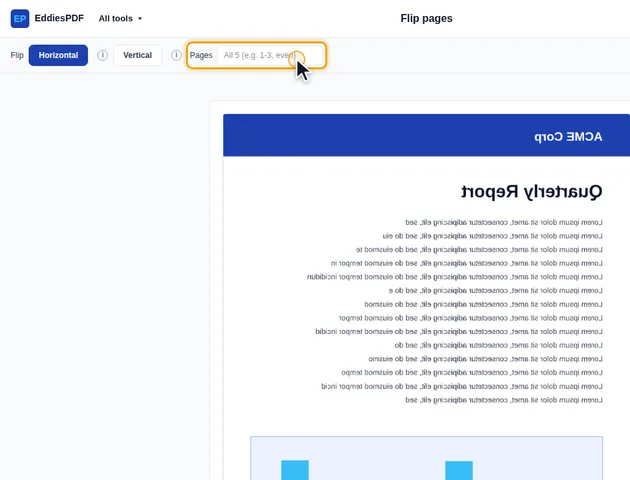
Click Flip pages. On the results screen you can preview the flipped pages, download the PDF, save it to Google Drive, open it in another tool, or delete the files.
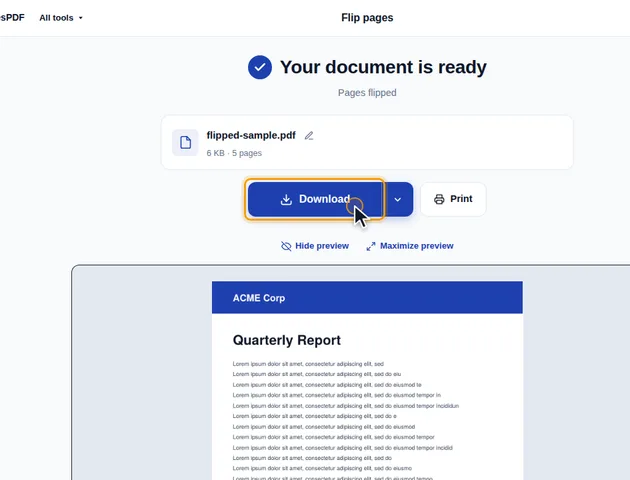
Each page is mirrored in place. Bookmarks, form fields, page rotation and crop settings are kept, and links and comments move to their mirrored position.
A mirror needs a line to reflect across. Flip pages uses the middle of the visible area of each page, not the middle of the full sheet stored in the file.
That matters for pages that were cropped. Say a scan was cropped to remove a wide black border on the left. If the flip used the full sheet, the visible part would land off-center, and some of the trimmed border could slide back into view. Using the visible area means the cropped page mirrors onto itself, and the crop stays where it was.
Pages of different sizes in one file are handled one by one, each with its own center. A landscape fold-out in the middle of a portrait report flips around its own middle, not the report's.
Some PDFs store a page sideways and add a setting that tells readers to turn it 90 degrees when showing it. Scans and slides exported to PDF often look like this.
"Horizontal" always means left to right as you see the page on screen, and "Vertical" means top to bottom as you see it. On a page with a 90 or 270 degree rotation setting, the tool swaps the axis internally so the result matches what you picked. The rotation setting itself isn't touched, so the page still opens the same way round.
Comments are separate objects with their own coordinates, so the tool moves each one to the mirrored spot. It doesn't just move the outer box. It recalculates the points inside:
What isn't changed is how a comment draws itself. A sticky note icon or a text box comment moves to the right place but still reads normally.
When a scan or export comes out wrong, look at a letter such as R or the number 7:
If only some pages are wrong, for example the backs of double-sided originals, type them into "Pages", such as "even".
There is no fixed limit. The file is processed in your browser, so the practical limit is your device's memory.
Yes. It works in any modern browser, including on phones and tablets.
Yes. The PDF is processed in your browser and is not uploaded to a server.
