Drop a scanned PDF here or click to upload
Adds a searchable, selectable text layer
Your file stays on your device. Needs internet to download the text-reading engine.
Optical character recognition (OCR) reads the text on scanned pages and adds it as an invisible text layer. The pages look the same, but the text can be searched, selected and copied.
Drag the PDF onto the upload box, click to choose it, or import it from Google Drive. For a password-protected file you are asked for the password, and the file is decrypted in your browser. Thumbnails of the first pages appear once the file is loaded.
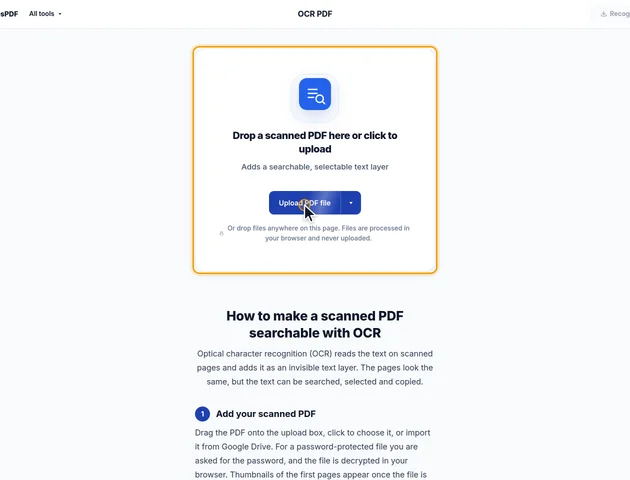
Set Document language to the language of the text. English is selected by default, and 39 languages are available. Under Output format, PDF gives a searchable copy of the file and Text gives a plain .txt file; tick both to get both.
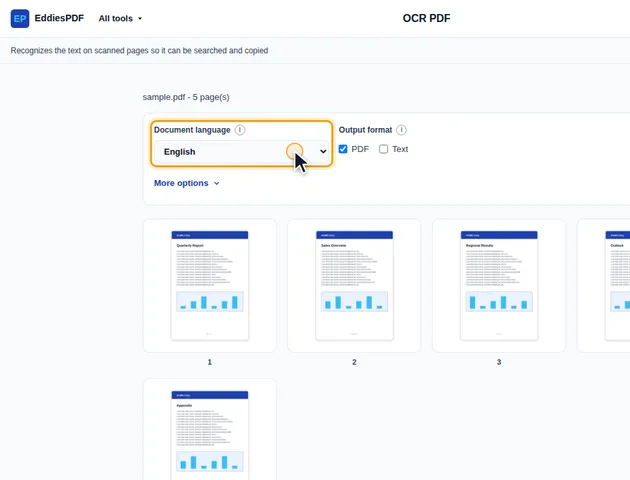
Open More options to add a Second language for documents that mix two, or to limit OCR to a Custom range such as 1-3, 7. "Skip pages that already have text" is on by default and saves time on documents that are only partly scanned.
Click Recognize text. Progress is shown page by page, and Cancel stops the run. On the results screen you can preview the output, download it, save it to Google Drive, open it in another tool, or delete the files.
Recognition runs in your browser and the PDF is not uploaded. The OCR engine and the language data are downloaded the first time a language is used.
Check that Document language matches the text. Tilted scans are harder to read, so straighten them with Deskew PDF and run OCR again.
The tool draws each page onto an off-screen canvas at 300 DPI, on a white background, and hands that picture to the recognition engine. It draws the page as it's displayed, after any rotation setting and crop, so the text layer lines up with what you see.
There's one limit. The longest side of that picture is capped at 4,200 pixels, which keeps memory use in check. Letter, A4 and Legal pages fit under the cap at the full 300 DPI. Bigger sheets get less: an A3 page is read at about 250 DPI, and an A1 drawing at about 125. Small lettering on large plans can be missed for that reason. If splitting suits the document, cutting a big sheet into smaller pages with Split in half gives each part the full resolution.
The engine expects text lines to run left to right across the page. A page that was scanned sideways or upside down, without a rotation setting to correct it, is recognized poorly, if at all. Fix those with Rotate PDF before running OCR.
"Skip pages that already have text" checks whether a page contains any selectable text at all. Even one word is enough. That has a side effect people don't expect: a scanned page with a page number, a header or a Bates label stamped on it digitally counts as having text, and is skipped.
So run OCR before you add page numbers, headers or Bates labels with the other tools. If that's too late, untick the option and every selected page is recognized regardless.
Some scanners and copiers add their own text layer, often of poor quality. With the option on, those pages are skipped too. With it off, the new text layer is added alongside the old one rather than replacing it, so searches can find a word twice. For files like that, it's usually better to go back to the scan without the scanner's OCR if you can.
The original file is the starting point, and its pages aren't touched. Bookmarks, links and document properties are all still there afterwards. For each page where words were found, one invisible text layer is drawn on top. Pages with no recognized words get nothing. Because no images are re-encoded, the file only grows by the size of the text, which is small next to the scans. If the scans were large before OCR, they're still large afterwards, and Compress PDF is the tool for that.
The .txt file has a line like "--- Page 3 ---" before each page's text, numbered as in the original file, so you can match a passage to its page. Pages skipped because they already had text aren't left out: their existing text goes in under their own marker. A partly scanned document still gives one complete text file.
There is no fixed limit. The file is processed in your browser, so long documents mainly take more time.
Yes, in any modern browser. OCR is usually faster on a desktop or laptop.
Yes. The PDF is processed in your browser and is not uploaded to a server. Only the OCR engine and language data are downloaded.
