Drop a PDF here or click to upload
Pages are previewed so you can see each rotation
Or drop files anywhere on this page. Files are processed in your browser and never uploaded.
Turn pages left, right or upside down and save the change in the file. Rotate the whole document at once or fix single pages.
Drag the file onto the upload box, click to choose it, or open it from Google Drive. Password-protected PDFs open after you enter the password.
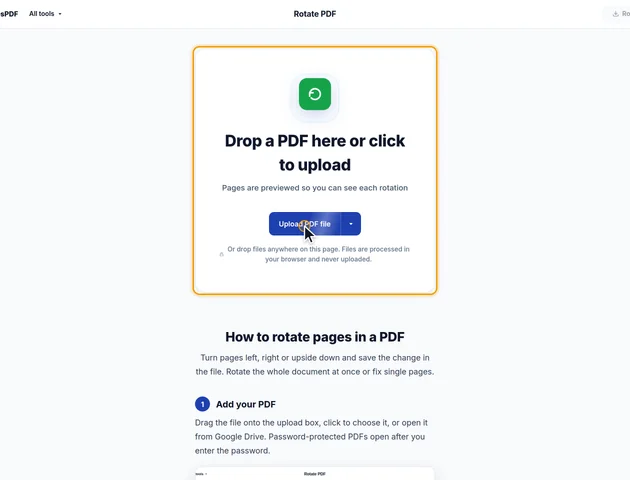
Next to Rotate, choose All pages, Odd pages, Even pages or Selected pages. Clicking page thumbnails selects them and switches the menu to Selected pages.
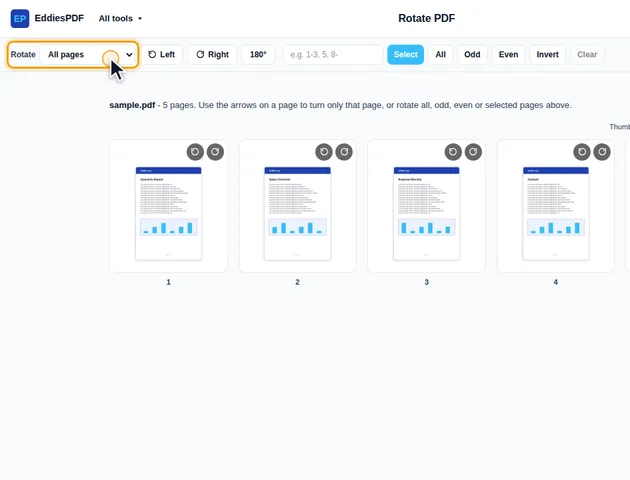
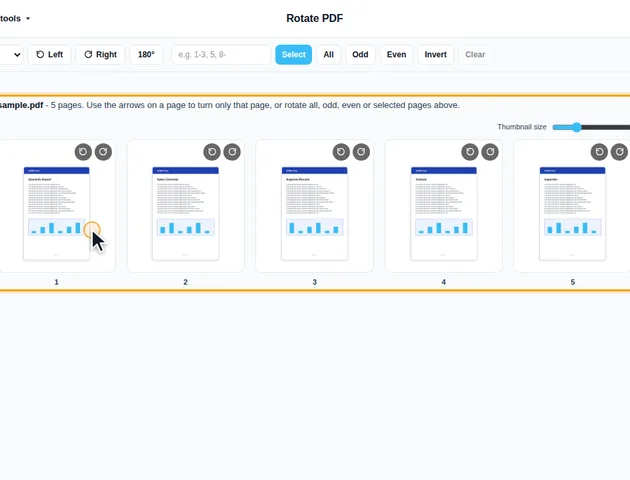
Click Left, Right or 180° to turn the chosen pages. The thumbnails update immediately. To turn one page, use the arrow buttons on its thumbnail. Reset all removes every rotation.
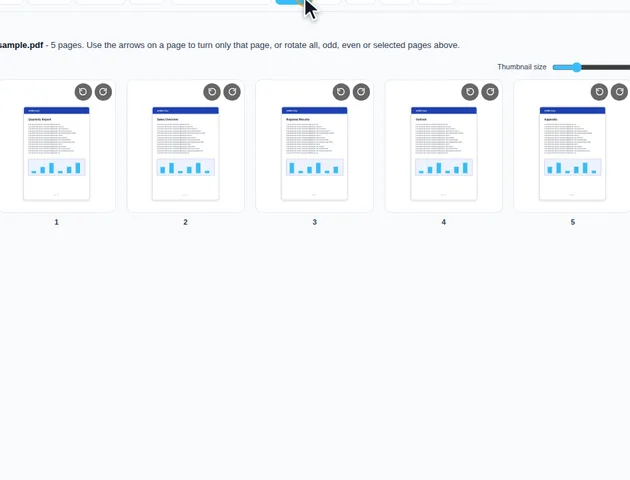
Click Rotate PDF in the header. The results screen lets you preview and download the file, save it to Google Drive, open it in another tool, or delete the files.
Type ranges such as 1-3, 5, 8- and click Select, or use All, Odd, Even, Invert and Clear. Undo and Redo step back and forward through your rotations.
Turning a page by 90 degrees doesn't only change how it looks in a viewer. A Letter page that was 8.5 x 11 inches now reports itself as 11 x 8.5, a landscape page. Upload portals that check page orientation, print dialogs and other PDF tools all see the new shape.
That's usually what you want. One case needs a moment's thought: a wide table in a portrait report, printed sideways on purpose so it fits the paper. On screen it's easier to read turned upright. On paper it still prints fine, because most print dialogs turn landscape pages to fit portrait paper as long as their auto-rotate setting is on, which it normally is. So rotating it for screen readers rarely costs you anything in print.
Comments, highlights, links and form fields are positioned in the same coordinates as the text and images, so they turn along with the page and stay over the right words. A form field stays fillable. Nothing gets laid out again, either: a paragraph that was sideways is upright now, but it's the same paragraph with the same line breaks.
The one thing that doesn't survive is a certificate-based digital signature. Saving the rotation rewrites the file, so Adobe Acrobat Reader and similar apps will report the signature as invalid or the document as changed. If a signed contract has a sideways page, ask the sender for a corrected copy rather than fixing it yourself. If you're about to sign something, rotate first and sign after.
Several EddiesPDF tools place things relative to the page the way it's displayed, so they need it upright first.
If your PDF has a password, it's unlocked in your browser when you add it, and the rotated copy is saved without the password. When the file needs protecting again, run it through Protect PDF after rotating. For the same reason, keep the rotated copy somewhere sensible rather than in a shared downloads folder if the content is private.
Rotation is also one of the steps in Workflows, where password protection always runs last. For files you rotate and protect every week, that saves a second trip.
There is no fixed limit. Rotation runs on your device, so very large files depend on the memory available to your browser.
Yes. It runs in any modern browser, including on phones and tablets.
Your file stays on your device. It is rotated in the browser and never uploaded.
