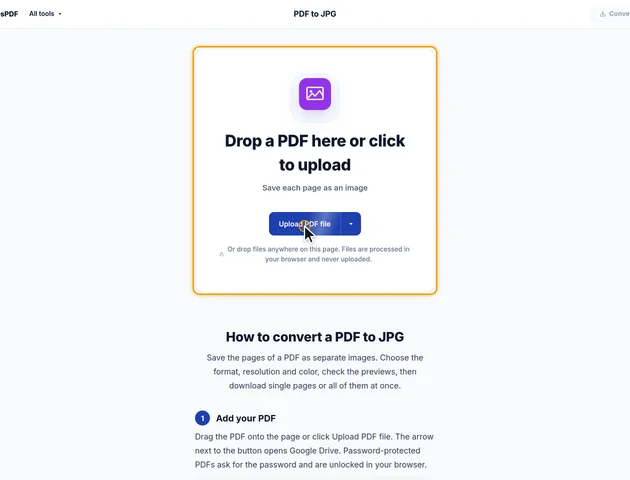
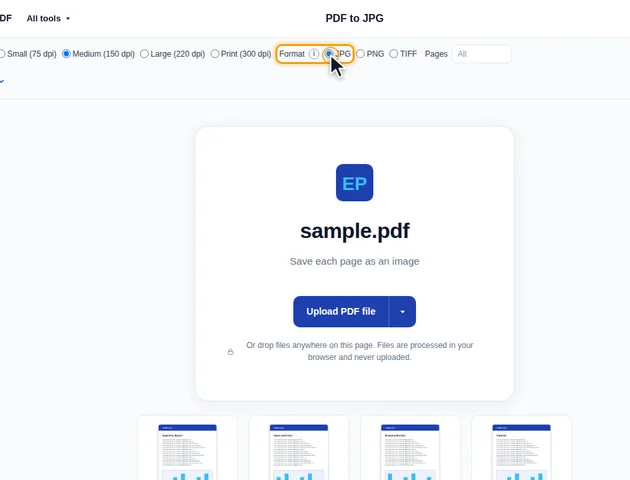
Drop a PDF here or click to upload
Save each page as an image
Or drop files anywhere on this page. Files are processed in your browser and never uploaded.
Save the pages of a PDF as separate images. Choose the format, resolution and color, check the previews, then download single pages or all of them at once.
Drag the PDF onto the page or click Upload PDF file. The arrow next to the button opens Google Drive. Password-protected PDFs ask for the password and are unlocked in your browser.
Choose a Resolution from Small (75 dpi) to Print (300 dpi); Medium (150 dpi) is the default. Under Format, pick JPG, PNG or TIFF. Type a range in Pages, such as 2-4, to convert only some pages. Under More options, Colors switches between Full colors, Grayscale and Black and white, and File name sets the name pattern, [BASENAME]-[CURRENTPAGE] by default.
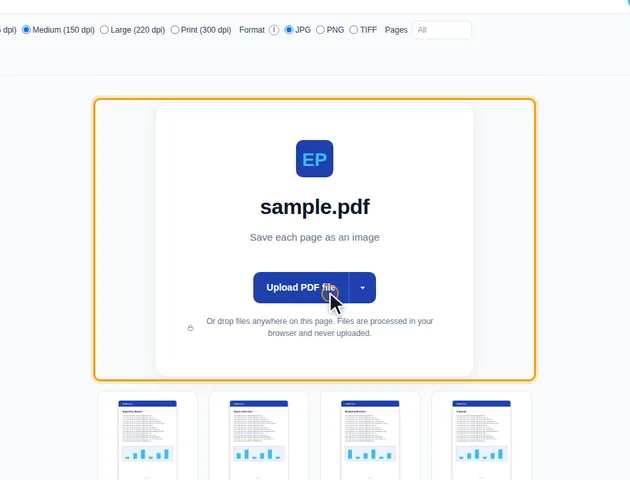
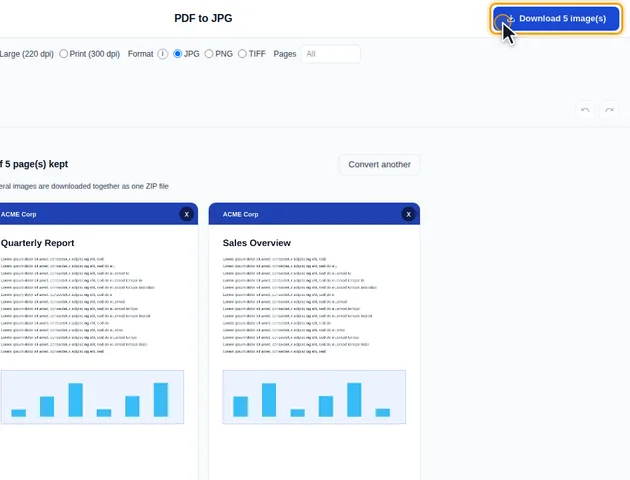
Click Convert to JPG; the button follows the format you picked. A preview of each image appears. Each one has its own Download button, and the x in the corner leaves a page out of the final download. Undo and Redo bring removed pages back.
Click Download in the header; the button shows how many images are kept. More than one image is saved as a ZIP file. The results screen also lets you preview the images, save them to Google Drive, open another tool, or delete the files.
Medium (150 dpi) suits screens and email. Print (300 dpi) gives sharp printouts, and Small (75 dpi) gives the smallest files. Very large pages are saved at a lower resolution to stay within your browser's limits, and a note tells you when this happens.
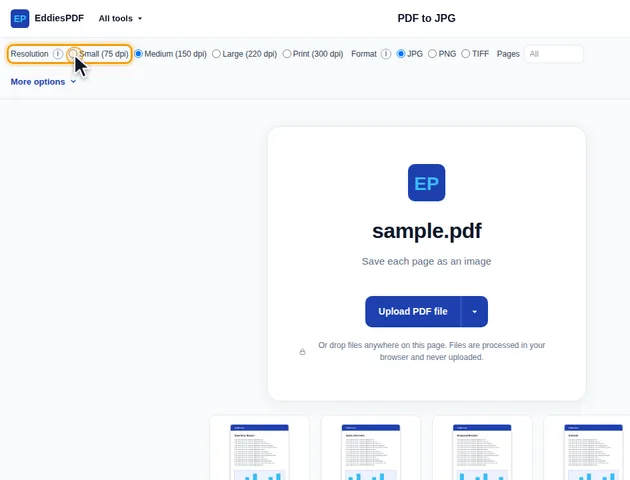
JPG gives the smallest files and suits scans and photos. PNG is lossless and keeps small text and line drawings sharp. TIFF is lossless too and is used for archiving and print. With TIFF, More options can save all pages in one multi-page file.
PDF to JPG draws each page the way a PDF viewer would, onto a blank canvas, and saves the result. A few details of that process decide how your images turn out.
The canvas is filled with white before the page is drawn, so any transparent area comes out white. That applies to PNG and TIFF too: you won't get a transparent background, even from a PDF of a logo on an empty page.
Comments, highlights and stamps are drawn along with the page, so the image matches what you see in a viewer. If filled-in form fields come out blank, the form probably has no stored appearance for those entries. Run it through Flatten PDF first, which makes the entries part of the page so they show up.
Pages follow their own rotation setting, so a landscape page that's stored sideways still comes out as a landscape image.
The whole page is always rendered. When you only want the photos inside a PDF, Extract images saves the embedded files themselves, at their original resolution and without the text around them, which usually beats cropping a photo out of a page image.
Each image is limited to 16 million pixels so it can be created in every browser, including Safari on an iPhone. Normal paper sizes never get close. A Letter page at 300 dpi is about 8.4 million pixels.
Larger sheets do hit the cap. An A3 page at Print (300 dpi) would need about 17 million pixels, so it's made at roughly 288 dpi instead, and an A2 plan at Large (220 dpi) comes out at about 203 dpi. The proportions stay the same; only the pixel count drops. When you need full detail from part of a large drawing, cut that area out with Crop PDF first. A smaller page gets the full resolution you asked for.
Black and white sorts every pixel by brightness. Anything darker than about 59% brightness becomes black and everything lighter becomes white, with nothing in between. Strong colors survive: red or blue text is dark enough to turn solid black. Pale things vanish. Light gray text, a yellow highlighter mark and the shading behind table rows all turn white. If a page relies on any of those, use Grayscale instead.
The payoff is size. A black and white TIFF is stored at one bit per pixel, which makes text pages tiny compared with the color version.
The resolution you pick decides how many pixels each image has. TIFF files also record that resolution, so a 300 dpi TIFF of an A4 page opens in a layout program at A4 size. The JPG and PNG files don't carry it, and many programs then assume 72 or 96 dpi and show the picture several times too big. If a 300 dpi image looks huge when you place it in Word or a print layout, set its width there. All the sharpness is still in the file.
There is no fixed limit. Conversion runs on your device, so very large files depend on the memory available to your browser.
Yes. It runs in any modern browser, including on phones and tablets.
Your file stays on your device. It is converted in the browser and never uploaded, so it isn't stored on a server.
