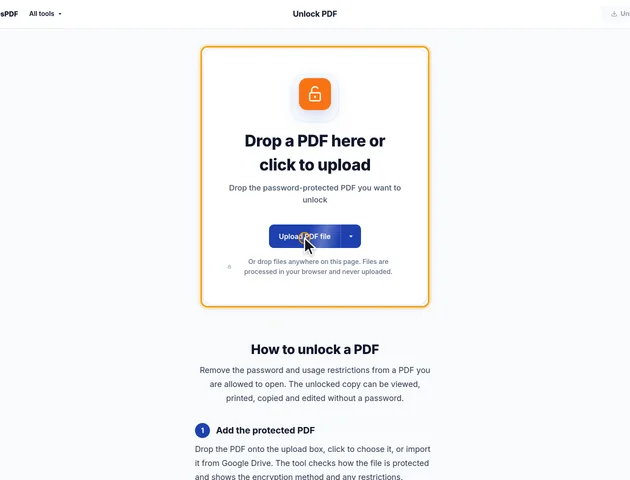
Drop a PDF here or click to upload
Drop the password-protected PDF you want to unlock
Or drop files anywhere on this page. Files are processed in your browser and never uploaded.
Remove the password and usage restrictions from a PDF you are allowed to open. The unlocked copy can be viewed, printed, copied and edited without a password.
Drop the PDF onto the upload box, click to choose it, or import it from Google Drive. The tool checks how the file is protected and shows the encryption method and any restrictions.
If the PDF needs a password to open, type it into the Password field. The open password and the permissions (owner) password both work. A file that opens without a password and only has restrictions needs no password.
Click Unlock PDF in the header. On the results screen you can preview the unlocked PDF, download it, save it to Google Drive, continue with another tool, or delete the files.
The PDF is decrypted in your browser, so neither the file nor the password is sent anywhere. You need to know the password, unless the file only has restrictions.
PDF has had several generations of password encryption, and a file keeps whichever one the program that made it chose. Unlock PDF handles the four used by the standard password system:
When you add a file, the tool reads its encryption settings and shows the method and the list of restricted actions (printing, copying, editing, commenting, filling forms, and inserting or deleting pages). Anything outside those four methods gets the message "This PDF uses an encryption method that can't be removed yet". Files locked to a digital certificate are refused for a different reason: there's no password that would open them.
The password is used to work out the file's encryption key. The tool then decrypts every encrypted string and stream in the file, deletes the encryption dictionary, and saves the result as a new copy. Nothing else is rebuilt. The pages, bookmarks, form fields, comments and attachments are the same objects as before, just no longer scrambled. If the original declared its metadata as unencrypted, that part is left exactly as it was.
For a file with restrictions but no open password, the tool tries an empty open password, which is how a reader displays such files in the first place. That's why no typing is needed.
The tool tries your password in more than one text encoding, because different programs store passwords differently. With AES 256-bit files, accented letters and non-Latin scripts work, since that format stores the password as Unicode. Older RC4 and AES 128-bit files only support a limited character set, so a password with unusual characters may have been stored in a way that varies between programs.
Some more ordinary causes:
Use the show password button to see exactly what you've typed.
Removing encryption means writing out a new file, and that matters for signed documents. A digital signature covers the exact bytes of the file it was applied to. Once those bytes change, signature checkers in apps like Adobe Acrobat Reader will report that the document was modified after signing, even though the visible content is identical. If you need the signature to verify, keep the protected original alongside your new copy.
You also don't always need this tool first. Most EddiesPDF tools ask for the password when you add a protected file and decrypt it in your browser, and the files they save don't carry a password. To merge three protected statements, for example, you can go straight to Merge PDF.
There is no fixed limit. The file is processed in your browser, so the practical limit is your device's memory.
Yes. It works in any modern browser, including on phones and tablets.
Only if you know the password. The tool is for PDFs you own or are allowed to open, not for getting around security on other people's files.
The file and the password never leave your device. Decryption happens in your browser and nothing is uploaded to a server.
