Drop a PDF here or click to upload
Split a PDF where specific text appears
Or drop files anywhere on this page. Files are processed in your browser and never uploaded.
Split a combined PDF, such as a batch of invoices or statements, into separate documents based on the text on each page. No page counting needed.
Drag the PDF onto the upload box, click to choose it, or import it from Google Drive. A password-protected file asks for its password and is unlocked in your browser.
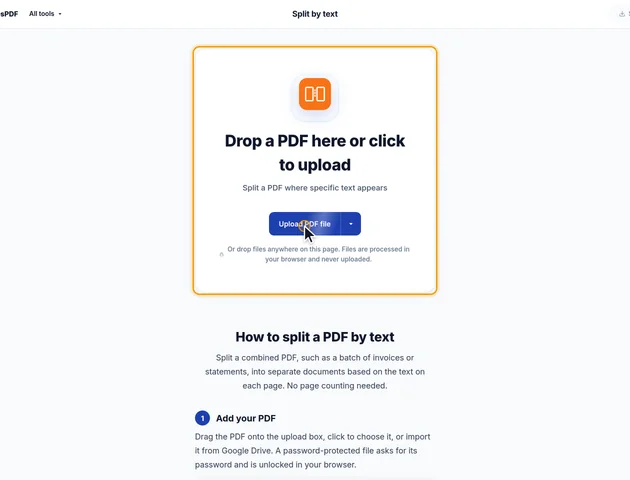
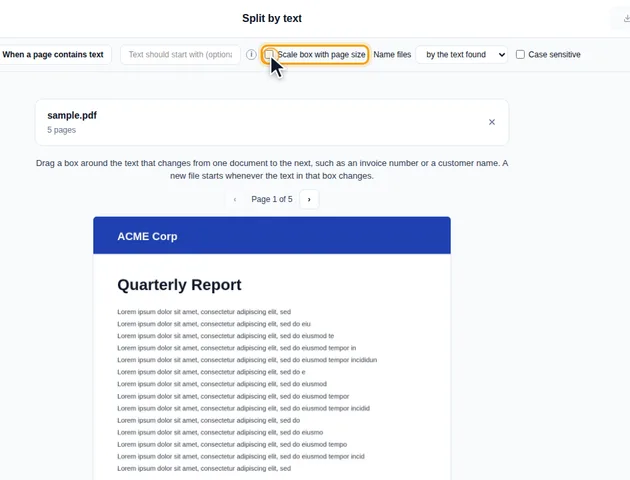
Choose "When text in an area changes" to split on a value such as an invoice number or customer name. Choose "When a page contains text" to start a new file on every page that contains a word or phrase.
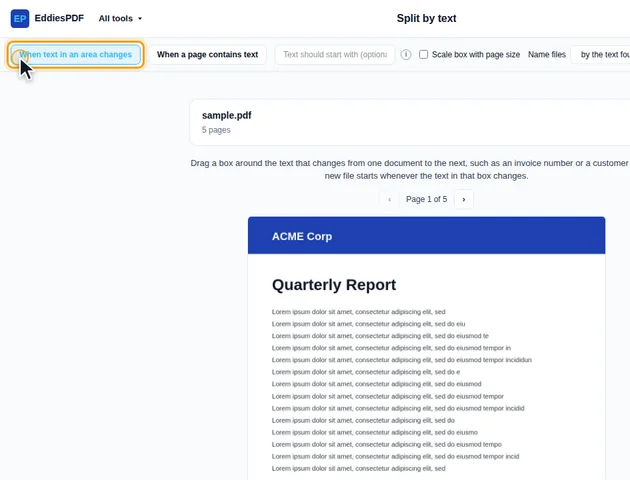
In area mode, drag a box around the changing text on the page preview. The text inside the box is shown below the preview, and the list of files updates. Use the arrows to check other pages. In phrase mode, type the text after "Split whenever this text appears".
Click the Split into button in the header. The results screen lets you preview each file, download them all as a ZIP, save to Google Drive, open a file in another tool, or delete the files.
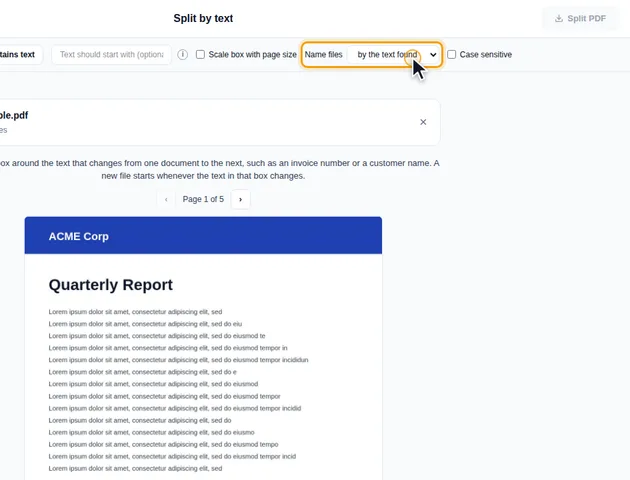
In area mode, set "Name files" to "by the text found" to name each file after the text in the box, such as the invoice number. Choose "by page numbers" for names like report-pages-1-3. For a custom pattern, open More options and fill in Output file names. If the PDF has bookmarks, Discard bookmarks is there as well.
Type into "Text should start with" to count only area text that begins with, for example, INV-. Tick "Case sensitive" when upper and lower case matter. Tick "Scale box with page size" if the PDF mixes page sizes.
A scan has no text layer, so the tool links to OCR first. Once the PDF is searchable, split it by text here.
The tool works from the PDF's text layer, which isn't always the same as what you see. To see what it will read, select the invoice number or heading in your PDF reader, copy it, and paste it into a note.
Pictures and outlines are fixed by running the file through OCR PDF. Gibberish is harder. OCR skips pages that already have text unless you untick "Skip pages that already have text", and even then it adds a readable layer on top of the garbled one. Phrase mode then works, but an area box may read both. If you can, ask for the file to be exported again.
Invisible text is read like any other: an OCR layer, white text, or words hidden behind an image. A phrase can match on a page where you can't see it.
After OCR, the box reads recognised text, and recognition makes mistakes. A 0 read as an O, or a 1 as a lowercase l, turns INV-1003 into a different value. In area mode that starts a new file in the middle of an invoice, or gives one file a slightly wrong name.
So step through a few pages with the arrows and watch the "Text in the box on this page:" line. Typing a prefix into "Text should start with (optional)" helps, but be careful: a page where the start of the number was misread then counts as empty and joins the document before it. Comparing the number of files with the number you expect catches both problems.
Pages with no text at all, like a scanned delivery note behind each invoice, have an empty box, so in area mode they stay with the invoice they follow.
Area mode compares each page's value with the last value it saw. It doesn't group matching values from across the file. If the same customer appears on pages 4 and 30 with others in between, you get two files, and the second is named with " (2)" on the end. For an unsorted batch, combine those files afterwards with Merge PDF.
Two values count as the same when they differ only in upper and lower case, unless "Case sensitive" is ticked, or only in spacing. "INV 22" and "inv 22" are one document.
The tool also estimates where each character sits by sharing a run of text's width evenly between its characters. In a proportional font, a narrow 1 and a wide W don't take the same space, so a box edge drawn tight against the value can take in or drop a character. Leave a clear gap around the value and the guess doesn't matter.
There is no fixed limit, because the file is processed in your browser rather than on a server.
Yes. It works in current browsers on phones and tablets.
No. The text is read and the PDF is split on your device, in the browser. The file is never sent to a server.
