Drop a .docx file here or click to upload
The document is converted to PDF in your browser
Or drop files anywhere on this page. Files are processed in your browser and never uploaded.
Convert a Word document (.docx) to a PDF for sharing or printing. Pictures, tables, lists and page breaks are kept, and the text stays selectable and searchable.
Drag the .docx file onto the page or click Upload Word file. To open a file from Google Drive, use the arrow next to the button.
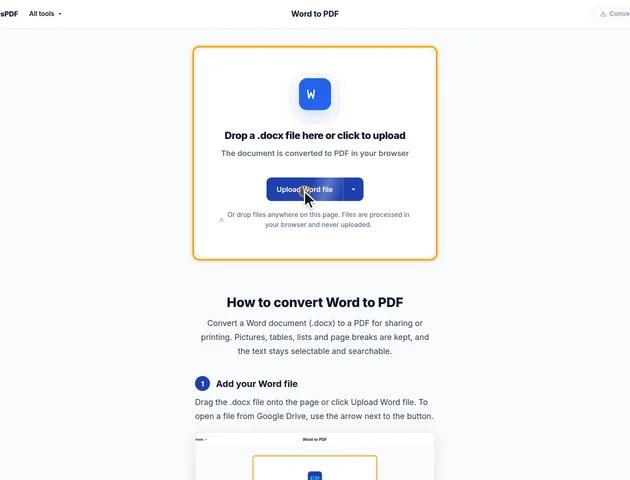
Page size is set to Same as the document, which keeps the paper size from Word. Choose A4 or Letter to change every page. Orientation and Margins are under More options; both default to Same as the document.
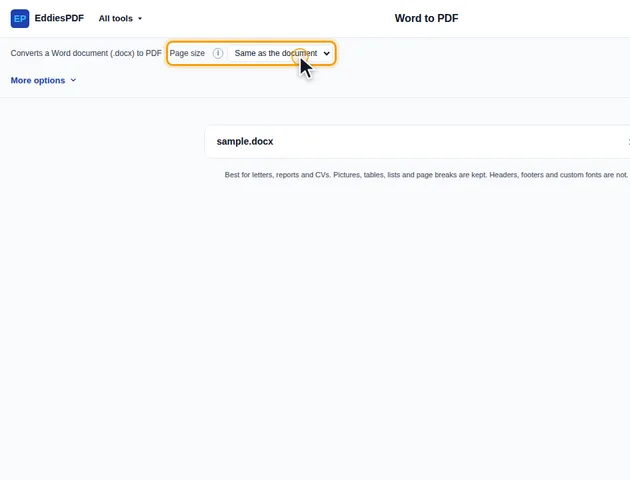
Click Convert to PDF. The results screen shows a preview. From there you can download the PDF, save it to Google Drive, open it in another tool, or delete the files.
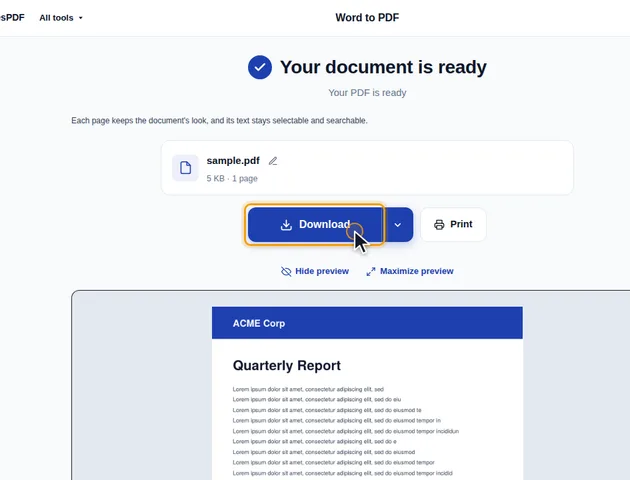
Headings, text styles, pictures, tables, lists and page breaks are converted. Headers, footers, text boxes and custom fonts are not. If part of the document couldn't be converted, the results screen says so; check the PDF before you send it.
A Word document can be split into sections, each with its own page setup. Reports often use this to put one wide table on a landscape page in the middle of a portrait document. The converter reads the page size and margins from the document's last section only, and uses them for every page. So that landscape table page comes out portrait, at the same width as the rest. Use Orientation under More options if the whole PDF should be landscape, or copy that section into its own document and convert it on its own.
A few more details about the page setup:
Each page is drawn in the browser and stored as a picture, at 1.5 times your screen's pixel density, capped at twice. On an ordinary laptop screen that works out to about 144 pixels per inch. On a phone or a high-density laptop screen it's about 192. The same .docx converted on a phone therefore comes out sharper, and larger.
Pages are saved as PNG, which keeps text edges clean and white paper pure white. When a page is mostly photos and the PNG would be big, the tool switches it to JPEG at 92% quality if it's less than half the size. If the finished file is too big to send, Compress PDF can shrink those page images further.
A table too wide for the space between the margins isn't cut off. The converter lays it out at its natural width, up to 2,400 pixels, and then scales the whole document down to fit the page. That keeps everything visible, but the text gets smaller everywhere, not only in the table. If a document comes out with tiny text, look for one oversized table. Switching Orientation to Landscape or Margins to Narrow gives it more room, and splitting the table in Word fixes it properly.
Hyperlinks look right, blue and underlined, but they aren't clickable in the PDF, because the page itself is a picture. If readers need to click links, export the PDF from Word or Google Docs instead.
Word comments aren't included. If the document has tracked changes, accept or reject them in Word before converting, so you know exactly which text you're getting.
The invisible text layer is placed line by line over the picture. Search works and so does copying, but copied text usually comes out with a line break at the end of each line rather than as flowing paragraphs.
The PDF's document title is left empty. If the file is going into a document system that shows titles, add one with Edit metadata.
There is no fixed limit. Conversion runs on your device, so very large documents depend on the memory available to your browser.
Yes. It runs in any modern browser, including on phones and tablets.
Your file stays on your device. It is converted in the browser and never uploaded, so it isn't stored on a server.
