Drop a PDF here or click to upload
Select pages, then extract them
Or drop files anywhere on this page. Files are processed in your browser and never uploaded.
Select pages from a PDF and save them as a new file. The original PDF is not changed.
Drag the PDF onto the upload box, click to choose it, or import it from Google Drive. A password-protected file asks for its password before the pages load.
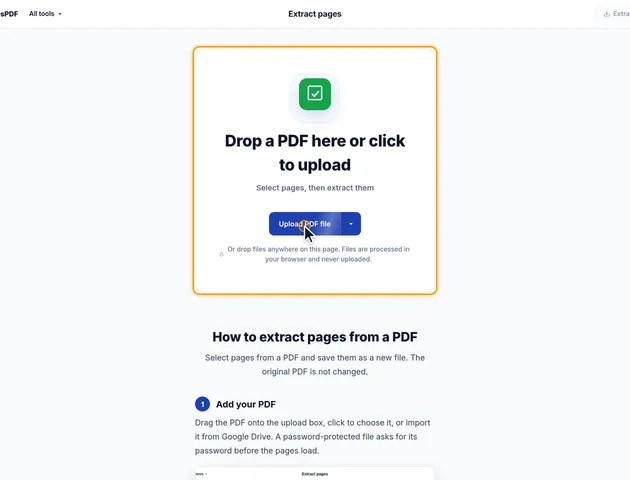
Click the page thumbnails to select them. Shift-click selects a range. You can also type ranges such as 1-3, 5, 8- and click Select, or use All, Odd, Even, Invert and Clear.
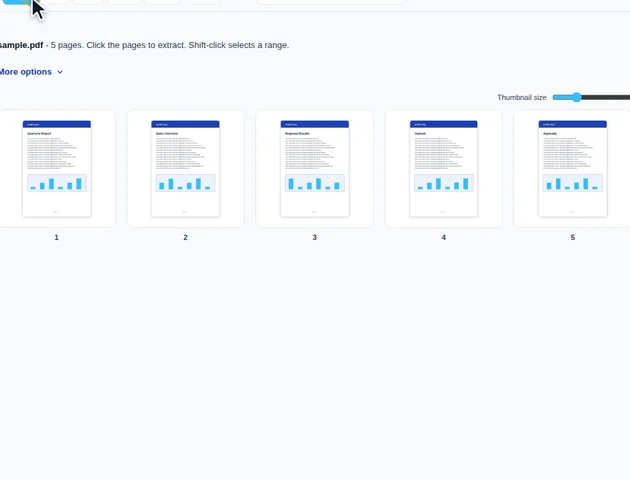
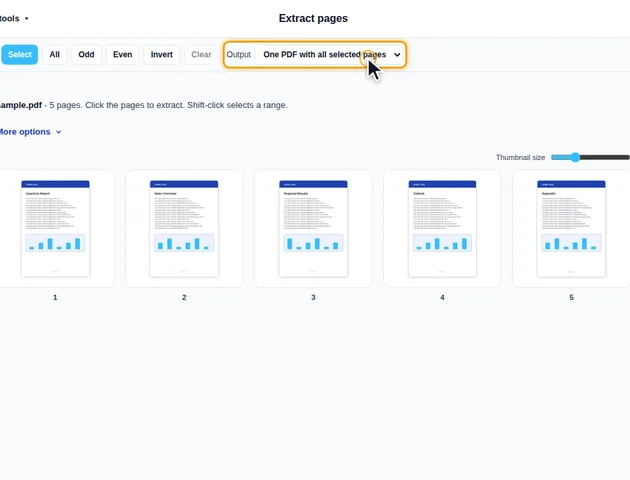
The Output menu has three choices: One PDF with all selected pages (the default), A separate PDF for each page, or A separate PDF for each range. Several files are downloaded together as a ZIP. More options has Discard bookmarks and a pattern for the output file names.
Click the Extract button in the header; it shows the number of selected pages. The results screen lets you preview each file, download, save to Google Drive, open a file in another tool, or delete the files.
The numbers you type count pages from the start of the file: 1 is the first page in the PDF, whatever is printed on it. Reports, books and court bundles often disagree with that. A cover, a contents page and ten pages of roman-numbered front matter push printed page 88 to somewhere around page 100 in the file.
Some PDFs also carry page labels, which make a reader's toolbar show "iv" or "A-3" instead of a plain count. Extract pages ignores those labels and goes by position. So when someone asks for "pages 88 to 93", find page 88 in the thumbnails first and check the position number under it. The labels aren't copied into the new file either, so its pages are numbered 1, 2, 3 in any reader.
The new PDF is built from scratch and the chosen pages are copied into it. Anything stored at the level of the whole document, rather than on a page, doesn't come along:
Copying a page copies all of its content, including parts you can't see. That catches people out in three ways:
None of this is a problem when you're sending a chapter to a colleague. It is when you're sending one page of a statement to a stranger. For that, remove the content properly with Redact PDF before or after extracting.
Most print dialogs can "Save as PDF" with a page range, and the result looks similar. The difference is how it's made. Printing redraws the pages through a print driver, so links usually stop working, comments and form fields are flattened or dropped, and text can come out differently depending on the app. Extracting copies the page objects unchanged, so the text, images and links are exactly what was in the original.
There is no fixed limit, because the file is processed in your browser rather than on a server.
Yes. It works in current browsers on phones and tablets.
No. The pages are extracted on your device, in the browser, and the file is never sent to a server.
