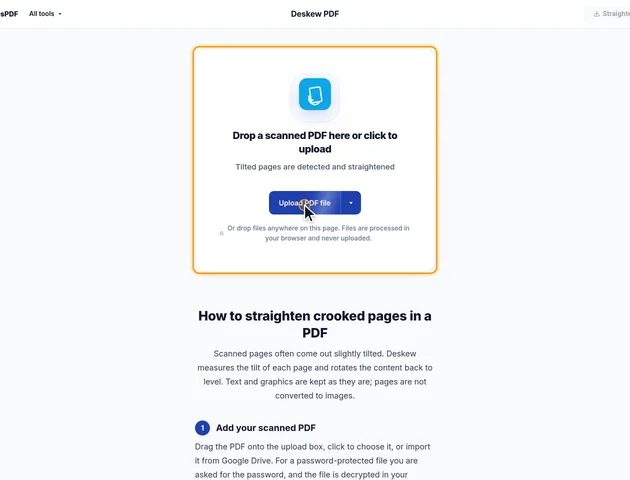
Drop a scanned PDF here or click to upload
Tilted pages are detected and straightened
Or drop files anywhere on this page. Files are processed in your browser and never uploaded.
Scanned pages often come out slightly tilted. Deskew measures the tilt of each page and rotates the content back to level. Text and graphics are kept as they are; pages are not converted to images.
Drag the PDF onto the upload box, click to choose it, or import it from Google Drive. For a password-protected file you are asked for the password, and the file is decrypted in your browser.
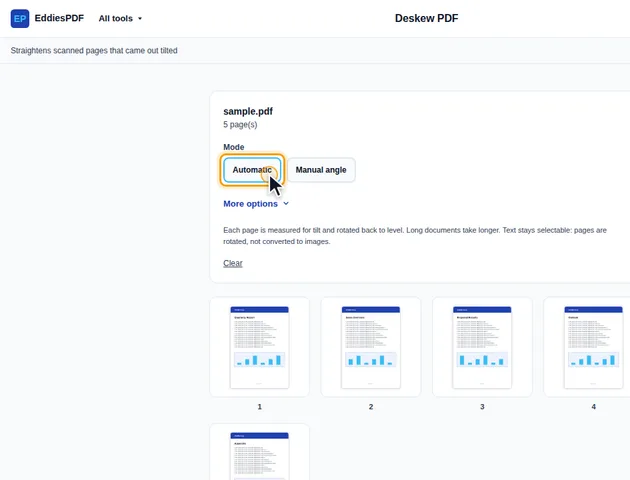
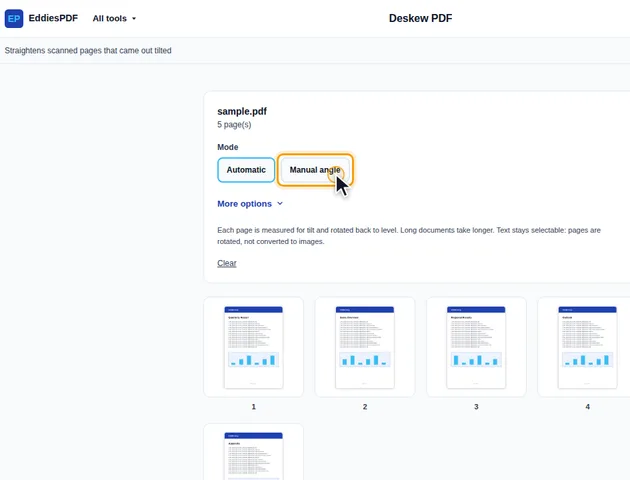
Under Mode, Automatic measures each page and corrects the tilt. Manual angle rotates the content by an angle you type, or by steps of 0.1, 0.5 or 1 degree with the buttons on either side. Under More options, Pages limits the change to a custom range, and "Only straighten strongly skewed pages" leaves pages with a slight tilt alone.
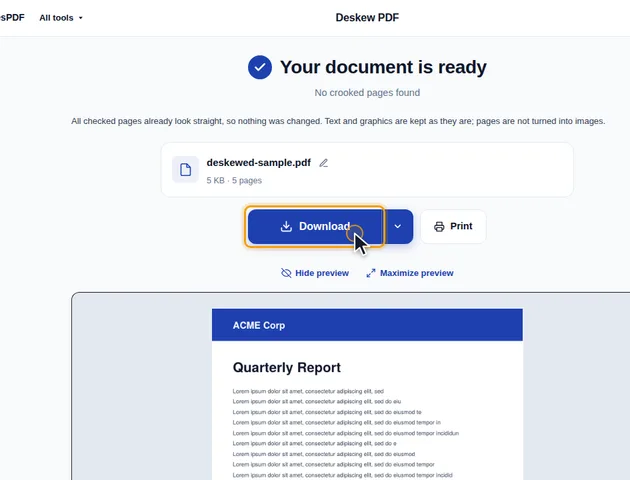
Click Straighten pages. The results screen lists the pages that were rotated and the angle for each. From there you can preview the file, download it, save it to Google Drive, open it in another tool, or delete the files.
In Manual angle mode, positive values rotate the content counter-clockwise and negative values clockwise, up to 45 degrees either way. Use it when automatic detection finds no text lines to measure, for example on photos or drawings.
OCR recognises level text more accurately, so deskew scans before making them searchable with OCR PDF. The "You might also need" list on the results screen opens the straightened file in the next tool.
Each straightened page is listed with its correction. A positive number means the content was turned counter-clockwise to level it, so the page was leaning clockwise. A negative number means the opposite. Automatic angles are rounded to hundredths of a degree.
The pattern across a batch is worth a look, because it says something about how the pages were scanned:
Deskew rotates the page's whole content as one piece. That includes anything earlier tools wrote into the page. The page numbers, headers, footers, watermarks and Bates numbers that EddiesPDF adds are drawn into the page content, and so is text typed in the editor. If you number a crooked scan and straighten it afterwards, the scan comes out level and the numbers come out crooked.
So straighten first, and add those afterwards with Page numbers, Header & footer, Watermark or Bates numbering. Doing it in that order also helps the measurement itself. A line of perfectly level text added to a tilted scan competes with the scan's own lines and can make the tilt harder to detect.
A merged document often has a few scanned pages among pages exported from Word or a web browser. You can run Automatic on the whole file. Digital pages are already level, so no angle measures better than leaving them alone, and they're reported as unchanged.
The cost is time, since every page in the range is rendered and measured in turn. If you know only pages 30 to 45 are scans in a 200-page file, a custom range of 30-45 finishes much sooner.
Landscape pages, and pages turned earlier with a rotate tool, are measured the way they appear on screen. The correction goes in the direction you see, whichever way the page is stored inside the file.
The rotation turns around the centre of the page's visible area. If the page was cropped before, the content hidden outside the crop turns with everything else, and near the corners a little of it can swing into view: a strip of scanner lid, or the edge of the facing page in a book scan. At one or two degrees that's only a thin wedge, but it's a good reason to run Crop PDF after deskewing rather than before. A crop set on a level page can also be tighter.
Manual angle works the same way on any page: it turns the content by the amount you type, on top of whatever rotation is already there. It never sets an absolute angle, so a page that was straightened once needs only the small remaining difference.
There is no fixed limit. The file is processed in your browser, so the practical limit is your device's memory.
Yes. It works in any modern browser, including on phones and tablets.
Yes. The PDF is processed in your browser and is not uploaded to a server.
