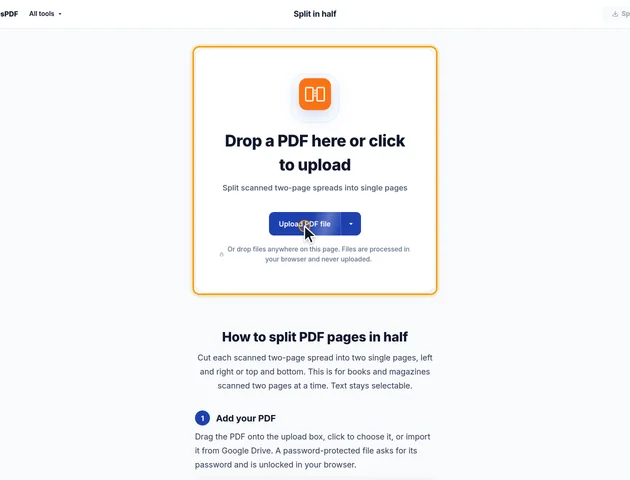
Drop a PDF here or click to upload
Split scanned two-page spreads into single pages
Or drop files anywhere on this page. Files are processed in your browser and never uploaded.
Cut each scanned two-page spread into two single pages, left and right or top and bottom. This is for books and magazines scanned two pages at a time. Text stays selectable.
Drag the PDF onto the upload box, click to choose it, or import it from Google Drive. A password-protected file asks for its password and is unlocked in your browser.
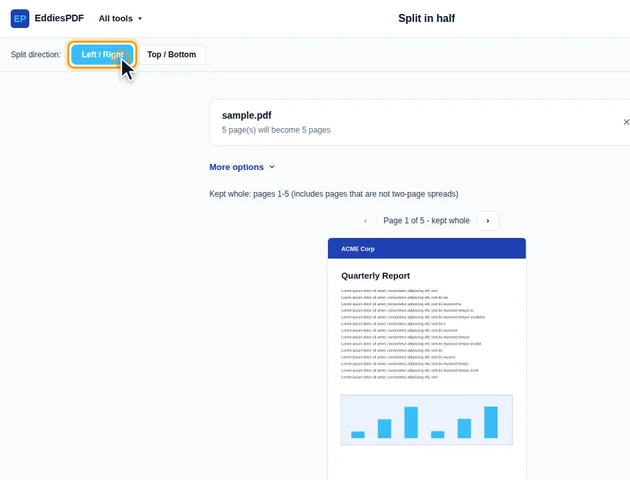
Next to Split direction, choose Left / Right for side-by-side spreads or Top / Bottom for pages stacked vertically. The preview shows the cut line. If the spread is off-center, drag on the page to move the line, and use the arrows to check other pages.
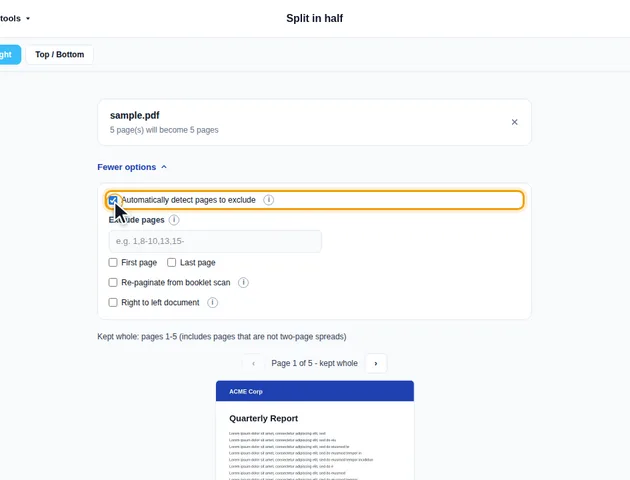
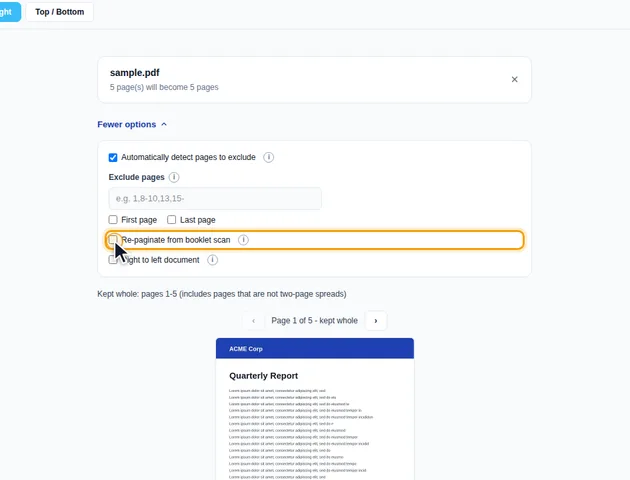
Open More options. "Automatically detect pages to exclude" leaves pages that are not spreads uncut, such as a cover scanned on its own. Tick First page or Last page to keep covers whole, or type page numbers such as 1,8-10,15- into Exclude pages.
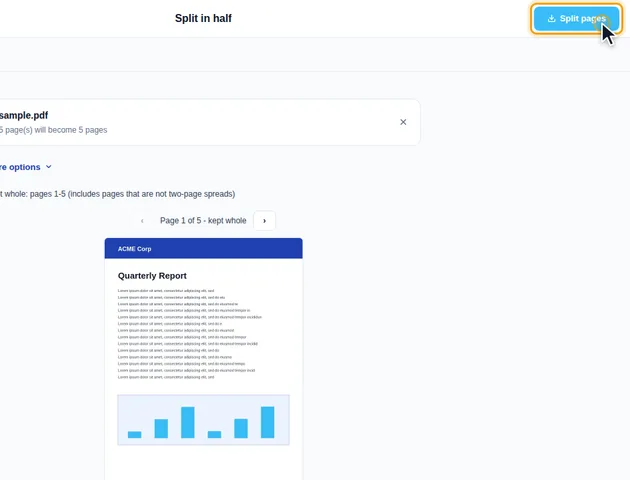
Click Split pages. The results screen lets you preview the new PDF, download it, save it to Google Drive, open it in another tool, or delete the files.
Also under More options: "Right to left document" puts the right half first, for Arabic, Hebrew and other right-to-left documents. For a folded booklet scanned sheet by sheet, "Re-paginate from booklet scan" puts the halves back into reading order. If the PDF has bookmarks, "Discard bookmarks" removes them.
Each half is a copy of the original page with a smaller visible area. Both copies point to the same content: the same scanned image, the same fonts, the same drawing instructions. Those resources are copied into the new file once, not once per half, so a 40 MB scan of a 200-page book comes out at roughly the same size, not 80 MB.
Each new page is exactly the size of its half. The tool sets the page's media box and crop box to that half and removes any bleed, trim and art boxes. A few common cases:
If you moved the cut line to 52% / 48%, the halves aren't the same width any more. On an A3 spread that's about 218 mm and 202 mm. Flatbed scans often include a strip of scanner lid too, so halves end up at odd sizes. If you want to print them on standard paper, put them on A4 or Letter with Resize PDF, or trim the excess first with Crop PDF.
Cutting a print-ready file is a different matter. Because the trim and bleed boxes are removed, a print shop's software will see each half as a plain page with no bleed information. Fine for a book scan, not for artwork you're sending to press.
Some scanners save a spread as a tall page with a rotation flag of 90 degrees, so it shows up wide on screen. The tool reads that flag and cuts along what you see, so Left / Right still means left and right as displayed.
"Automatically detect pages to exclude" uses the displayed shape too, with a small tolerance. A page has to be at least 5% wider than it is tall to count as a left/right spread (or 5% taller than wide for Top / Bottom). A nearly square scan, say 21 x 20.5 cm, is kept whole. If a spread shows up sideways on screen, auto-detect will leave it alone, and a manual cut would go across the wrong axis. Turn those pages the right way up in Rotate PDF first.
There is no fixed limit, because the file is processed in your browser rather than on a server.
Yes. It works in current browsers on phones and tablets.
No. The pages are split on your device, in the browser, and the file is never sent to a server.
