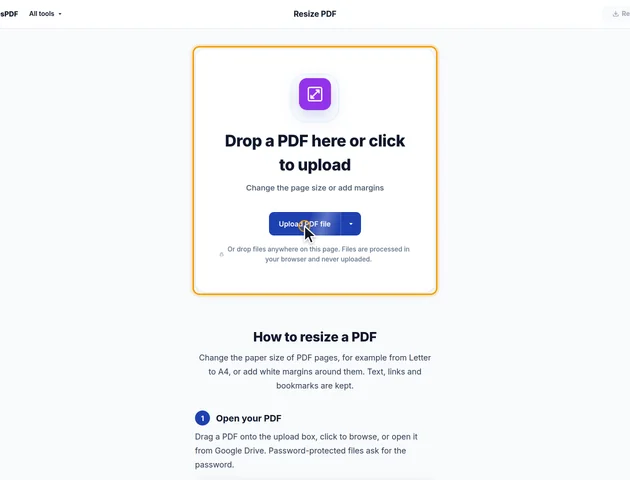
Drop a PDF here or click to upload
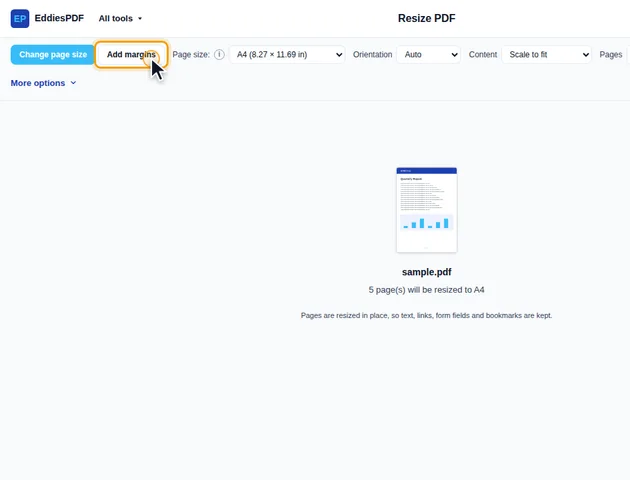
Change the page size or add margins
Or drop files anywhere on this page. Files are processed in your browser and never uploaded.
Change the paper size of PDF pages, for example from Letter to A4, or add white margins around them. Text, links and bookmarks are kept.
Drag a PDF onto the upload box, click to browse, or open it from Google Drive. Password-protected files ask for the password.
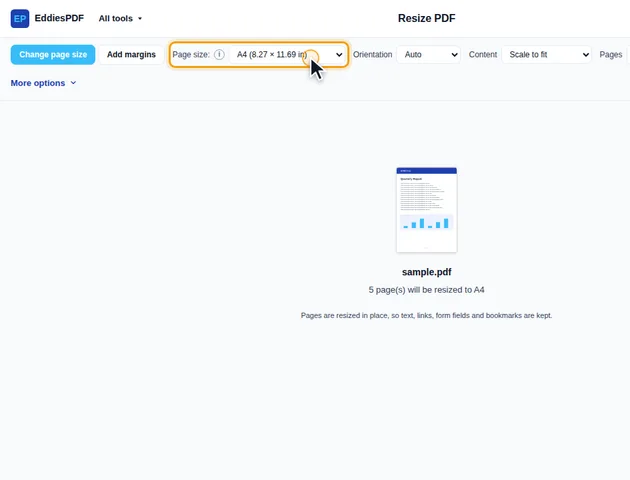
With Change page size selected, pick a size from Page size. A4 is the default; Letter, Legal, A0 to A6, B4, B5, Tabloid, Ledger and Executive are also listed. Choose Custom size to type a width and height in inch, cm, mm or pt.
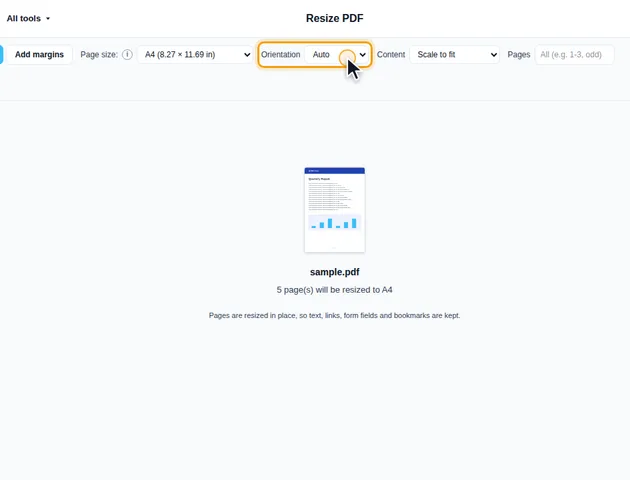
Orientation set to Auto keeps landscape pages landscape and portrait pages portrait; Portrait or Landscape turns every page. Under Content, Scale to fit enlarges or shrinks the content to the new size, and Keep size (center) leaves it unscaled. Type a range in Pages to resize only some pages. More options adds Page margins inside the new size.
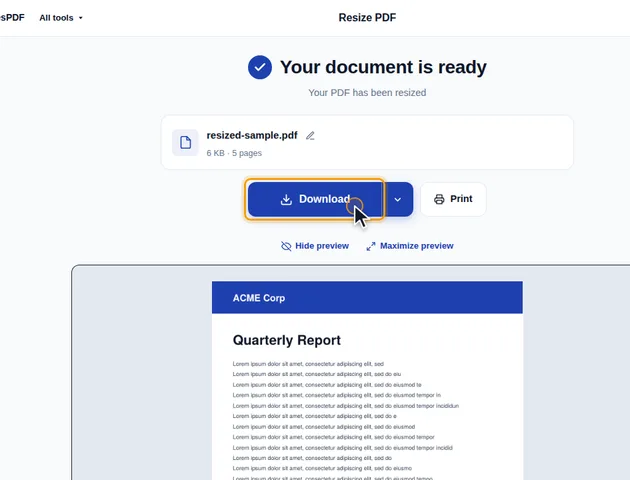
Click Resize PDF. The results screen lets you preview the resized pages, download the PDF, save it to Google Drive, open it in another tool, or delete the files.
Choose Add margins to keep each page as it is and add white space on the Top, Bottom, Left and Right, for example to leave room for binding or notes. The page grows by the margin and the content is not scaled. Each side defaults to 0.5 inch.
With "Scale to fit", the scale factor is the smaller of two ratios: new width divided by old width, and new height divided by old height. That one number tells you how big the text will be afterwards. A few common cases:
Anything below 6 or 7 pt gets hard to read on paper. If you're close to that, crop the original's white margins first with Crop PDF, since less empty space around the content means a bigger factor. Setting "Page margins" works the other way and makes the factor smaller.
Going up, A4 to A3 for example, multiplies everything by about 1.41. Text and vector drawings stay sharp at any size because they're redrawn from their outlines. Photos and scans don't get extra pixels, though. A scan that was 150 ppi on A4 is about 106 ppi on A3, and that softness shows in print. Resizing doesn't resample images in either direction, which is also why the file size hardly changes.
A PDF page can carry several rectangles: the media box (the full sheet), the crop box (the part viewers show), and the bleed, trim and art boxes that print shops use. Resize PDF works from the visible area and clips the content to it, so anything an earlier crop hid stays hidden. In "Add margins" mode, white strips are drawn over the hidden parts so they don't reappear in the new margin. That content is still in the file, though. If it's sensitive, remove it properly with Redact PDF.
"Change page size" sets the sheet and the visible area to the new size and deletes the bleed, trim and art boxes. For a file going to a commercial printer, that matters. Resize before the bleed is set up, or ask the printer which size they want the trim box to be.
Resize reads each page the way it's displayed, including any stored rotation. A portrait page saved sideways looks landscape, and with "Orientation" on "Auto" it gets a landscape sheet. Turn those pages upright with Rotate PDF first.
Add page numbers, headers and footers after resizing, not before. They're part of the page content, so resizing scales them along with everything else. Footer text that was 9 pt and half an inch from the edge would end up smaller and closer to the edge. Page numbers and Header & footer place their text relative to the final page, so run them last.
There is no fixed limit. Resizing runs on your device, so very large files depend on the memory available to your browser.
Yes. It runs in any modern browser, including on phones and tablets.
Your file stays on your device. It is resized in the browser and never uploaded.
