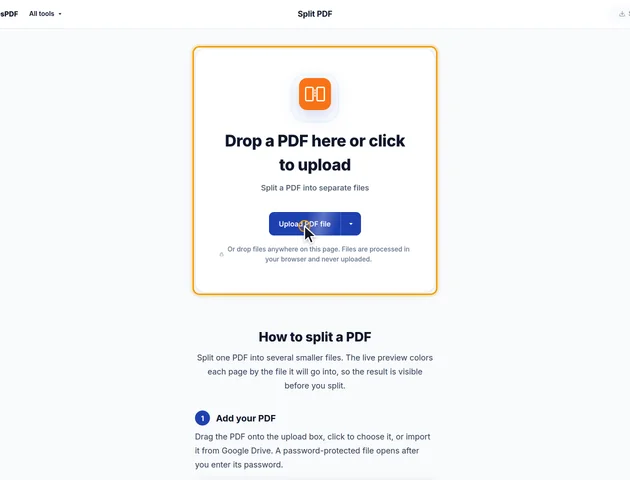
Drop a PDF here or click to upload
Split a PDF into separate files
Or drop files anywhere on this page. Files are processed in your browser and never uploaded.
Split one PDF into several smaller files. The live preview colors each page by the file it will go into, so the result is visible before you split.
Drag the PDF onto the upload box, click to choose it, or import it from Google Drive. A password-protected file opens after you enter its password.
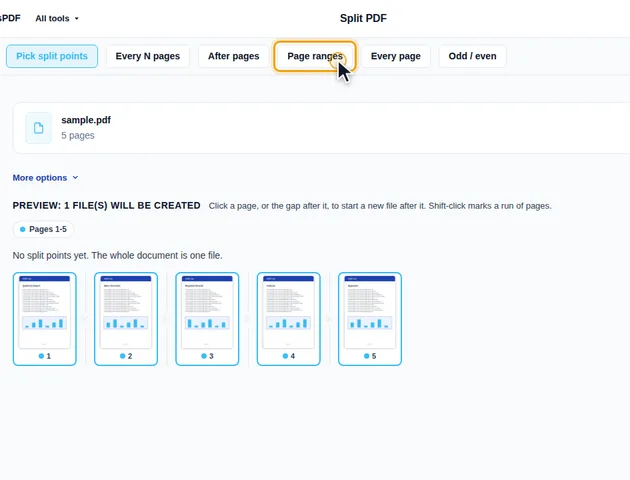
Next to Split mode, choose Pick split points, Every N pages, After pages, Page ranges, Every page or Odd / even. Modes that need a number show an input for it, such as Pages per file.
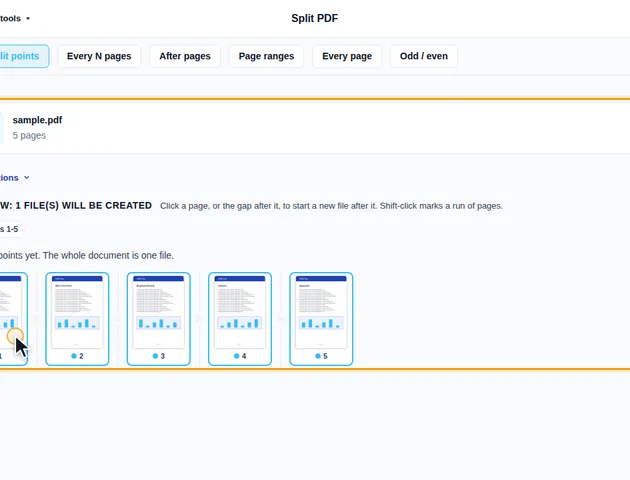
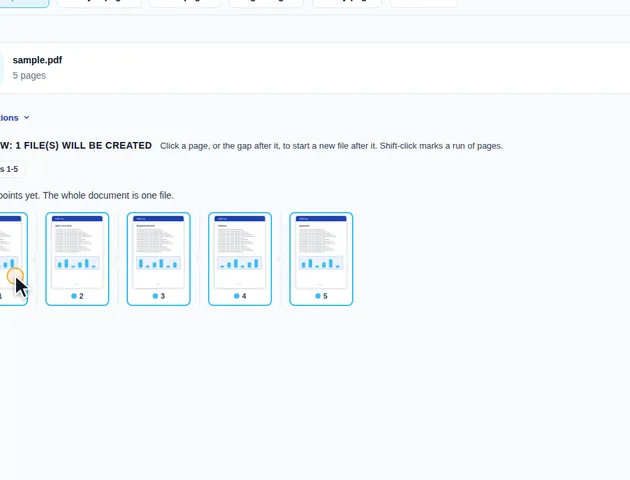
In Pick split points mode, click a page or the gap after it to start a new file after that page. Shift-click marks a run of pages. In the other modes, clicking between pages adjusts the split points by hand. The preview lists every file that will be created.
Click the split button in the header. Its label shows how many files will be created. Several files are downloaded together as a ZIP. The results screen lets you preview each file, download, save to Google Drive, open a file in another tool, or delete the files.
In Page ranges mode, type ranges such as 1-3, 5, 8-last. Each range becomes its own file. Tick Merge into one PDF to get a single file with only those pages. Pages not covered by any range are listed, with an Add them too button.
Open More options to set these. Bookmarks that point to pages in a file are kept in that file; tick Discard bookmarks to remove them. Output file names takes a pattern such as [BASENAME]-[CURRENTPAGE]. Undo and redo (Ctrl+Z and Ctrl+Y) step through your changes.
"After pages" is stricter. It only takes single page numbers, and it won't accept the last page, because there's nothing after it to put in a new file.
With "Merge into one PDF" ticked, the pages go in the order you typed them. They aren't sorted. 10-12, 1-3 gives a six-page file that starts with page 10, and 1, 1, 1 gives three copies of page 1. That makes the box a quick way to pull out a handful of pages and reorder them in one step. For anything fiddlier, Organize pages lets you drag thumbnails around instead.
With "Output file names" left empty, the parts get descriptive names such as report-pages-1-3.pdf or report-page-7.pdf. A pattern gives you more control, and a few variations are easy to miss:
If two parts would end up with the same name, the later one gets " (2)" added, so nothing inside the ZIP overwrites anything else. Characters that Windows or macOS won't allow in a file name, such as a colon or a question mark, are replaced with spaces.
Every part is built as a fresh PDF that contains only its own pages. Page content, page size, rotation and annotations such as comments and highlights travel with each page, and shared fonts and images are stored once per part.
Bookmarks are copied only when they point at a page inside that part. If a chapter bookmark points outside the part but some of its sub-bookmarks point inside, those sub-bookmarks move up a level instead of disappearing.
Things that belong to the whole document rather than to a page don't come along:
There is no fixed limit, because the file is processed in your browser rather than on a server.
Yes. It works in current browsers on phones and tablets.
No. The PDF is split on your device, in the browser, and is never sent to a server.
