Drop a PDF here or click to upload
Extract the text from a PDF
Or drop files anywhere on this page. Files are processed in your browser and never uploaded.
Copy all the text out of a PDF as plain text. Columns and tables are kept in reading order. Copy the result or download it as a .txt file.
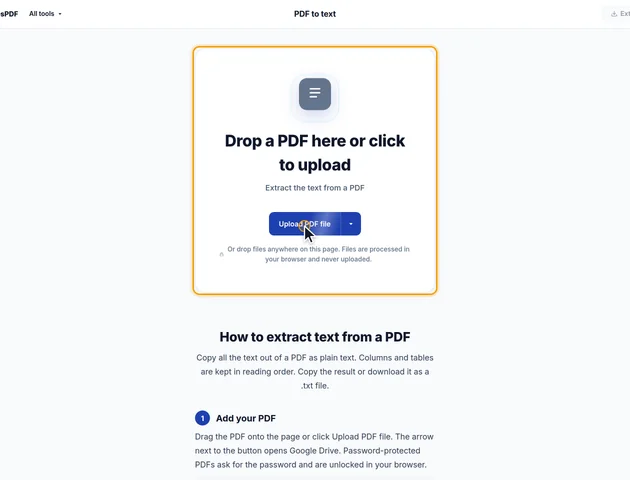
Drag the PDF onto the page or click Upload PDF file. The arrow next to the button opens Google Drive. Password-protected PDFs ask for the password and are unlocked in your browser.
Leave Pages empty to extract the whole document, or type a range such as 1-3, 5. Tick Add page separators to put a --- Page N --- line before each page. Under More options, Line breaks can keep lines as on the page or join them into paragraphs, and Line endings switches between Unix and macOS (LF) and Windows (CRLF).
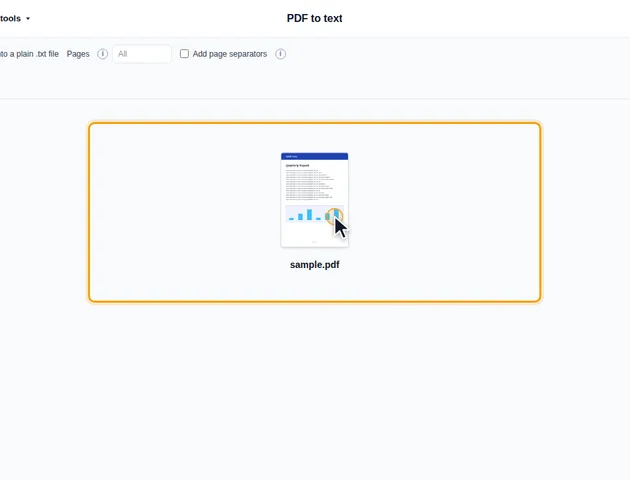
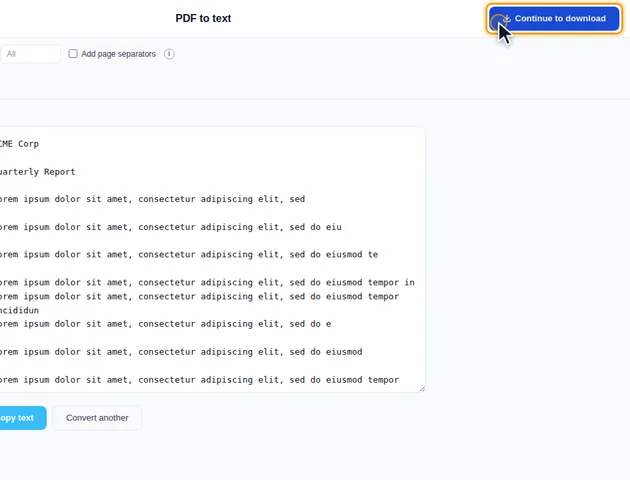
Click Extract text. The text appears in a box below. Copy text puts it on the clipboard.
Click Continue to download. The results screen shows a preview and lets you download the file, save it to Google Drive, open another tool, or delete the files.
This tool reads the text layer that is already in the PDF. A scanned page is a picture, so little or no text is found. Run the file through OCR PDF first, then extract the text.
The tool reads the text drawn as part of each page. Anything stored on top of the page as a separate object is left out, which covers more than you'd expect:
For a filled-in form, run it through Flatten PDF first. Flattening makes the field values part of the page, and then they extract like any other text. For words inside pictures, OCR PDF is the only way to get them.
The tool doesn't care whether text is visible.
An OCR text layer is drawn invisibly over the page image. That's why a PDF you've run through OCR PDF extracts normally here. The result is only as accurate as the OCR was, so a misread "l" or "1" in the OCR carries straight into your .txt file.
White text on a white background, or text sitting behind a picture, extracts as well. Some templates hide old placeholder text this way, and it turns up in the output with no obvious source.
Text under a black rectangle drawn in an editor is still there and still extracts. That makes this tool a quick test for a document someone tells you was redacted: if the hidden words show up in the .txt, the redaction didn't remove anything. Redact PDF is the tool that actually removes it.
Some programs fake bold text by printing the same word twice, very slightly offset. Copying from a reader then doubles every word. Here, when two identical pieces of text sit almost on top of each other, one is kept.
Characters that a PDF draws without saying what they are come through as control codes in most extractors. They're removed here. A lone one of those at the start of a line is almost always a list bullet, so it becomes a • instead.
If most of the text on a page runs sideways, such as a wide table turned 90 degrees to fit a portrait page, the page is read in that direction. The lines come out as normal horizontal text rather than one character per line.
The pages are always extracted in document order. Typing "9, 1-3" gives you pages 1, 2, 3 and 9, in that order, and a page listed twice is only extracted once. A range with no end, such as 8-, runs to the last page. To change the order, rearrange the pages with Organize pages first.
With page separators on, each marker uses the page's real number in the PDF. Extracting pages 40-45 gives markers from 40 to 45, so you can find a passage again in the original.
The box on the results screen shows only the first 5,000 characters. The downloaded file and the copy button always contain all of the text.
There is no fixed limit. Extraction runs on your device, so very large files depend on the memory available to your browser.
Yes. It runs in any modern browser, including on phones and tablets.
Your file stays on your device. The text is extracted in the browser and the PDF is never uploaded.
