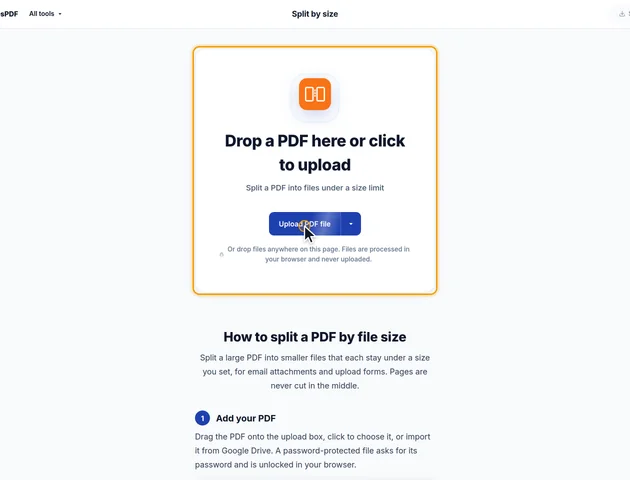
Drop a PDF here or click to upload
Split a PDF into files under a size limit
Or drop files anywhere on this page. Files are processed in your browser and never uploaded.
Split a large PDF into smaller files that each stay under a size you set, for email attachments and upload forms. Pages are never cut in the middle.
Drag the PDF onto the upload box, click to choose it, or import it from Google Drive. A password-protected file asks for its password and is unlocked in your browser.
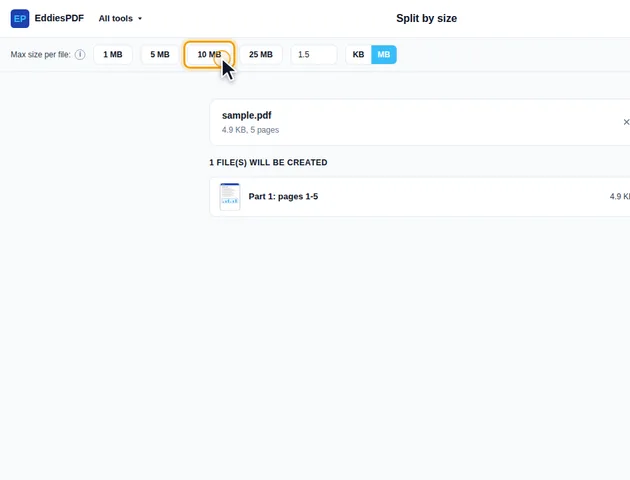
Next to "Max size per file", click a preset (1, 5, 10 or 25 MB), or type a number and choose KB or MB. The list below shows each part with its page range and actual size.
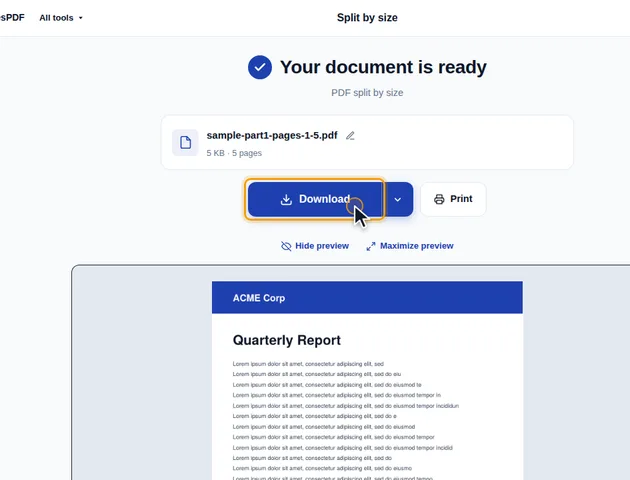
Click the Split into button in the header. The results screen lets you preview each part, download them all as a ZIP, save to Google Drive, open a part in another tool, or delete the files.
Splitting can't make a single page smaller. A page that is already over the limit gets its own file and is marked in orange. Compress that file afterwards if it needs to be smaller.
If the PDF has bookmarks, a "Keep bookmarks" checkbox appears. When ticked, each part keeps the bookmarks that point to its own pages.
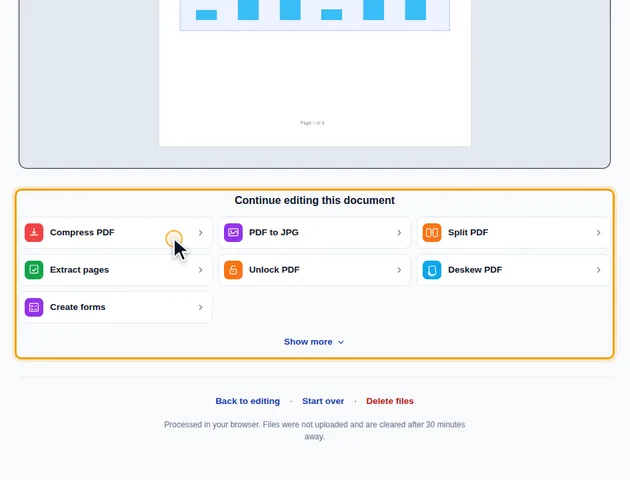
The results screen links to related tools and passes the selected part to them. For example, compress a part that is still too large.
The parts are filled in page order. The first part takes as many pages as it can without going over the limit, the second starts on the next page and does the same, and whatever is left becomes the last part. So a 23 MB file split at 10 MB tends to give two parts just under 10 MB and a third of around 3 MB.
That's fine for an upload form. It looks odd in an email thread, and it can matter when a portal wants parts of similar size. To even things out, pick the number of parts you want and divide the total by it, then add a little headroom. For three parts of that 23 MB file, try 8.5 MB rather than 7.7 MB. Each part needs its own copy of the fonts and images it uses, so the parts usually add up to a bit more than the original.
Every part opens on its own, with no need for the others. The pages inside are copied unchanged: same text, images, comments and web links, at the same quality. With "Keep bookmarks" ticked, each part also gets the bookmarks for its pages.
Some things belong to the document rather than to its pages, and those stay behind:
Parts are named with a part number and their page range, such as report-part2-pages-48-91.pdf. The part number isn't padded with a zero, so once you get past nine parts a plain alphabetical sort puts part10 before part2. Windows File Explorer, macOS Finder and the "Sort" button in Merge PDF sort by number and get it right, but some upload forms and email apps don't. With ten or more parts, check the order before you attach them, and say "part 3 of 12" in each message if you're sending them separately.
The person at the other end can join everything back into one file with Merge PDF. The page ranges in the names make it easy to spot a missing part.
To find each split point, the tool builds real trial files in memory and measures them. That's why the sizes it shows are exact, and also why a very large PDF takes a while, especially on a phone. Every change to the limit starts the calculation again after a short pause, so settle on a number before you start trying alternatives. If your browser struggles, close other tabs, or work on a computer. If most of the size comes from a few heavy pages, Compress PDF beforehand can cut the number of parts and the waiting time.
There is no fixed limit on the original PDF, because it is processed in your browser rather than on a server.
Yes. It works in current browsers on phones and tablets.
No. The PDF is split on your device, in the browser, and is never sent to a server.
