PDF A
Drop the first PDF here
This is PDF A
Or drop files anywhere on this page. Files are processed in your browser and never uploaded.
PDF B
Add the first PDF, then the second one here. More than two files can be mixed.
Build one document by taking pages from each PDF in turn: A, then B, then A again. This fixes scans where the front and back sides were saved as separate files.
Drop the first PDF into the PDF A box and the second into PDF B, or drag in several files at once. You can also click to choose files or import them from Google Drive. A password-protected file opens after you enter its password. Click + Add another PDF to mix in more files.
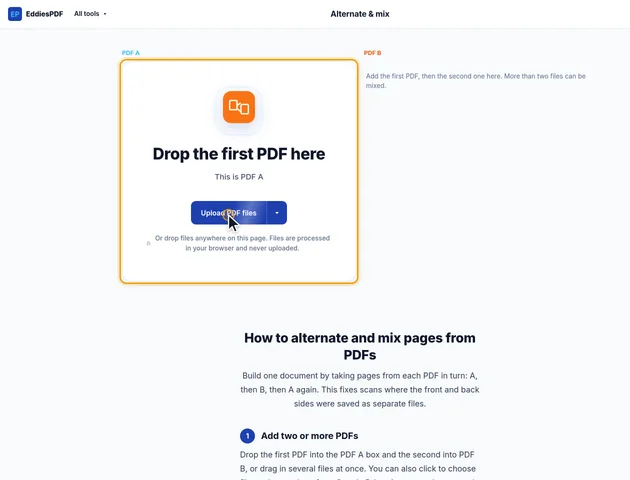
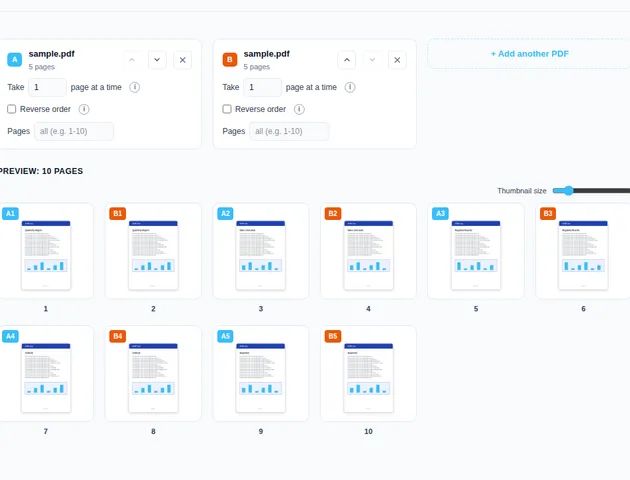
Each file card has Take (how many pages per turn), Reverse order, and a Pages box for using only part of the file. The up and down arrows change the file order. The live preview updates as you change settings.
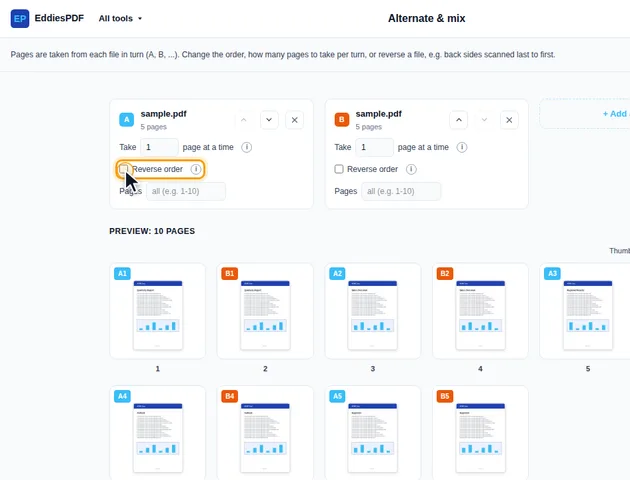
Click Mix PDFs. If one file is longer, its remaining pages are added at the end. The results screen lets you preview and download the file, save it to Google Drive, open it in another tool, or delete the files.
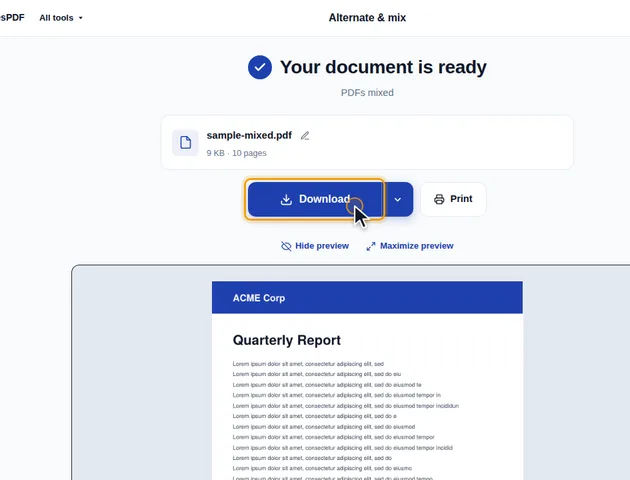
When a stack is scanned fronts first and then turned over for the backs, the back sides come out last to first. Tick Reverse order on that file to put them back in sequence.
The preview shows every page of the result in order, so a wrong setting is visible before you mix. Undo and redo step through your changes.
Mixing builds a brand new PDF and copies the selected pages into it one by one. Everything that belongs to a page comes along: its text, images and drawings, its page size and rotation, and the annotations attached to it, such as highlights, comments and web links.
What doesn't come along is anything that belongs to a whole document rather than to a page:
Each file's page list is settled first. The Pages box picks pages and their order, then Reverse order flips that list. So typing 5-8 and ticking Reverse order gives 8, 7, 6, 5. A page can be listed more than once, which is handy for repeating a separator sheet.
The tool then goes round the files in card order, taking each file's Take count every round. A round is as long as all the Take values added together. Say file A has 30 pages with Take 3, and file B has 10 pages with Take 1. Every round is four pages: three from A, one from B. The result has 40 pages, and B's seventh page sits at position 28, the end of round seven.
On long jobs, this tells you which preview thumbnail to check.
When a file runs out of pages, it's simply skipped in later rounds. The other files carry on with their own Take values.
With two files, that puts the longer file's leftover pages together at the end. With three or more, it's different. If A and B have 10 pages each and C has 3, the first three rounds go A, B, C. From page 4 on, A and B keep alternating with each other, and C is finished. Nothing is padded with blank pages, so if you need a page from C in every round, list C's pages in its Pages box enough times to cover all ten rounds.
There is no fixed limit, because the files are processed in your browser rather than on a server.
Yes. It works in current browsers on phones and tablets.
No. The pages are mixed on your device, in the browser, and the files are never sent to a server.
